What does a notch app do that a phone's cut-out can't?
On a phone, the shape around the camera shows what's going on and sends you into the app behind it. A notch app on a Mac does the first job too, but it is also a place where work gets done: it opens with a point rather than a touch, holds whole pages of tools, hands its results to the app you're in without taking your cursor, and turns up on displays that have no notch at all.
What do the two have in common?
The idea. A black cut-out at the top of the screen, where nothing used to be shown, becomes a place for what's happening right now. On the Dynamic Island® on iPhone that is a timer, a call or a song; touch and hold it to see more, or tap through to the app it belongs to.
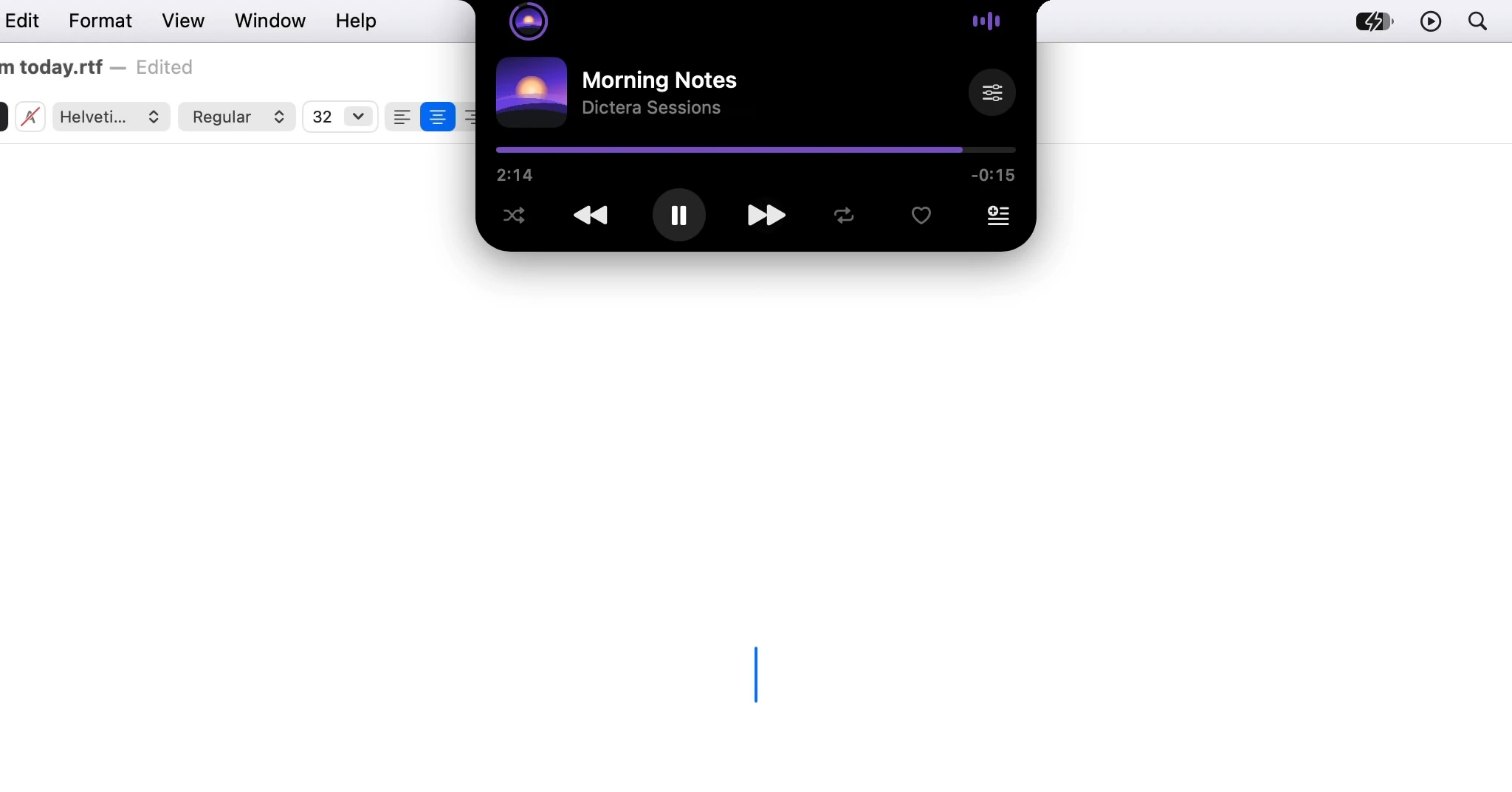
The notch in Dictera starts from the same place. Closed, it is just the camera housing. While something is going on - a song playing in Apple Music, a timer, a stopwatch, a dictation, a screen recording - a small strip wraps around the notch to show it, and goes once the thing has finished. Point at a song or a dictation on the strip, and its card drops out with the details and the controls.
That is where the resemblance ends. A phone and a Mac are used differently, and almost everything the notch does beyond showing status comes from that difference.
Why does a pointer change what the notch can be?
A thumb covers what it touches, and a phone screen is small enough that a status area has to stay a status area. A pointer covers nothing, can rest without pressing, and can tell a click from a hold. So the notch can respond to each of those.
- Point at it and it opens, after a tenth of a second. Move away and it closes.
- Click a tool and it does its job: a timer starts, a screenshot is taken, a dictation starts listening.
- Hold a tool and it offers more: how long the timer runs, which kind of screenshot, or Quick Controls for dictation.
If pointing feels too eager, turn off Hover to Open in Settings ▸ Notch ▸ Behavior and click the notch instead. And because a Mac has a keyboard, ⌥⌘I opens it from any app once you've allowed Accessibility. How do I open the notch? goes through all of them.
Why does it hold whole pages, not just a status line?
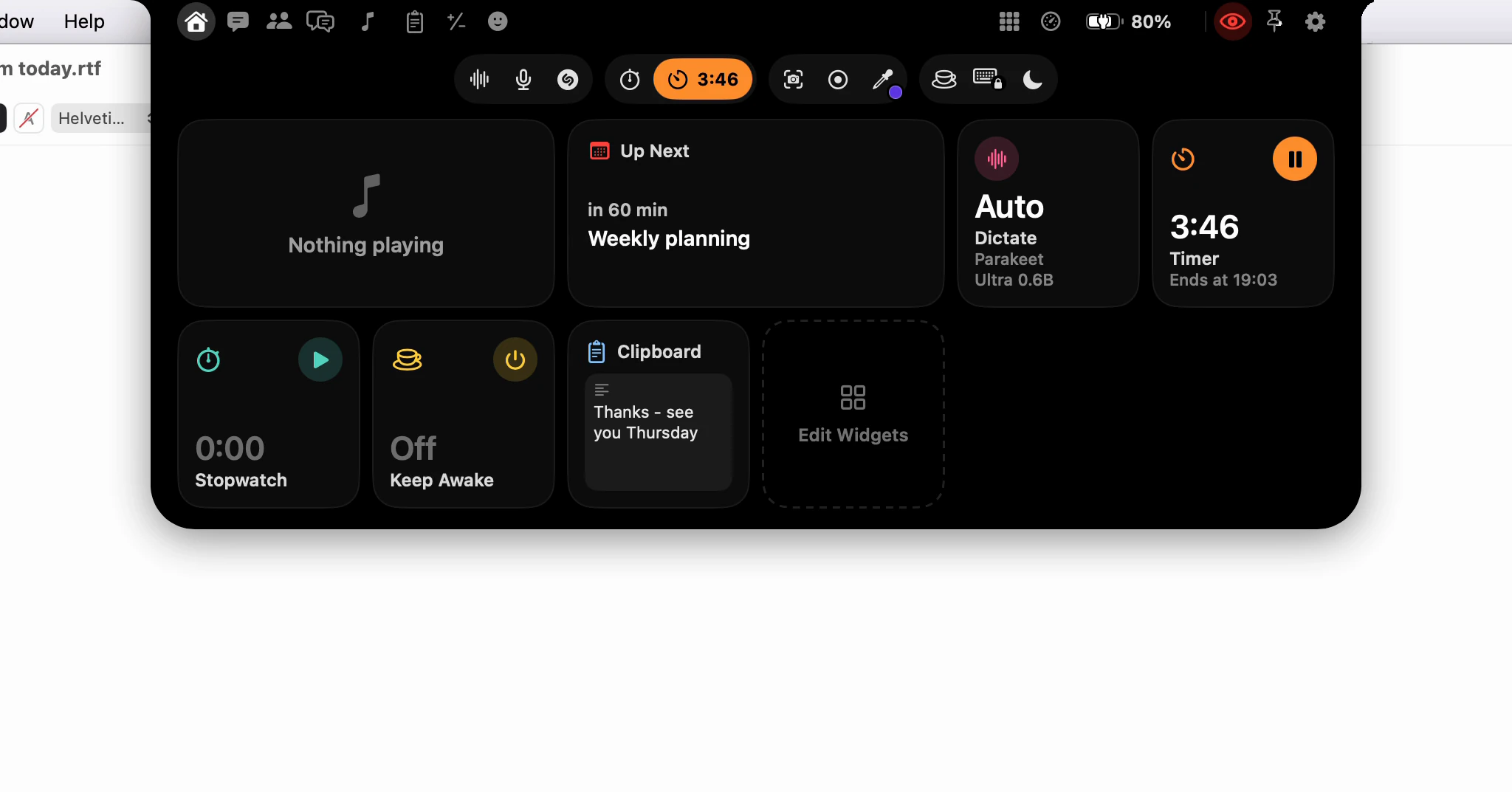
Because a Mac screen has the room, and the jobs it would save you are the small ones you'd otherwise open an app for. Open, the notch has page buttons either side of the camera, a row of tools beneath them, and the page you picked below that. Home is a set of widgets you arrange yourself; the other pages are Chat and Meetings, Music, Weather, Clipboard, Calculator, Emoji, Apps, System Monitor and Battery.
None of that is a view into another app's status. The clipboard history, the calculator and the emoji picker live in the notch itself. On a phone the cut-out points you somewhere; on a Mac the notch can be the place you meant to go. The map of every page and button lists them all, and the notch page has each tool in detail.
Why does it matter that the notch never takes focus?
On a phone, one app is in front at a time, and tapping the cut-out takes you into another one. That's fine when you want to go there. On a Mac you're usually in the middle of something - a sentence in an email, a cell in a spreadsheet - and the useful thing is to get help without leaving it.
So the notch is built to never become the active window. Click it, use it, and your cursor is still where you left it. That one rule is what lets the tools hand their results straight to your work:
- Click Dictate, speak, click again, and the words are typed at your cursor.
- Pick an emoji, a clip from the Clipboard page or a Calculator result, and it goes into the app you were typing in.
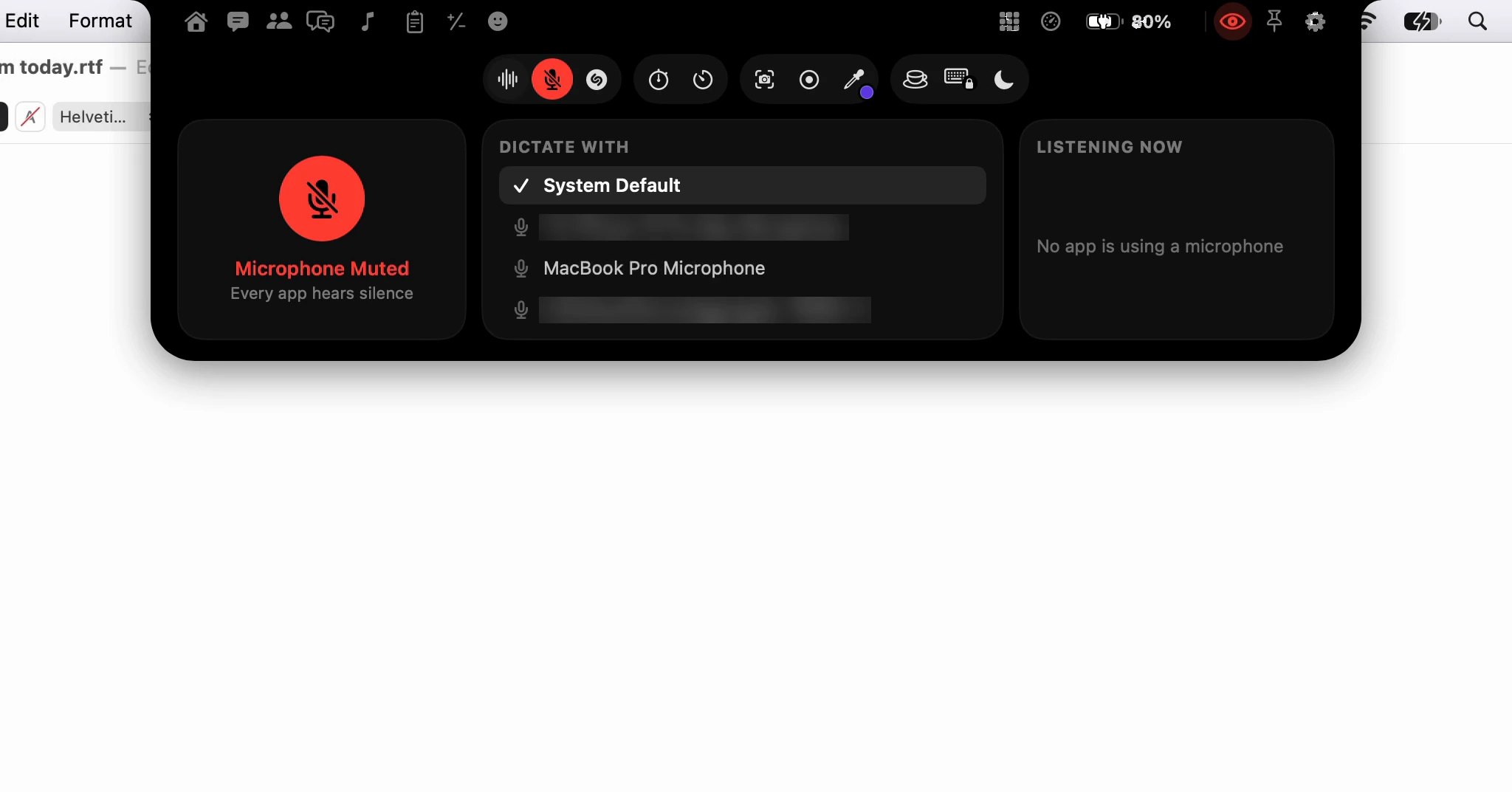
Dictation is the clearest case. Anything you click to start it could move the keyboard focus out of the field you meant to fill, and then the words land somewhere else. Starting from the notch avoids that, which is why Dictate is the first tool in the row. What is a notch app, and why put dictation in one? covers that side, and the dictation page the rest.
Can I drag things out of it?
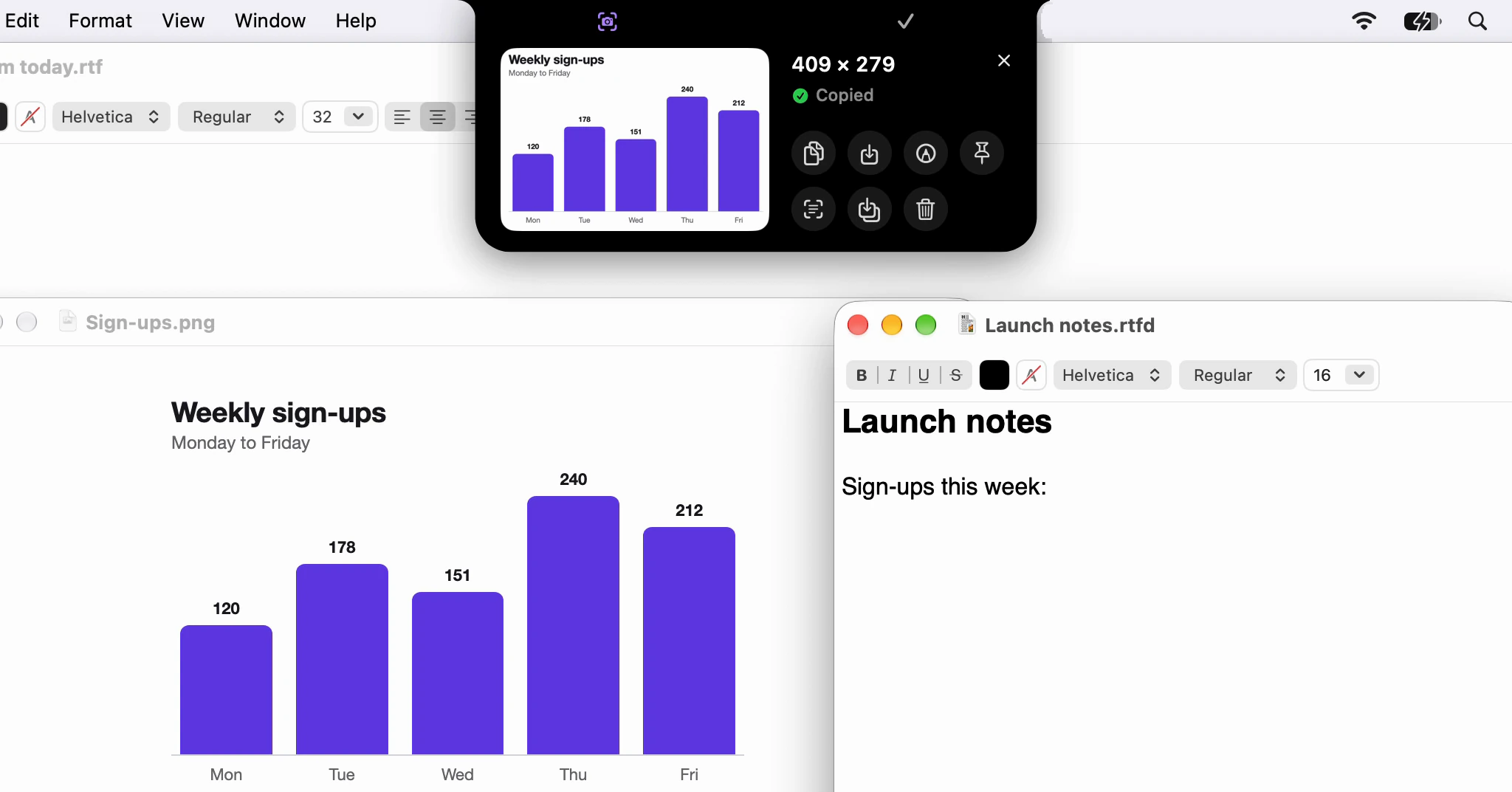
Yes, and on a Mac that turns out to be the quickest way to use a capture. Take a screenshot from the notch and it drops out as a card: drag it straight into an email, a chat or a document, or mark it up first. A screen recording does the same, and so does an item in the clipboard history.
There's no saving to a folder and finding the file again, and no switching to another app to share it. The drag goes from the notch to wherever you drop it.
What happens on a screen with no notch?
A phone has one screen, and the cut-out is part of it. A Mac may have an external display with no camera at all, or no notch even on the built-in one. A notch app has to make sense on all of them.
On a display without a notch, Dictera draws a stand-in at the top of the screen. If your Mac has a notch, the stand-in copies its size, so the two match. It shows the same strip and opens the same way, and the notch opens on whichever display you're working on, following you from one to the next.
If you'd rather keep the whole menu bar in view, Settings ▸ Notch ▸ Appearance ▸ Shape has a second choice: Pill, which floats just below the menu bar and draws no stand-in. Either way, what you need is a Mac with Apple silicon and macOS 26 or later - the notch itself is optional.
What about screen sharing?
A phone screen is rarely shared. A Mac screen is shared in calls every day, and the top of it is where the notch sits. So the notch has a setting a phone's cut-out never needed: the eye, at the end of the row of page buttons.
The notch and the AI Assistant panel are hidden from screen sharing by default. Click the eye and a share can see them; click again to hide them. Chat and Meetings stay out of screen sharing and recordings by apps that respect the window privacy setting in macOS, whatever the eye is set to, and the notch stays out of them while it asks about a meeting or the assistant is listening.
Whole-screen screenshots and screen recordings you take with Dictera leave the notch out as well, so a capture shows your work and not the tool that took it.
Does it give anything up?
A little. The strip has room for one thing, so when several are going on it shows the most pressing - a locked keyboard ahead of a timer that has rung, a running stopwatch ahead of a song - and the others wait until it's free. And a full-screen app is a place you may want left alone. Show Over Full-Screen Apps is on at first; turn it off in Settings ▸ Notch ▸ Behavior, and pointing at the top of the screen leaves a full-screen video, game or presentation in peace, while ⌥⌘I still opens the notch.
What the notch won't do is disappear. It is where Dictera is used, so it has no off switch, but how it opens and what it shows are yours to change. Will the notch get in the way? goes through each setting.
So which is it: a status area or a toolbox?
Both, in that order. Closed, the notch behaves much like the shape around a phone camera: quiet when nothing is happening, a strip when something is. Open, it behaves like a Mac: a pointer to aim with, a keyboard to call it with, more than one display to follow, an app in front that it leaves alone, and a screen share it stays out of. The comparison holds for the first half, and the second half is the reason for having it on a Mac at all.