
Get help on any call.
Answers while you talk in the Assist panel, the meeting written up on the notch's Meetings page, and a private Chat one double-tap away. Dictera hears both sides through macOS itself - no bot joins your call, there's no account, and with the built-in model the conversation stays on your Mac.
Included with every plan · Free 14-day trial · macOS 26 or later
It starts from the notch
The AI Assistant button sits in the notch's top row, beside the Chat and Meetings pages - the three things the assistant does, side by side.
Click or hold
Click the AI Assistant button to show or hide the Assist panel. Hold it to start Assist or Meeting Notes listening. From any app, ⌥⌘H shows or hides the panel.
You always know it's listening
While it listens, the button turns cyan with a red dot, and the notch shows for how long. Point at it to mute your side, open what's listening, or stop.
A countdown before each meeting
Connect your calendar and the notch counts down the last five minutes before a meeting, with Join and Record a point away. See Calendar.
Assist - answers while you're still talking
The Assist panel sits over your call and transcribes both sides live. Press Answer for a suggested reply to the last question, or switch on Auto and one appears whenever the other person asks. Auto is off until you turn it on.
Answer one specific line
Point at any line in the transcript and answer exactly that - either speaker, however far back it was said.
One-press rewrites
Make an answer Shorter or Simpler, or ask for More detail or an Example - one click instead of retyping the question.
Answer without leaving the call
Switch on the Answer shortcut, ⌥⌘A, and Start or Stop Listening, ⌥⌘L, in Settings ▸ Shortcut, and both work from any app. They're off until you do.
Templates for the situation
Save the scenario, who you are and any background - for interviews, sales calls or standups - and pick it in the panel's Session details.
Ask about what's on screen
Capture a whole display or just the window in front, always excluding Dictera's own windows, and send it with your next question. One window spends the same pixel budget on a tenth of the area - the difference between a model that can read your stack trace and one that can see there is text there. Needs a remote model that can read images.
Diagrams and tables
An answer that's easier shown than told - how a process flows, how the parts of a system connect - can come with a diagram, drawn on your Mac. Click it to see it full size. A table comes as a table, not as rows of pipe characters.
The Assist panel itself
It has to sit on top of a video call without becoming part of it. Everything about it is adjustable, and none of it uses tabs or menus - the choices are cards inside the panel.
15 editable panel keys
Grouped as Actions, Navigation and Display, with Restore Panel Defaults - so nothing clashes with your meeting app. They work on the notch's Meetings page too.
Resize it, or take a column away
Drag any edge, or the dividers between the session list, the conversation and the answer. Hide the conversation entirely (⌥⌘T) and a long answer gets the whole window. The size and the spot you left it in come back next launch, and Reset panel layout undoes all of it.
Compact mode
A smaller panel for a crowded screen, adjustable opacity, and answer text you can size up or down. It keeps its own size, so widening the panel to read a long answer doesn't follow you onto the next call.
Meeting Notes - the write-up, without a bot
Same capture, different result, on the notch's Meetings page. Record, then stop, and Dictera writes the call up: summary, decisions, action items, open questions. Nothing joins your call, and with the built-in model the notes are written on your Mac.
The day, on one page
The day's meetings on the left - from your calendar, plus any recording none of them names - stepped a day at a time, with Meeting History for every one before. The meeting you pick has its Notes, Transcript and Setup on the right, and Join and Record when it's about to start.
Four levels of detail
Notes, full minutes, a cleaned-up transcript in the language it was spoken, or chapters - a timeline of what was discussed when. The button above the notes writes whichever this meeting is set to, and so does stopping; Other write-ups has the rest.
Action items with owners
Name the participants - or let the calendar invite name them - and an item can say who owns it, with "Unassigned" where the meeting never established who, rather than a guess.
Record from any app
Switch on Record a Meeting, ⌥⇧⌘R, in Settings ▸ Shortcut. Press it to record a meeting nobody scheduled, and again to stop and write it up.
Chat - a private model, one double-tap away
Chat is a page of the notch: a typed conversation with whichever model you've picked for it, including the one built into Dictera. It doesn't listen to anything, and there's no browser tab and no account.
Ask from anywhere
Double-tap the right ⇧ and the notch opens on Chat with the cursor in the field. Type the question or dictate it, press Return, and the answer appears under it, in the conversation you had going. A call the assistant is recording carries on untouched.
New Chat, and the ones before
New Chat starts fresh. Chat History keeps the earlier conversations, grouped by day and searchable right through every question and answer.
Nothing is listening
Chat never listens to a call. The microphone opens only if you dictate your question.
Follows the language you type in
Unlike the listening modes, Chat answers in whatever language you write.
Its own engine
Pick Chat's model under "Chat in the notch" in Settings ▸ AI Assistant - the built-in model, a local server or a cloud provider, independently of Assist and Meeting Notes.
Pictures work here too
Capture the screen or the window in front, or paste an image you already have with ⌘V - up to four per question - and ask about what's in them, with a model that can read images.
Diagrams and tables
When a picture explains it better - how something flows, how the parts fit together - the answer comes with a diagram, drawn on your Mac. Click it to see it full size and zoom in, or copy it as a picture or as its code. A table comes as a table.
A long chat, a question at a time
⌥⌘↑ and ⌥⌘↓, or the arrows at the top, go from one question to the next, and a button brings back the latest message. Chat opens where you left off reading, and code in an answer has a Copy button of its own.
Calendar - it already knows which meeting this is
Connect your calendar and a recording arrives knowing what it belongs to and who was invited. Everything is read from the accounts already set up in Calendar - iCloud, Google, Outlook, Exchange - so there is no second sign-in. Dictera never writes to your calendar, and the reading happens on your Mac.
Optional, from the first run
The welcome tour offers Calendar as an optional permission, and granting it connects your calendar. Skip it and nothing is read until you switch on "Connect my calendar" in Settings ▸ Calendar, or press Connect Calendar on the Meetings page. You choose which calendars count.
Five minutes out, on the notch
For the last five minutes before a meeting, the notch counts down to it. Point at it to join the call, if the invite has a link, or to record it.
Then it asks - and silence records nothing
Shortly before the start, a card drops out of the notch: Record now or Skip, and Join when the invite has a call link. If you don't answer, nothing is recorded. Want a meeting recorded without being asked? Set it, or every meeting, to Record automatically - Dictera shows you when it has started.
Nothing starts without showing you
If the question can't be put on screen, nothing records. There is no path where Dictera begins listening to a meeting without showing you first.
It learns one meeting at a time
Skip the same weekly twice and Dictera stops asking about that one. Say yes to it three times and it offers to make that series automatic; it never decides for you, and a countdown you didn't answer counts as neither a yes nor a no. When meetings record automatically, stopping one within 30 seconds twice in a row means Dictera won't record that one by itself any more.
Attendees fill themselves in
The invitee list becomes the participant names Meeting Notes needs to put owners on action items. Email addresses are never stored, and the names reach only models on your Mac unless you switch on "Send attendee names to remote engines".
And a countdown when it ends
A recording that outlives its meeting gets a minute and a Keep recording button; otherwise it stops and writes the meeting up on the way out. A recording with nothing scheduled behind it is asked about after an hour by default - whether or not you ever connected a calendar.

How it hears the room
Two audio streams, transcribed separately and merged into one two-speaker transcript - you on one side, everyone else on the other.
No Screen Recording permission
The other participants are captured with a Core Audio process tap, so a meeting needs only microphone and audio-recording access - and the call keeps playing normally.
One click mutes you
Assist and Meeting Notes start with your microphone on, so your own voice is in the transcript from the first word. Turn Mic off whenever you'd rather not be in it - in the panel, on the Meetings page, or from the notch while it listens.
Speaker echo, cancelled
On loudspeakers the other side would be transcribed twice - once from the call, once as room echo. Dictera pauses the mic while they're audible, and you don't need it on headphones.
Both at once, one call
Start Meeting Notes while Assist is already listening and the same call is transcribed into both, each in its own session - live suggestions in the panel, the write-up on the Meetings page.
Pick the device you actually hear on
Capture the participants from your AirPods, or leave it on System Default to follow whatever the output is.
Each mode picks its own model
Something fast and local for live suggestions; something larger for the end-of-meeting write-up. Assist, Meeting Notes and Chat choose independently.
Built in, no setup
Gemma 4 runs on your Mac and covers 140+ languages. It's the default for all three, with nothing to configure and nothing sent anywhere.
Or your own
Six local servers (Ollama, LM Studio, llama.cpp server, Jan, vLLM, LocalAI) and seven cloud providers (OpenAI, OpenRouter, Groq, Mistral, DeepSeek, Together AI, xAI) are preset. Keys live in the macOS Keychain. What an engine you connect receives.
Claude Code CLI
The Claude Code command-line tool already installed on your Mac - not a Claude model over an API. Point it at a project folder and the assistant can talk about your actual code. Claude can read and search that folder but never change your files, and it can also search and open web pages. Your conversation and the files it reads go to Anthropic, or wherever your Claude Code settings send them.
Connector tools, one at a time
MCP connectors reach nothing until you allow their tools one by one, or choose "All read-only tools". A Jira connector exposes "create ticket" next to "search issues", and what Claude hears on a call is untrusted input.
Sessions and series
Everything the assistant produces stays on your Mac - and the meetings you record are mostly the same handful, repeating, so they're organized as sets rather than as a list that only grows.
Searchable, wherever you are
The Assist panel's session list, Meeting History on the Meetings page and Chat History each search their own sessions, titled automatically. In the panel's list and in Meeting History, rename one in place without opening it. Reopening a saved session never stops a recording that's still running.
Filed by the meeting it repeats
Daily, Refinement, Customer interviews - file a session under its series and a year of them stays findable as one set. Filter by series, rename and recolor them, and let a template or a meeting's Recurring series field file new ones for you. Dictera may suggest a series, but nothing is filed under one you didn't choose.
What a series still owes
Every open action item across every meeting in a series, in one list, in Settings ▸ History. It reads back notes you already have - no model runs, so it's instant and can't invent a commitment nobody made. Where some meetings couldn't be read, it says so rather than quietly showing a short list.
Search marks what it matched
The lists, the transcripts, the answers and your templates all paint the characters your search found. It matches the way Finder does, so "resume" finds "résumé" and "OKR" finds "okr" - which matters when you're searching speech in ten languages you didn't type the accents for.
Tidy several at once
Select a batch of sessions to file them under a series or delete them in one go, with Undo, instead of one at a time.
Kept as long as you choose
Keep sessions for 30 days, 90 days, a year, or forever - the default - in Settings ▸ History, counted from the last time a session was used. An expired session goes with its screenshots, never while it's open or recording.
Or keep nothing
Transcripts, notes and screenshots live in your Application Support folder and are deleted with the session - or switch off Save Assistant Sessions and nothing is written at all.
Your notes and chats stay out of your screen share
The assistant is used over the very call it listens to, so what you see on it is yours, not the room's.
Chat and Meetings, never
The Chat and Meetings pages are drawn in windows that macOS keeps out of screen sharing - always, whatever the eye is set to. A share sees at most an empty frame where they are.
The notch and the panel follow the eye
The notch and the Assist panel are hidden from screen sharing by default. The eye in the notch is the one switch for both: click it to let a share see them, click again to hide them.
Meetings keep the notch private
While the notch asks about a meeting or the AI Assistant is listening, it keeps out of screen shares and recordings, even when you've let them see Dictera.
Kept out of screen sharing and recordings by apps that respect the window privacy setting in macOS. See acceptable use.
What it doesn't do.
Two channels means two labels - Dictera doesn't tell individual voices apart, so named attribution comes from the participant list plus whatever the meeting says out loud. Notes are written when you stop recording or ask for them, not live. Each listening mode runs in one language you choose rather than detecting it. No audio is ever stored, so timestamps point at a moment, not a recording. And connecting your calendar never puts a bot in a meeting and never writes to your calendar - a meeting is recorded when you say so, or when you've set it to record automatically.
From the blog
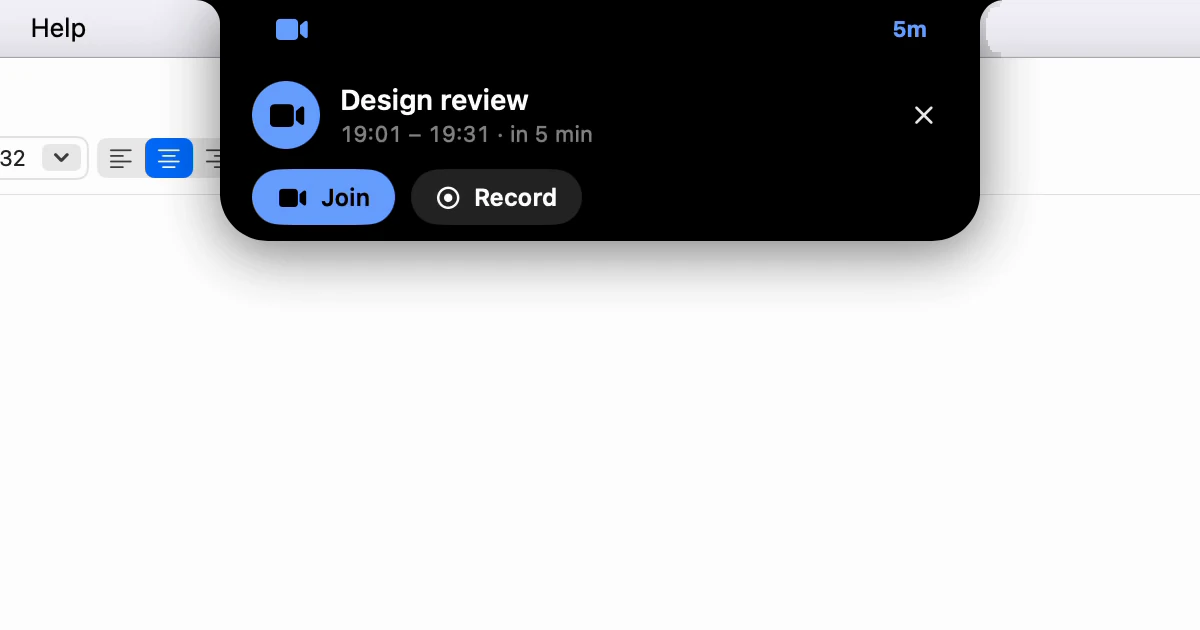
How does the notch count me down to my next meeting?
Five minutes out, the notch counts down to your next meeting with Join and Record a point away, then asks whether to record it. Silence records nothing.
· 3 min read
Your own model for meetings: when a local server wins
The built-in model writes up a short call well. A long one, or one you need in a hurry, can go to a model you run yourself, still on your Mac or your network.
· 7 min read
Chat that stays on your Mac: when it beats a web assistant
A web assistant is bigger and knows the news. A chat on your Mac keeps the conversation off anyone's server. When each is the right one, and how to use both.
· 8 min read
Included with every plan.
The AI Assistant isn't an add-on. The 14-day trial unlocks everything - the notch, dictation and the AI Assistant - and one subscription keeps all of it. If it ends, your saved sessions stay on your Mac.