
Everyday Mac tools at the top of your screen
Everything in the notch
Home's widgets and 25 everyday tools, a point away at the top of your screen. Here's every page and tool, what a click and a hold do, what each one needs, and how it works on a Mac without a notch.

Free for 14 days, everything unlocked · No account · Requires a Mac with Apple silicon and macOS 26 or later · Works without a notch
What's in the open notch
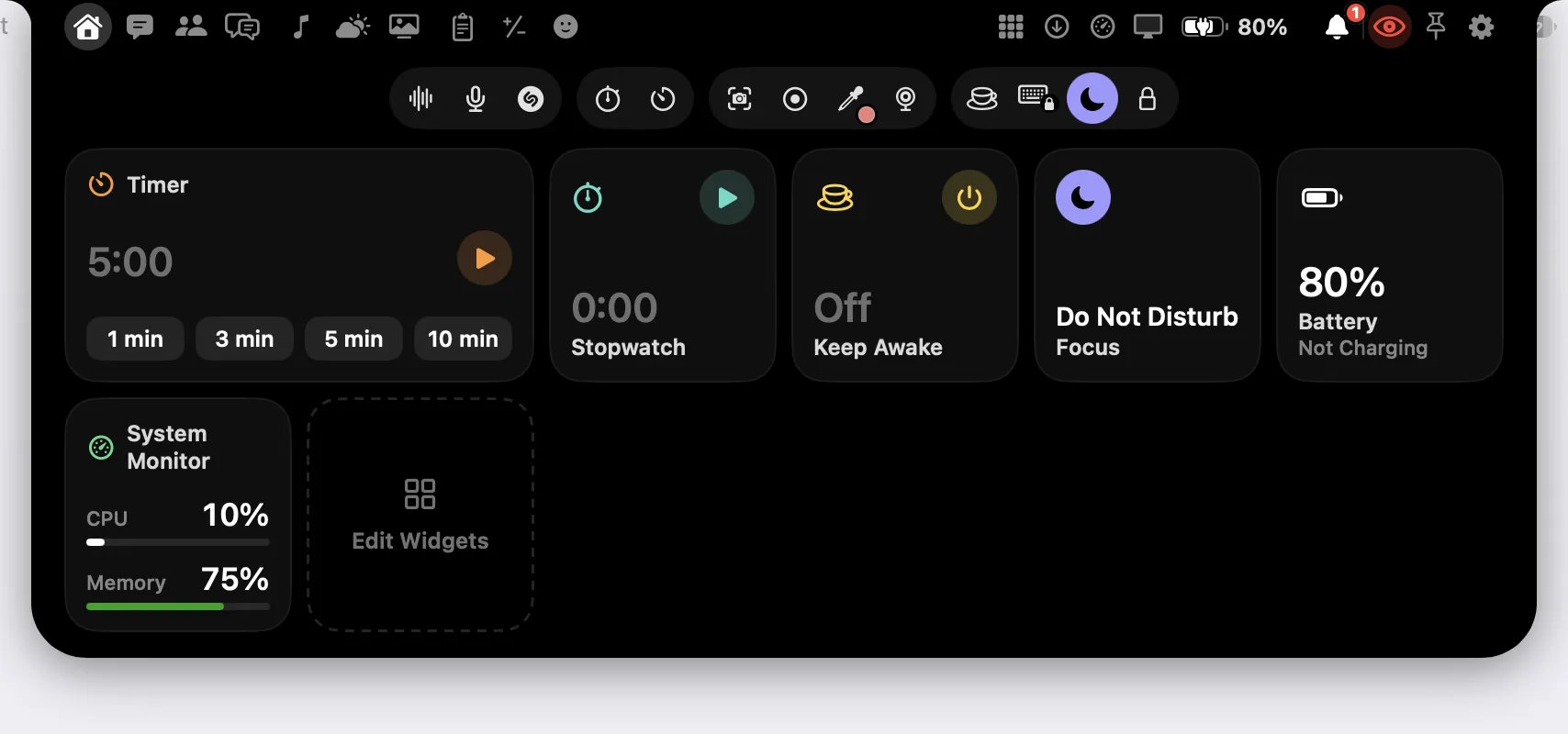
The notch is drawn in black, like the camera housing it grows out of. Open, it has three layers: a band of buttons either side of the camera, a row of tools under it, and the page you picked.
Your pages, left of the camera
Home, Chat and Meetings, the AI Assistant's button and Reminders; then Music, Weather and Wallpaper; then Clipboard, Calculator and Emoji. Each button always opens the same page, from the same place.
This Mac, right of the camera
Apps, Downloads, System Monitor, Displays and Battery, and the Notifications bell once you show other apps' notifications on the notch: the apps you keep at hand, what you downloaded, how hard this Mac is working, its displays and its charge.
At the end of the band
The eye, which hides the notch from screen sharing or lets a share see it. Pin, which keeps the notch open. And the gear, which opens Settings at the settings of the page you're on - Downloads' own from Downloads - or at Settings ▸ Notch from a page with nothing to set.
The tools, under the camera
Four groups, left to right. Sound: Dictate, Microphone and Recognize Song. Time: Stopwatch and Timer. Capture: Screenshot, Screen Recording, Color Picker and Camera Mirror. Mac: Keep Awake, Lock Keyboard, Focus and Lock Screen.
The page
Under the band and the tools, the page you picked. The notch grows and shrinks to fit whichever page is showing.
One rule for every tool
A click does the job; a hold opens more. Hold Dictate for Quick Controls, Screenshot for the Screenshots page, Color Picker for Colors, Timer for the Timer page and Microphone for the Microphone page. Most of the others offer a choice, like how long to keep this Mac awake; a hold resets the Stopwatch.
How the notch works
Point at the notch and it opens. Click a tool and it does its job; hold it for more. Move the pointer away and the notch closes again.
-
Point at the notch
Rest the pointer on the notch for a moment and it opens: the band of pages, the row of tools, and the page you used last.
Point at the notch, and it opens on Home. -
Click a tool
A click does the job straight away: Timer starts counting down, Screenshot captures an area, Dictate starts listening.
Timer: start it with a click and watch it on the notch. -
Hold it for more
Hold a tool for its options: Screenshot opens Area, Window, Screen, Text and a delay; Timer lets you choose how long; Dictate opens Quick Controls.
Hold Screenshot for every way to take one.
Hover, or click
With Hover to Open on, as it is at first, the notch opens when the pointer rests on it for a tenth of a second. Turn it off in Settings ▸ Notch ▸ Behavior, and you click the notch to open it instead.
At the top, the bottom, or anywhere
The notch starts at the top of the screen. Settings ▸ Notch ▸ Appearance ▸ Position can put it at the bottom, rising from the Dock, or anywhere you drag it. Position →
No notch? The top edge
On a display without a notch, point at the stand-in notch Dictera draws there, or push the pointer against the top edge near the middle. It waits a quarter of a second there, because that edge is also the way to the menus.
From the keyboard
Press ⌥⌘I in any app, once you've allowed Accessibility. The notch opens on the display you're using, on the page you used last; press it again to close it. Settings ▸ Shortcut changes the keys.
From the menu bar
Open Notch is in Dictera's menu in the menu bar, with its shortcut beside it.
Closing
With Auto-Collapse on, as it is at first, the notch closes as soon as the pointer leaves it. Turn it off, and the notch stays open until you click anywhere else.
Pin
Pin, at the end of the band, keeps the notch open wherever the pointer goes or clicks, until you unpin it. A pinned notch follows you to another desktop or full-screen app; an unpinned one closes when you switch.
Full-screen apps
Show Over Full-Screen Apps is on at first, so the notch opens over a full-screen app too. Turn it off, and the notch stays out of the way of full-screen videos, games and presentations - your shortcut still opens it.
Home & widgets
Home is your dashboard in the notch: a widget for each thing you use most, arranged and sized your way. There are 29 to choose from, one for every feature in the notch.
Ready from the start
A new Home starts with Now Playing, Weather, Up Next, Dictate, Timer, Stopwatch, Keep Awake and Clipboard.
A click away
Click a widget to open its page, or use its button to start what it does, like a dictation or a timer.
Small or Medium
Widgets that come in two sizes can be Small or Medium. A Medium one takes two cells, with room to show more.
Edit Widgets
Click Edit Widgets, the last tile on Home, and the page becomes its own editor: drag a widget to move it, − to remove it, + to add one from the shelf, and choose its size. Reset puts Home back the way Dictera first had it; Done closes the editor.
Or in Settings
Settings ▸ Notch ▸ Home & Lock Screen lists every widget in Home's order: show or hide each one, choose its size, drag to reorder, or Reset to Default.
Your widgets on the lock screen
Whenever this Mac locks - with Lock Screen in the notch, ⌃⌘Q, the lid or a hot corner - Home's widgets appear under the clock, in Home's order, and keep working: pause the song, add a minute to a timer, pause the stopwatch. What needs the desktop, like opening a page or joining a call, happens as soon as you unlock.
Anyone at your Mac can see the lock screen, so only Now Playing, Weather, Up Next, Stopwatch, Timer, Keep Awake, Focus, System Monitor and Battery appear there - never Clipboard, Notifications, Downloads, Reminders or Chat. Switch it off in Settings ▸ Notch ▸ Home & Lock Screen.
Home has new widgets too: Downloads, Displays, Wallpaper, Camera Mirror, Lock Screen and Notifications, and Reminders, with what's due today a tick away. See Lock Screen →
What shows while it's closed
When nothing is going on, the notch is just the notch. When something is, it shows at the top of the screen without opening.
The strip
A slim strip wraps around the notch while something is live: a song's cover and level bars, a dictation's level and time, a timer's ring, the stopwatch, a screen recording's red dot, the minutes to your next meeting, a download on its way. It shows one thing at a time, the most pressing first. Point at a song, a recording, a dictation, the AI Assistant, a muted microphone, the next meeting or a timer that has rung, and its card drops out; point at most of the others, and the whole notch opens.
Cards
Some things drop a card out of the notch, as tall as what it has to say: the screenshot you just took, to drag into any app or mark up; the colour you just picked; a timer that has rung, with +1 min, +5 min and Restart; the translation of text you selected. Once you turn them on, other apps' notifications drop out of the notch too, instead of the corner of the screen: click one to open it, or point at it to keep it there. Notifications → And when a reminder is due, its card waits on the notch until you answer it: Done, or Snooze. Reminders →
Alerts
A few things drop out of the notch on their own for a few seconds - point at one to keep it there: Charging, Fully Charged, Low Battery, AirPods and Headphones, Caps Lock and Drives. Each has its switch in Settings ▸ Notch ▸ Alerts. A finished download can say so too: turn on Say When a Download Finishes in Settings ▸ Notch ▸ Downloads.
The volume and brightness keys show their level in the notch instead of the macOS pop-up. Brightness changes the display the pointer is on: the built-in one and Apple displays, other monitors over their cable where they allow it, and any other by dimming it. Turn off Show Volume and Brightness on the Notch to keep the pop-up from macOS.

Every tool, group by group
25 everyday tools, each with what a click and a hold do, what it needs, and whether it goes online. Two more buttons have pages of their own:
- Dictate, first in the row of tools: click it and talk, and your words are typed where your cursor is. Hold it for Quick Controls. Dictation →
- AI Assistant, beside Chat and Meetings: click it to show or hide the assistant's panel, or hold it to start Assist or Meeting Notes listening to a call. AI Assistant →
Music & sound
Control what's playing in Music from any app, and mute every microphone with one click - or find out the name of a song playing near you.
-
Music
What's playing in Apple Music, with its controls, and synced lyrics if you turn them on.
- Click
- Opens Music.
- Needs
- Automation (Music).
Goes online. To Apple's music catalog: the title and artist of a song streamed from Apple Music, and your region - Find Cover Art Online, on by default. To LRCLIB (lrclib.net): the title, artist, album and length of the song on the notch, and which version of Dictera is asking - Synced Lyrics, off by default.
Music: what's playing and its controls, right in the notch. -
Recognize Song
Find out what's playing around you, and add it to your Shazam library if you like.
- Click
- Listens for up to 15 seconds and names the song.
- Needs
- Microphone.
Goes online. To Shazam: a fingerprint of the sound, only when you press Recognize Song; Add to Shazam saves the song to your own Shazam library.
Recognize Song: find out what's playing around you. -
Microphone
Mute every microphone at once, so every app on a call hears silence.
- Click
- Mutes or unmutes every microphone.
- Hold
- Opens the Microphone page: the microphone to dictate with, and the apps listening now.
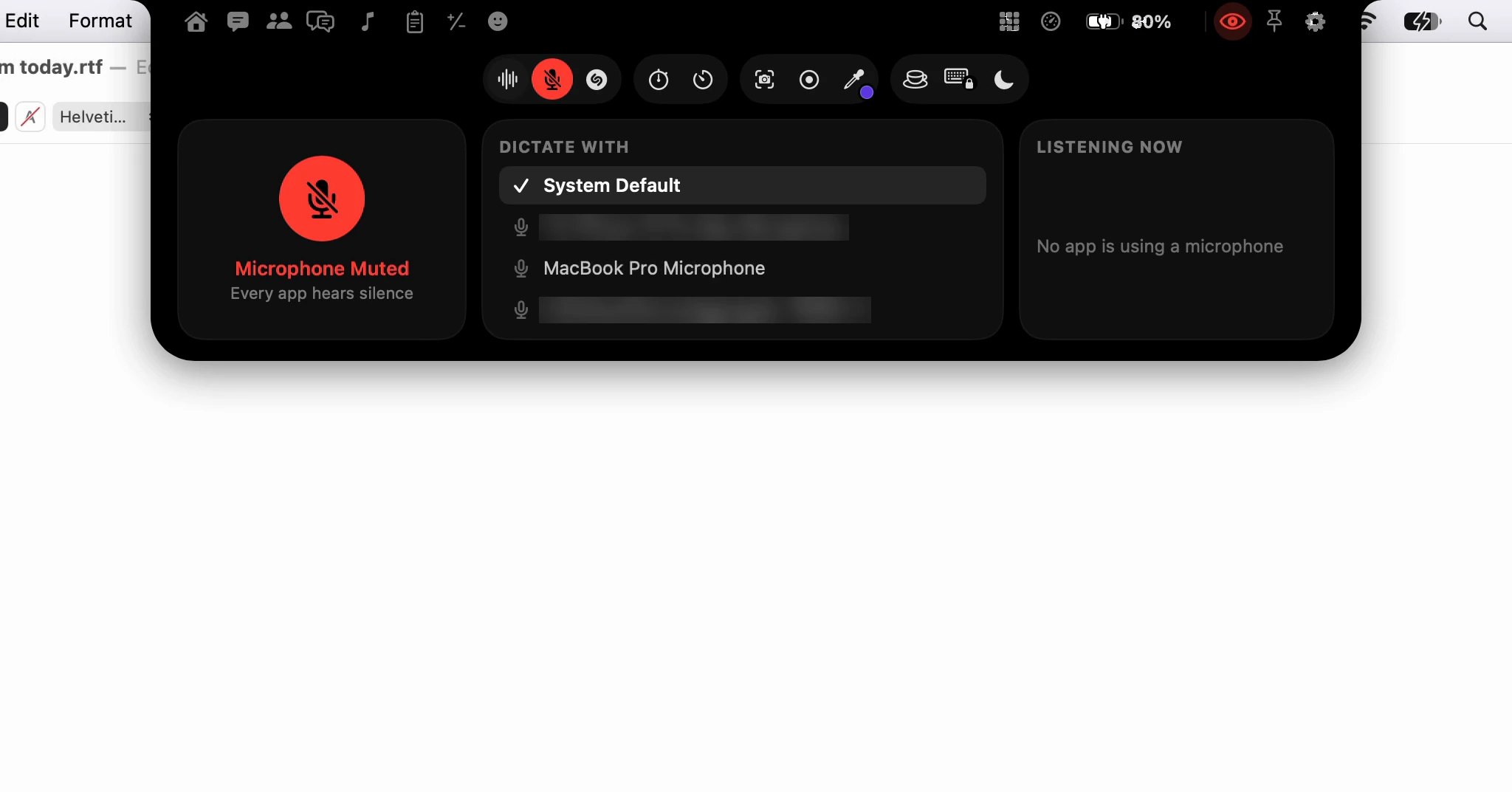
Microphone: one click mutes every microphone; hold it for the Microphone page.
Capture
Take a screenshot or record the screen, then drag it off the notch into any app. Or pick a colour from anywhere on the screen, and it's copied, ready to paste. And before a call, check how you look in a mirror of your camera that floats over your work.
-
Screenshot
Capture part of the screen; hold for a window, the whole screen, text or a delay.
- Click
- Captures an area of the screen.
- Hold
- Opens the Screenshots page: Area, Window, Screen, Text, a timer, and the recent ones.
- Needs
- Screen Recording.
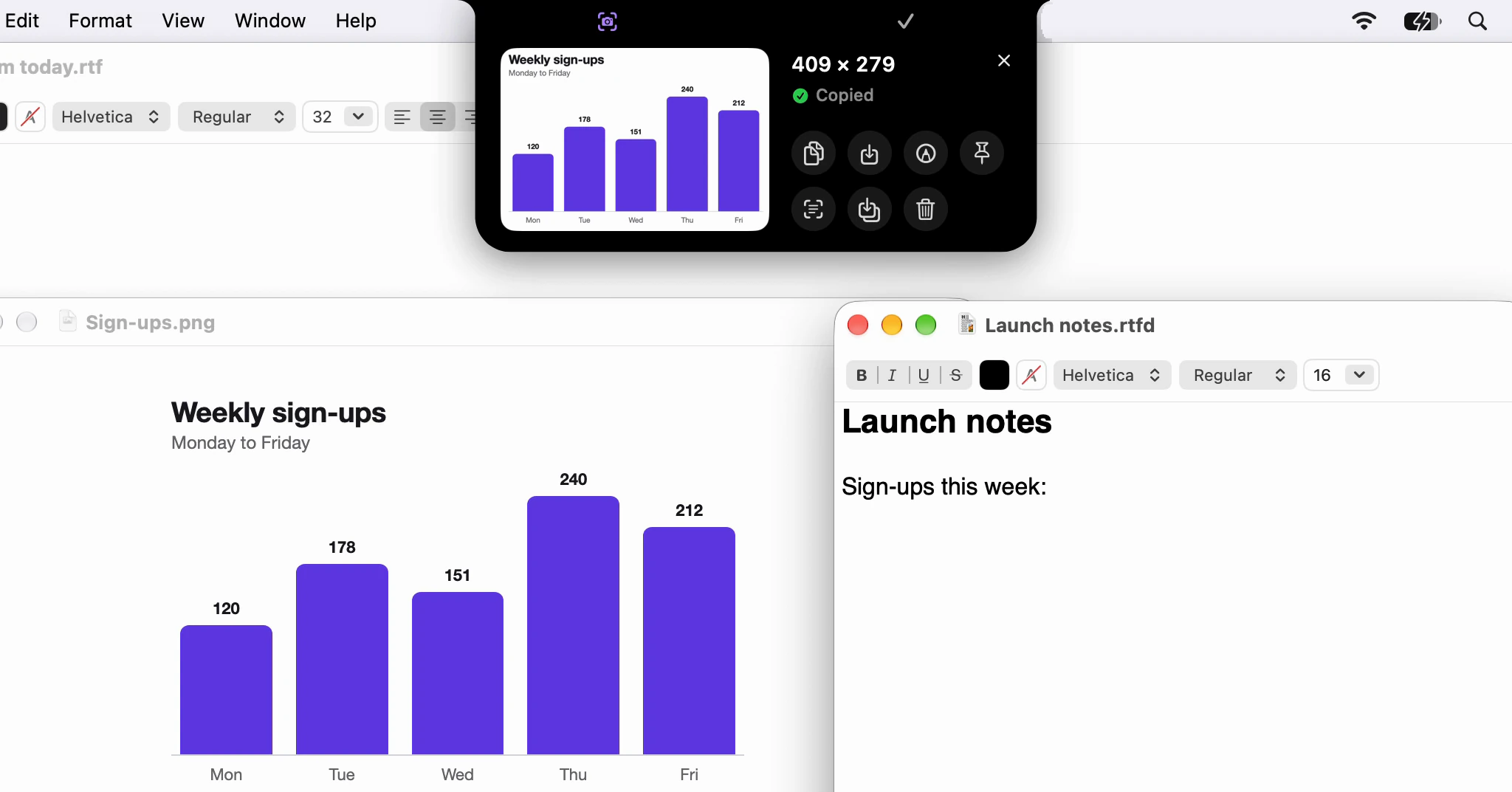
Screenshots: capture, then drag it into any app or mark it up. -
Screen Recording
Record an area, a window or the whole screen; turn a short one into a GIF.
- Click
- Opens the selector: an area, a window or the whole screen.
- Hold
- Area, Window or Screen, with Microphone, System Audio and Show Clicks.
- Needs
- Screen Recording. Microphone or System Audio only to record sound with it.
Screen Recording: record the screen from the notch, then turn a short one into a GIF. -
Color Picker
Pick a colour from anywhere on the screen and copy it as HEX, RGB and more.
- Click
- Picks a colour and copies it.
- Hold
- Opens the Colors page: every format, contrast, and the colours picked before.
Color Picker: click a colour anywhere, and it's copied. -
Camera Mirror
A floating mirror of your camera, to see how you look before a call.
- Click
- Opens a mirror of the camera under the notch; a second click closes it.
- Needs
- Camera. macOS asks the first time the mirror opens. The camera is on only while the mirror is on screen.
Camera Mirror: check how you look before a call, in a mirror that floats over your work. Drawn by the app from sample data.
Time
A timer and a stopwatch that keep counting on the notch while you get on with something else.
-
Timer
Start a timer with a click and watch it count down on the notch.
- Click
- Starts the last length used, 5 minutes at first, or pauses it.
- Hold
- Opens the Timer page: lengths from 1 to 60 minutes a click away, and a dial for any other.
- Needs
- Notifications are optional: a banner when a timer ends while you're away.
Timer: start it with a click and watch it on the notch. -
Stopwatch
A stopwatch on the notch: click to start or pause, hold to reset.
- Click
- Starts or pauses the stopwatch.
- Hold
- Resets it.
Stopwatch: click to start or pause, hold to reset.
Everyday
Small jobs without switching apps: your clipboard history, a calculator, emoji, the weather and the apps you keep at hand. Clips, results and emoji go straight into the app you're typing in. Put a new picture on your desktop, open or drag what you just downloaded, and catch up on the notifications you missed. And keep track of your reminders without opening Reminders.
-
Reminders
Your reminders from the Reminders app: tick one off, or add one by typing or saying it.
- Click
- Opens Reminders.
- Needs
- Reminders. macOS asks once, when you click Connect to Reminders. Adding one by voice uses the microphone, as dictation does.
Reminders: type it the way you'd say it, and it's set for then. Drawn by the app from sample data. -
Clipboard
Everything you copy, kept on this Mac once you turn it on; click a clip to paste it.
- Click
- Opens Clipboard.
- Needs
- Accessibility and Paste from Other Apps. Paste from Other Apps exists on macOS 27 only.
Clipboard: click a clip to paste it. -
Calculator
A scientific calculator that types its result into the app you're in.
- Click
- Opens Calculator.
- Needs
- Accessibility.
Calculator: work it out in the notch, then type the result where you were. -
Emoji
Find an emoji by name and type it into the app you're in.
- Click
- Opens Emoji.
- Needs
- Accessibility. Without it, the emoji goes to the clipboard instead.
Emoji: find one by name and it's typed where you were. -
Weather
The weather where you are: now, the hours ahead and the days ahead.
- Click
- Opens Weather.
- Needs
- Location only if you choose Use My Location; you can type a town instead.
Goes online. To Apple Weather: the location you asked for the weather at - Show the Weather, on by default. To Apple Maps: the same location, to name the town and its time zone, or the town you typed, to find it - Show the Weather, on by default.
Weather: now, the hours ahead and the days ahead, a point away. Weather data: Apple Weather -
Wallpaper
A new wallpaper in a click: Apple's still pictures, its colours or your own.
- Click
- Opens Wallpaper.
- Needs
- Files & Folders only for a protected folder you add, like Desktop or Documents.
Wallpaper: click a picture, and it's your wallpaper on every display. -
Apps
The apps you keep in the notch, opened or brought to the front with a click.
- Click
- Opens Apps.
Apps: the apps you keep in the notch, a click away. -
Downloads
Your newest downloads to open or drag into any app, and the ones on their way.
- Click
- Opens Downloads.
- Needs
- Files & Folders. Off until you turn it on; macOS then asks once before Dictera can see the folder.
Downloads: a download's progress on the notch, and your newest files to open or drag into any app. -
Notifications
Other apps' banners drop out of the notch; the bell keeps them all, the unread marked.
- Click
- Opens Notifications.
- Needs
- Accessibility. Off until you turn on Show Notifications on the Notch in Settings ▸ Notch ▸ Notifications.
Notifications: other apps' banners on the notch, and every one since Dictera started on its page. Drawn by the app from sample data.
Say it, and it's a reminder
Type a reminder into the Reminders page the way you'd say it - "Call Anna tomorrow at 5" - and it shows the time it read before you press Return. Or press ⌃⌥⌘R in any app, say what to remember and when, and press it again, or hold the keys while you speak. The notch shows what it understood, with Undo and other times a click away. It works in all 11 languages Dictera speaks.
Your reminders stay in the Reminders app, so your iPhone gets them as it gets every reminder. When one is due, its card drops out of the notch with Done and Snooze for 10 minutes, an hour or tomorrow morning; Reminders shows its own notification too.
This Mac
Keep this Mac awake, lock the keyboard while you clean it, switch Focus, and see the battery and how hard this Mac is working. Set the brightness of every display, an external monitor's too, black out the screen to wipe it, and lock this Mac with a click.
-
Keep Awake
Keep this Mac from going to sleep, until you stop it or for a set time.
- Click
- Keeps this Mac awake until you stop it.
- Hold
- Choose how long: 15 minutes to 4 hours, or until stopped.
Keep Awake: one click keeps this Mac from sleeping until you stop it. -
Lock Keyboard
Lock the keyboard while you clean it, or black out the screen too; hold Esc to end.
- Click
- Locks the keyboard for a minute.
- Hold
- Choose 30 seconds, 1, 2 or 5 minutes, Until Unlocked, or Clean Screen, which blacks out every display too.
- Needs
- Accessibility.
Clean Screen: a black screen and a locked keyboard while you wipe them both. -
Focus
Turn Do Not Disturb on or off; hold to choose another Focus.
- Click
- Turns Do Not Disturb on, or the Focus that is on off.
- Hold
- Choose a Focus.
- Needs
- The Dictera Focus shortcut, added to Shortcuts once.
Focus: click to turn Do Not Disturb on or off; hold to choose another Focus. -
Lock Screen
Lock this Mac with a click; your Home widgets carry on under the lock screen clock.
- Click
- Locks this Mac at once, as Lock Screen in the Apple menu does.
Lock Screen: lock this Mac with a click, and your Home widgets stay under the clock. -
Battery
Battery charge and health for this Mac, plus AirPods, keyboards, mice and trackpads.
- Click
- Opens Battery.
Battery: charge and health for this Mac, plus connected AirPods and other devices. -
System Monitor
How busy the processor, memory, disk and network are, and which apps use the most.
- Click
- Opens System Monitor.
System Monitor: how busy this Mac is, and which apps use the most. -
Displays
The brightness and power of every display, external monitors too, and Night Shift.
- Click
- Opens Displays.
Displays: the brightness of every display, an external monitor's too, a point away.
Works without a notch
Dictera brings the notch to displays that don't have one. It needs macOS 26 or later on a Mac with Apple silicon - the notch itself is optional.
A stand-in notch
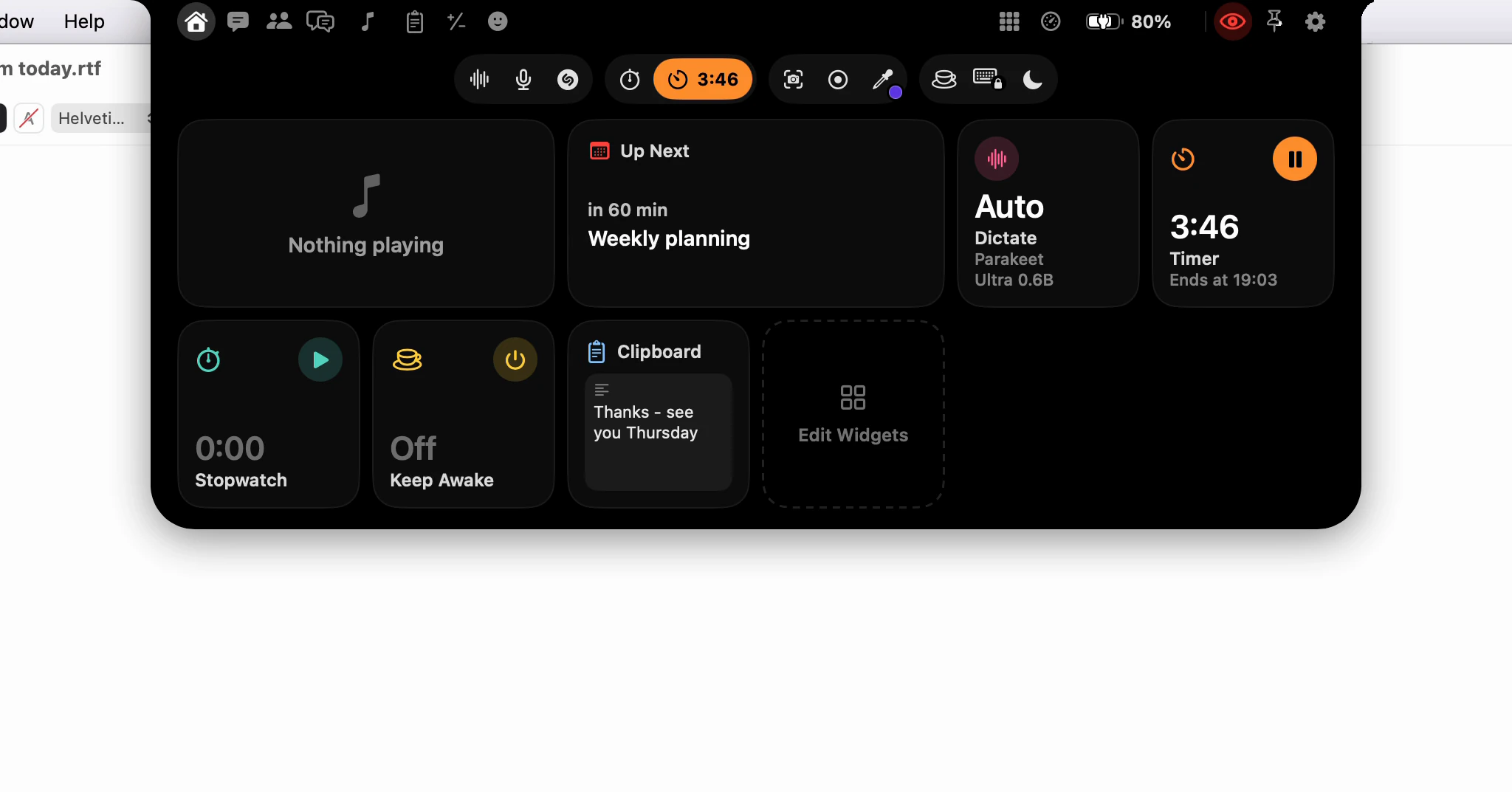
On a display without a notch - an external display, or a Mac without one - Dictera draws a stand-in notch at the top of the screen. If your Mac has a notch, the stand-in copies its size, so the two match. It shows the same strip as the real one, and pointing at it opens the notch.
Or the Pill
Rather keep the whole menu bar in view? Choose Pill in Settings ▸ Notch ▸ Appearance ▸ Shape. Notch grows out of the top edge of the screen; Pill floats just below the menu bar.
More than one display
The notch opens on the display you're using and follows you from one to the next. In the Notch shape, each display without a notch of its own gets a stand-in. The brightness keys change the display the pointer is on, an external monitor's too.
What it needs
macOS 26 or later, on a Mac with Apple silicon. A notch is optional.
Top, bottom or anywhere
The notch starts at the top of the screen, out of the camera housing. Choose another place in Settings ▸ Notch ▸ Appearance ▸ Position.
Bottom
The notch rises from the top of the Dock when the Dock is along the bottom, or from the bottom edge of the screen when it isn't, with its buttons along the bottom, nearest the pointer. Rest the pointer on the middle of the bottom edge to open it, or press ⌥⌘I. A song or a timer rests just above the Dock, and the Pill floats a little higher.
Free
Drag the notch by its top to anywhere on the screen, and it stays where you leave it. It opens only when you ask, with ⌥⌘I, and nothing comes out of it by itself: other apps' notifications stay where macOS puts them, the charger and AirPods alerts are left out, and a dictation shows in a small window of its own. What answers a key you pressed, like the volume, still shows there. Free is always the Pill shape.
Privacy in the notch
The notch sits over everything you do, so it's built to stay out of the way of your work and out of other people's view.
It never takes the focus
The notch never becomes the active window. Your cursor stays in the app you're in, so a pasted clip, an emoji or a calculator result goes in where you left off.
Your notes and chats stay out of your screen share
Chat and Meetings stay out of screen sharing and recordings, whatever the eye is set to. A share sees at most an empty frame where they are.
The eye
The notch, the AI Assistant panel and the camera mirror are hidden from screen sharing by default. The eye in the notch is the one switch for all three: click it to let a share see them, and it turns red; click again to hide them.
Private while it matters
While the notch asks about a meeting or the AI Assistant is listening, it keeps out of screen shares and recordings, even when you've let them see Dictera.
Other people's messages stay yours
While another app's notification is on the notch, or the Notifications page is open, the notch keeps out of screen shares and recordings, whatever the eye is set to. Notifications are kept in memory only: quitting Dictera empties the list, and none is written to disk.
What you have to remember is yours
The Reminders page, and a reminder's card on the notch, keep out of screen shares and recordings, whatever the eye is set to.
The camera, only on screen
The camera is on only while the mirror is on screen, and never while this Mac is locked. The picture stays on this Mac: nothing is recorded or saved.
Kept out of screen sharing and recordings by apps that respect the window privacy setting in macOS. Whole-screen screenshots and screen recordings you take with Dictera leave the notch out too. See acceptable use.
What goes online
Speech is recognized on your Mac and never uploaded. Online features send only what they need, to the service that needs it, and each can be switched off. In the notch, that's these:
- Weather. Apple Weather gets the location you asked for the weather at, and Apple Maps gets the same place to name the town and its time zone - or the town you typed, to find it. Nothing is looked up until you connect a location. The switch is Show the Weather.
- Cover art. For a song streamed from Apple Music, the Apple Music catalog gets its title and artist, and your region, to find the cover. The switch is Find Cover Art Online, on at first, and it only looks while Show What's Playing is on.
- Lyrics. LRCLIB (lrclib.net) gets the song's title, artist, album and length, and which version of Dictera is asking - only once you turn on Synced Lyrics, which is off at first.
- Recognize Song. Shazam gets a fingerprint of the sound, only when you press Recognize Song. Add to Shazam saves the song it found to your own Shazam library.
Downloads, Displays, Wallpaper, Notifications, Camera Mirror and Lock Screen don't go online. Reminders doesn't either: it reads and changes your reminders in the Reminders app on this Mac, and your other devices get them through iCloud, as they get every reminder.
Every connection Dictera makes, when it's made and the switch that controls it: see exactly what goes where →
The notch is part of your Dictera subscription: it's free for 14 days with everything unlocked, and after the trial it opens onto a locked page until you subscribe. See pricing
Questions, answered.
Do I need a Mac with a notch?
No. On a Mac without a notch, and on an external display, Dictera draws a stand-in notch at the top of the screen - the same size as the real one, if your Mac has one - and it opens when you point at it. Or choose the Pill shape, which floats just below the menu bar. Either way, you need macOS 26 or later on a Mac with Apple silicon.
Can I turn the notch off?
No - the notch is where Dictera lives, so it has no off switch. You can make it quieter, though. Turn off Hover to Open, and it opens only when you click it or press ⌥⌘I. Switch off any alert in Settings ▸ Notch ▸ Alerts. And turn off the strips you don't want: Show What's Playing, Show Dictation on the Notch, Show the AI Assistant on the Notch, Count Down to the Next Meeting, Show Progress on the Notch (for downloads) and Show Volume and Brightness on the Notch. Or choose the Pill shape, which floats just below the menu bar.
Can I put the notch somewhere else?
Yes. In Settings ▸ Notch ▸ Appearance ▸ Position, Top keeps it where it starts, out of the camera housing. Bottom puts it at the bottom of the screen, rising from the Dock; rest the pointer on the middle of the bottom edge to open it. Free puts it anywhere you drag it, and it opens only with ⌥⌘I.
Will it get in the way of full-screen apps?
Only if you want it there. With Show Over Full-Screen Apps on, as it is at first, the notch opens over a full-screen app when you point at it. Turn it off in Settings ▸ Notch ▸ Behavior, and the notch stays out of the way of full-screen videos, games and presentations: pointing at the top of the screen doesn't open it, and alerts that arrive on their own, like a charger being plugged in, don't drop out over it. The keys you press - volume, brightness, Caps Lock - still show in the notch, as the pop-ups from macOS would, and ⌥⌘I still opens it.
Does it slow my Mac down?
Pages that measure something only measure while you can see them. System Monitor takes a reading every two seconds, and only while its page is on screen - or pinned there. Battery follows the power sources only while the notch is open, and Up Next asks the calendar only while it's showing. The meeting countdown checks once every 20 seconds, and only while Count Down to the Next Meeting is on. Music is asked about only while it's running, and polled only while something shows the song. Downloads looks at its folders only once you turn it on, Wallpaper checks the desktop every two seconds only while its page is open, and the camera runs only while the mirror is on screen. Reminders reads your reminders again only when they change, and waits for the next one due rather than checking.
Which music apps work?
Music, the app that comes with macOS - songs in your library and songs streamed from Apple Music. The notch shows what's playing there, with its controls and, if you turn them on, synced lyrics. Other players don't show on the notch. Recognize Song is different: it names a song playing out loud near this Mac, whatever is playing it.
Is it like the Dynamic Island® on iPhone?
In one way: both grow out of the black shape at the top of the screen to show what's going on, and open when you want more. The notch is Dictera's own, made for the Mac by us rather than by Apple, and it does more than show what's happening: it holds pages and tools you open with a point and a click, from your clipboard history to a calculator.
From the blog
Does the notch work on an external display?
Yes, and on a Mac without a notch too. Dictera draws a stand-in notch at the top of any display that has none, or you can pick the Pill shape instead.
· 2 min read
How do I take a screenshot and drag it into an email?
Click Screenshot in the notch, drag across what you want, then drag the card that drops out of the notch into your message. It arrives as a file, ready to send.
· 5 min read
How do I mute my microphone in every app at once?
Click the microphone in the notch and every app hears silence: Zoom, the browser and a voice memo alike. The mute stays on the notch, in red, until you undo it.
· 3 min read
Put your notch to work.
Free for 14 days with everything unlocked - the notch, dictation and the AI Assistant. No account needed.
Requires a Mac with Apple silicon · macOS 26 or later · Works without a notch