How do I take a screenshot and drag it into an email?
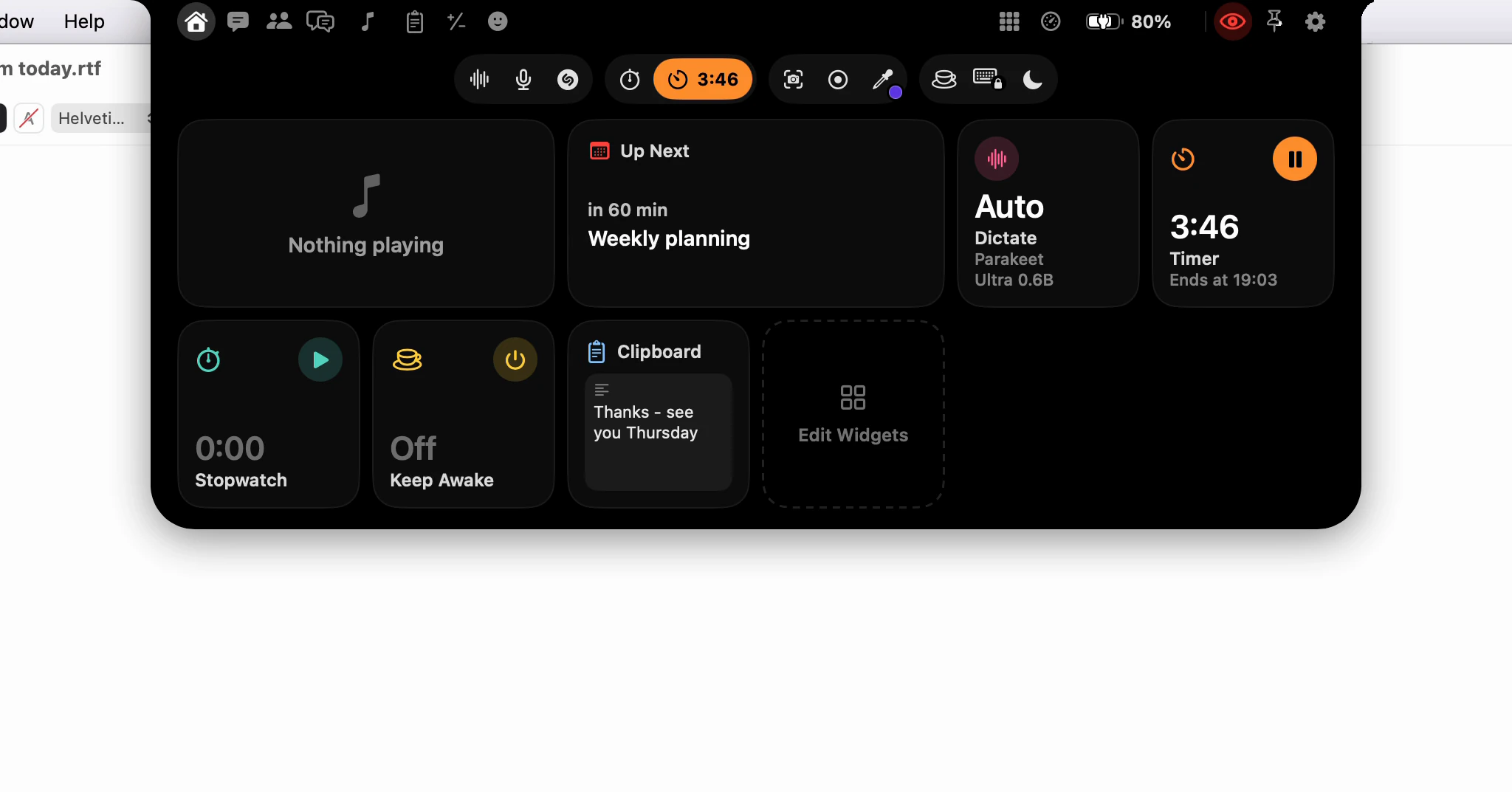
Click Screenshot in the notch and drag across what you want. A card with the picture drops out of the notch: drag it into your email and it lands as a file, named the way macOS names its own screenshots. It's on the clipboard too, so ⌘V works as well.
How do I take the screenshot?
- Open the notch and click Screenshot, the camera in the row of tools.
- The crosshair macOS uses for ⇧⌘4 appears. Drag across the part of the screen you want. Press Space to click a whole window instead, or Esc to give up.
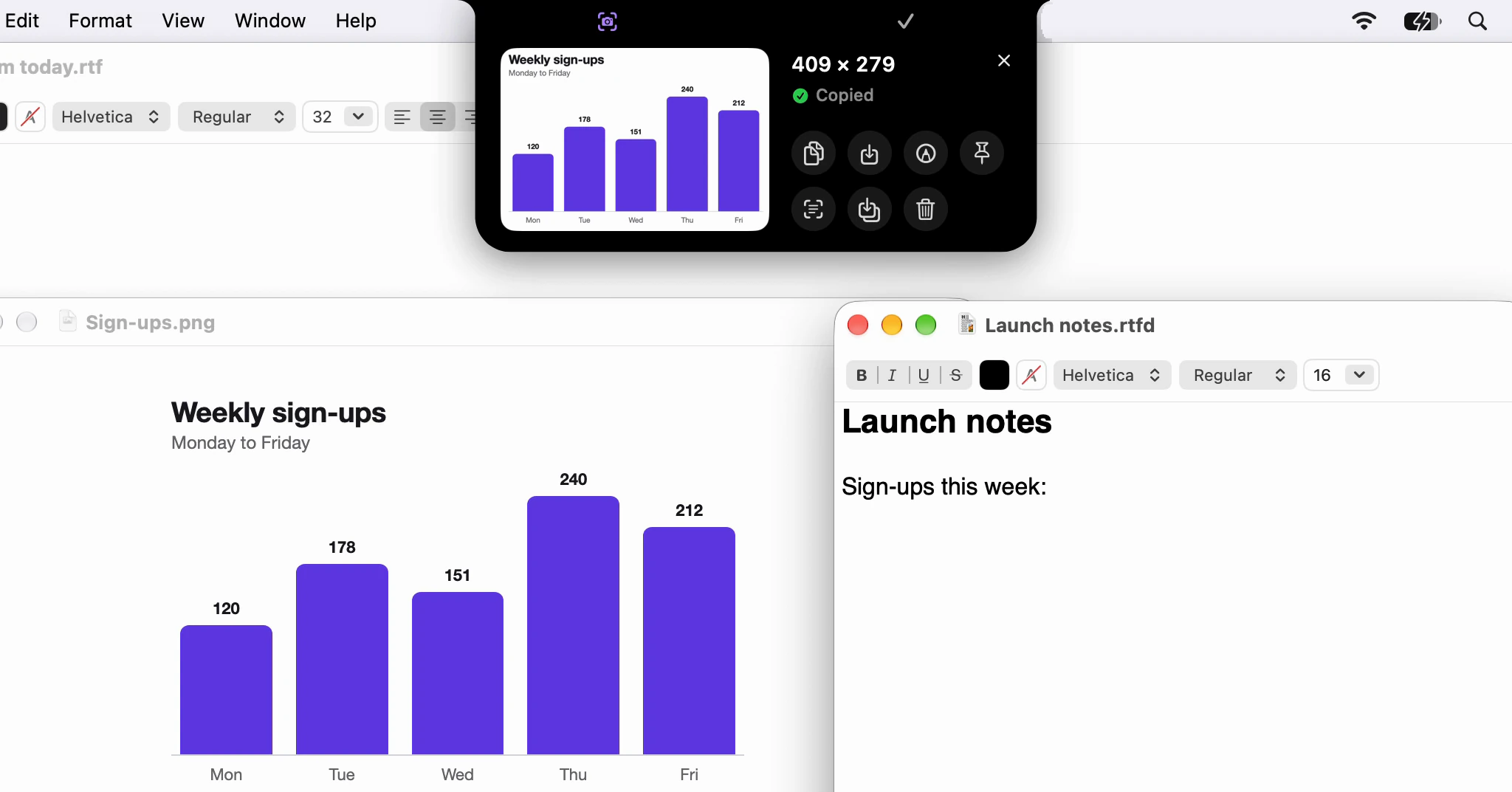
- Let go, and the card drops out of the notch: the picture on the left, its size in pixels, and the buttons for what to do with it. No card? Then Show Each Screenshot on the Notch is off; see the last section.
The first screenshot asks for Screen Recording in System Settings ▸ Privacy & Security. If it isn't allowed yet, the card says so and has a button that opens the right place.
How do I get it into the email?
Drag the picture off the card and drop it into the message. Dictera hands it over the way the Finder hands over a file, so any app that takes a file attachment takes it: Mail, a webmail window in your browser, a chat app or a document. Its name is the one macOS would have given it, "Screenshot", the date and the time, so it sorts in with the rest of your screenshots.
The card waits about six seconds for you to reach for it. Once the pointer is on it, it stays until the pointer leaves, and it stays for the whole drag. When you let go over the message, the notch closes and gets out of your way, unless you've pinned it open.
If you'd rather paste, you don't need the card at all. Copy to Clipboard is on from the start, so the moment the picture is taken it's ready: click in the body of the email and press ⌘V. The picture carries the size it had on your screen, so apps that read it paste it at that size, not twice as large.
Can I mark it up before I send it?
Yes. Click the picture on the card, or its Markup button, and it opens in a window of its own with arrows, boxes, a highlighter, text, numbered steps and a crop. Pixelate covers anything the person reading the email shouldn't see, such as a name or an account number in the corner of the shot.
Click Done and the marked-up picture replaces the original wherever it went: on the clipboard, in the file it was saved as, and on the Screenshots page. Then drag or paste it as before.
What else is on the card?
- Copy puts it on the clipboard again, if you've copied something else since.
- Save writes it to your screenshot folder; once it's there, the same button is Show in Finder. Save As… lets you choose where.
- Pin to Screen keeps it floating over your work while you write about it.
- Copy Text reads the words in the picture and puts them on the clipboard.
- Delete removes it. A saved copy goes to the Trash, so it can be put back.
What if the card has already gone?
Hold Screenshot instead of clicking it. That opens the Screenshots page, with Recent on the right: your last 20 screenshots, newest first. Drag any of them into the email exactly as you would from the card, or click one to paste or copy it. Its ⋯ opens the same card with every button.
Recent is Keep Recent Screenshots in Settings ▸ Notch ▸ Screenshots, and it's on from the start. The shots are kept on this Mac only, and Clear Recent Screenshots on the page removes them without touching the ones saved in a folder. The security page says where they're kept.
How do I capture a menu, or something that only shows on hover?
Clicking the notch closes an open menu, so there are two other ways in:
- A timer. The Screenshots page has Timer with 3, 5 and 10 seconds. It captures the whole screen once the time is up, which leaves you time to open the menu. The countdown runs on the notch, and the notch is left out of the picture.
- A shortcut. In Settings ▸ Shortcut, turn on Capture Area. It's off until you do, and it starts as ⌥⇧⌘4. Pressed with the menu open, it brings up the same crosshair, and the card drops out of the notch as usual.
Hold Control while you drag and macOS copies the picture to the clipboard itself, as it always does with Control. Dictera then has no picture to keep, so no card drops out and nothing goes to Recent. Paste it with ⌘V.
Can I change where screenshots go?
Settings ▸ Notch ▸ Screenshots has it all. Copy to Clipboard and Save to a Folder can be on together. The folder starts as the one macOS saves its own screenshots to, and PNG or JPEG is your choice. Show Each Screenshot on the Notch is the card itself. Turn it off and a screenshot goes only where those two send it. Save to a Folder and the card both start out the way your macOS screenshots are set, so if you turned off the floating thumbnail there, turn this on.
Where can I read more?
The notch page shows Screenshot with the other capture tools, and What's in the notch? maps every button and page. If the email itself is the slow part, Writing an email by voice, start to send covers dictating it. The features page lists what else you can drag off the notch.