Writing an email by voice, start to send
Click into the body, dictate one paragraph per recording, and say only the structure: the paragraph breaks and the questions. Then fix what needs fixing by selecting it and saying the change, not by retyping it. The addresses stay with the keyboard, and the last read before Send stays with you.
Can you really write a whole email by voice?
Yes, and the words are the easy part. Ordinary speech runs at roughly three times a comfortable typing speed, and an email is mostly the kind of sentence you would say out loud anyway. What takes a little practice is the shape: where a paragraph ends, which sentence is a question, and how to change a line without reaching for the keyboard.
That is what this routine is about. It works in Apple Mail, in Outlook and in webmail in a browser, because Dictera types into whichever text field has focus. There is no separate window to dictate into and nothing to copy across afterwards.
Where do I start dictating?
In the body. The To field is the one place voice is slower than typing: a mail app completes an address from three letters, and a spoken address has to be spelled. Type the first letters of the name, pick the address, then click into the body and start talking.
Leave the subject until the end. By then you know what the email says, and a subject is one short line: dictate it in one breath, or type it.
Should I dictate the whole email in one go?
No. One paragraph per recording works better, for three reasons.
- You can check it as you go. A paragraph is short enough to read in the moment it lands, and a misheard name is easier to catch there than in the whole email at the end.
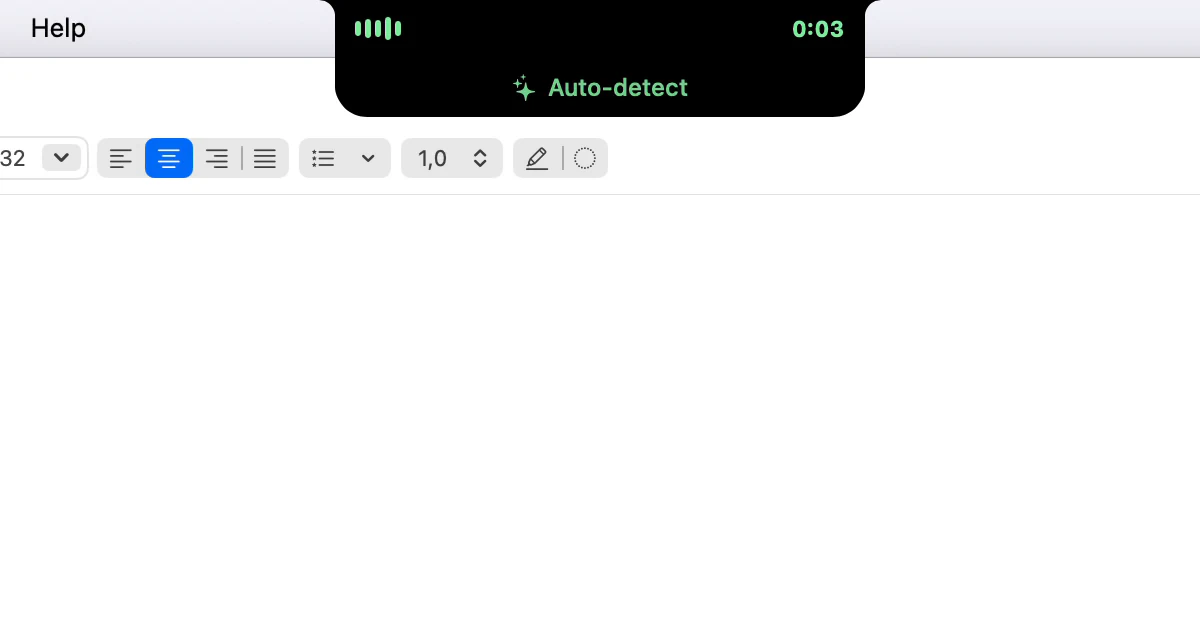
- The key is held. By default dictation runs while you hold the right ⌘ key. That is comfortable for a paragraph and tiring for a page. If you prefer longer recordings, switch to a press to start and a press to stop, or click Dictate in the notch to start and click it again to stop; the post on recording modes compares the options.
- Cleanup has a limit. The model that punctuates and tidies your words takes up to 4,000 characters, roughly 600 English words, or several minutes of talking. A longer recording still arrives, but as the raw transcript, without the cleanup pass.
Paragraphs dictated one after another join up on their own. In Mail, Dictera reads the text either side of the cursor before it inserts anything, so the next paragraph gets one space, not two, and a clause added to the end of a sentence carries on in lowercase instead of starting with a capital.
What do I have to say out loud?
Much less than older dictation software taught you. Every dictation goes through an on-device cleanup model that adds the commas and full stops, fixes the capitals and removes the "um", the false start and the word said twice while you were thinking. A sentence spoken at a normal pace arrives punctuated.
What the model cannot know is where you wanted a paragraph to end, or that "you're joining on Friday" was a question. Those are the two things worth saying:
- "New paragraph" at each break, if you dictate more than one paragraph in a recording. Otherwise the model will happily produce one dense block.
- "Question mark" after a question that reads like a statement. Rising intonation does not survive transcription.
- "New line" between the items of a short list, and after the greeting if you like it on a line of its own.
Said, in one recording: "Hi Sam new line thanks for sending the draft new paragraph I've been through it and it reads well you're still aiming for Friday question mark". Typed:
Hi Sam,
Thanks for sending the draft.I've been through it and it reads well. You're still aiming for Friday?
The full list of spoken commands, and what each does, is in say the punctuation. They are English phrases, whatever language you dictate in.
Will it make my email sound more formal?
No, and that is deliberate. The cleanup model is a copy-editor with a short brief: it may fix punctuation, spelling and clear grammar mistakes, and it may drop the fillers. It may not rephrase, summarize or change the tone. If you dictate the way you talk to a colleague, the email reads the way you talk to a colleague.
Spoken sentences are shorter and plainer than typed ones, which is no bad thing in an inbox. When a paragraph needs a different register, change it after it lands.
How do I fix a sentence without retyping it?
Select it and say the change. Hold the right Shift key with text selected, say what you want, let go, and the rewrite replaces the selection. One ⌘Z puts the original back. Instructions that earn their keep in email:
- "More formal", "friendlier", "less apologetic".
- "Make it shorter", "cut this to two sentences".
- "Turn this into bullet points", for the part of an email that is really a list.
For small mistakes you would rather not describe, select the text and double-tap the right Option key instead. That fixes spelling, punctuation and grammar with the smallest change it can, and it needs no speaking at all. The guide to Edit Selection covers both, including the 4,000-character limit they share.
A rewrite goes in as plain text, and so does dictation. Bold, links and colours inside a selection do not survive an edit, so write and edit the email first and format it last.
How do I reply to an email by voice?
The simple way is the same routine: open the reply, click above the quoted message, and dictate. That covers most replies.
When you would rather have a first draft to correct than a blank space, Edit Selection can write one. Copy the message you are answering into the reply, select that copy, hold right Shift and say "reply saying yes to Thursday, and ask whether the room is booked". Only the draft comes back, and it replaces the selection, so the text you select has to be text you are allowed to overwrite, which is why the copy goes into the reply first.
Read that draft more closely than one you dictated. It is the model's wording, not yours, and it will be plausible whether or not it is right.
Can I write in a language I don't speak well?
Yes. Translate Dictation records in any language and inserts a clean translation instead of a transcription, into one of 29 target languages you choose in Settings. By default it is a double-tap of the right ⌘ key, next to ordinary dictation on the same key. You think and speak in your own language, and the email arrives in your colleague's.
Two differences from ordinary dictation. The translation model does the cleanup in the same pass, so the spoken commands are not applied: dictate one paragraph per recording and press Return between them yourself.
What about names Dictera keeps getting wrong?
Names are where email dictation fails most visibly, because an email usually has one in the first word. A surname the speech model has never heard, or a product your company spells its own way, will come out wrong the same way every time.
Custom replacements fix that once. You tell Dictera that "shiv on", the way the transcript spells it, should be written "Siobhan", and it runs last, after the cleanup model, so your rule always wins. In translate mode the replacements run before the translation, so a name is corrected in the language you spoke it in. The tip on replacements shows how to set them up.
What if I lose a paragraph?
It is not gone. Every dictation is kept in Settings ▸ Dictation ▸ History, for 30 days by default, so a paragraph that landed in the wrong window, or went missing when you clicked away, can be inserted again from there. The History tip shows how to find it. If you know as you speak that a recording is going wrong, press Esc: by default that ends it and throws it away, and nothing is typed. Saying "scratch that" as the whole of a recording does the same.
Edits are the exception. A rewrite from Edit Selection is not saved to History, and the undo in your mail app is the only copy of what it replaced.
Before you press Send
Read it once, top to bottom, the way the recipient will. Dictation mistakes are different from typing mistakes: the words are spelled correctly, so a spell checker will not find them, but one of them can be the wrong word. Look for the sound-alikes, the names, and any number that matters, such as a date, a price or a time.
A routine, in short:
- Type the recipient; click into the body.
- Dictate a paragraph per recording, saying "new paragraph" and "question mark" where they matter.
- Select what reads wrong and say the change.
- Dictate or type the subject.
- Read it once, and send.
All of it happens on your Mac. With the built-in models, your voice, the transcript and every edit stay on this machine; the dictation page has the rest of what happens between the key and the words, and the security page says what changes if you point cleanup at a model of your own.