Push-to-talk, double-tap or stop on silence
There are three ways to start a dictation from the keyboard and three ways to end one. Out of the box, dictation is push-to-talk on the right ⌘ key: hold it, talk, let go. Which pair you choose decides whether dictating feels like a walkie-talkie, a tape recorder or a conversation. All of it lives in Settings under Shortcut, and changing your mind takes a minute.
Three ways to start
Hold: push-to-talk
Hold a modifier key and talk. Let go and the words land. This is the mode Dictera ships with, bound to the right ⌘. The recording is exactly as long as your finger is down, so there is nothing to stop, nothing to cancel, and no way to leave a microphone open by mistake.
It suits short bursts: a chat message, a reply, a command to a terminal, anything under a couple of sentences. It also suits people who dictate in fragments and want each one handled on its own. Where it fails is length. A held key gets tiring after a paragraph, and it occupies a hand you might want for scrolling the document you are dictating about.
Double-tap
Tap a modifier twice, quickly, and the recording starts and stays on until you end it. It suits longer dictation, dictation while you read from something else, and the moments you want to lean back from the keyboard.
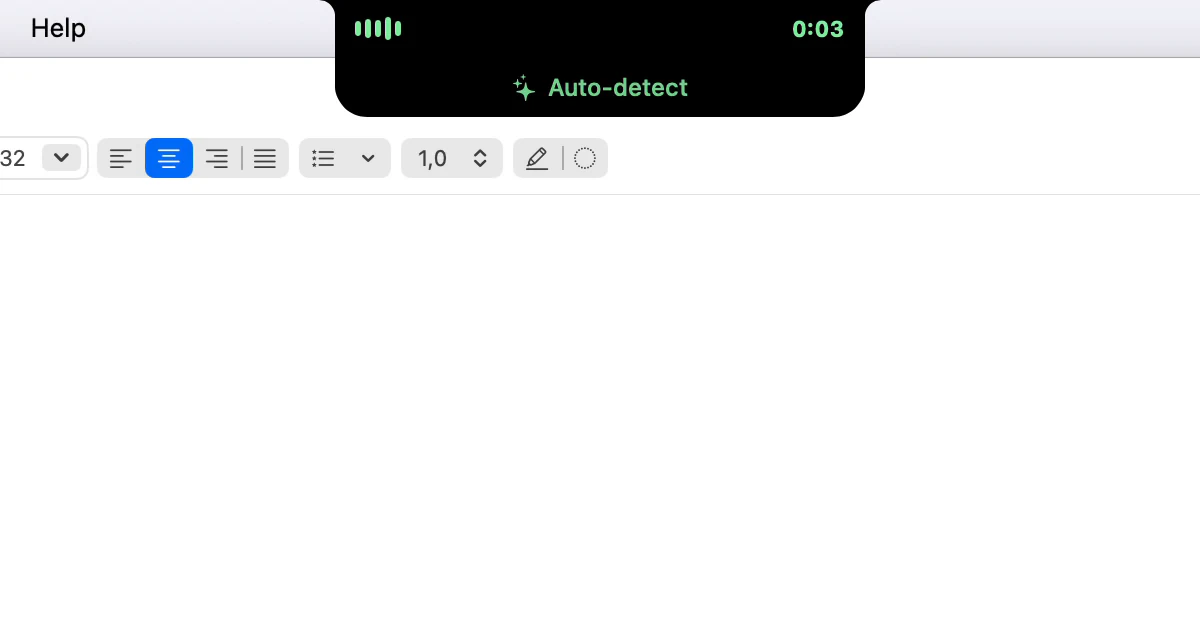
You end it with the same double-tap, with Esc, or by going quiet, if stop on silence is on. The cost is that you have to remember it is running. That is what the notch is for while it runs: level bars on one side, the elapsed time on the other, in the recording's colour.
One thing to know before you switch: out of the box, a double-tap of the right ⌘ is already taken. Once its translation model is set up, it starts Translate Dictation, which inserts a translation instead of a transcription. A hold and a double-tap of the same key are different shortcuts, which is how the two share it. Set dictation to a double-tap of the right ⌘ and the editor warns that Translate Dictation already uses it. Either give dictation a key of its own or move Translate Dictation first. The right ⌥ and the right ⇧ already belong to other tools, and a laptop keyboard has no right ⌃, so try the left ⌃, or a key combination such as ⌃⌥Space.
A key combination
⌃⌥Space, or any chord you like. It behaves like the double-tap, a press to start and a press to end, but the trigger is an ordinary key press, so it can come from anything that sends one: a spare key on a programmable keyboard, a macro pad, a foot switch. If a hands-free start matters to you, this is the mode to look at.
Or click, with no key at all
Click Dictate in the notch to start, and click it again to stop. The notch never takes the focus, so the words land wherever your caret was. It behaves like the double-tap, without a key to remember, and holding the same button opens Quick Controls instead.
Left, right or either
Modifier keys come in pairs, and Dictera can listen to one side only. That is why the shipped shortcuts use the right ⌘: the left one stays free for ⌘C and ⌘V as usual, and a quick ⌘-⌘ with the left hand during ordinary work starts nothing. The same holds for any key you pick: a right-hand-only key is easy to find without looking.
Three ways to stop
- Release the key, in the hold mode. The natural end.
- Press the shortcut again, in the double-tap and key-combination modes.
- Stop talking, with stop on silence on, in any mode.
And Esc, which is the emergency exit rather than a fourth way. By default Esc ends the recording and throws the audio away, which is what you want when the phone rang mid-sentence. A setting turns that around, so that Esc ends the recording and still transcribes what you said. Pick the one that matches why you usually reach for it.
Stop on silence
Off by default, and worth trying. Turn it on and Dictera watches the input level while you record. Once you have spoken for at least a second and then been quiet for two, it ends the recording and transcribes it. Three dials sit behind that sentence:
- The level that counts as voice. A quiet study and a room with a fan need different settings; the input meter in Settings shows where your room sits.
- The minimum speech before it starts watching, one second by default, so that a cough or a door does not end a recording you have not begun.
- The silence that ends it, two seconds by default.
The defaults suit someone who speaks in sentences and stops when the sentence is over. If you think in pauses, raise the silence to three seconds, its longest, or the recording will end while you are choosing a word and the rest of the thought becomes a second dictation, cleaned up on its own. If you dictate in a noisy office, lower Sensitivity rather than raising the silence, so that the background does not count as speech and hold the recording open.
Combined with the double-tap, stop on silence is the closest thing to hands-free: tap, talk, and the words appear when you stop. The trade is that a pause to think is now the end of a dictation. Some people love that, because it makes them speak in finished thoughts. Others turn it off after an hour. Both are right.
Which to choose
| If most of your dictation is | Try |
|---|---|
| Chat messages, replies, short answers | Hold, as shipped. Nothing to remember, nothing left running. |
| Emails and documents, thinking as you go | Double-tap on a key of its own, such as the left ⌃, stop on silence off. End it when you are done. |
| Emails and documents, in finished thoughts | Double-tap, stop on silence on, silence at three seconds. |
| Reading from paper, or away from the keyboard | A key combination on something you can reach, stop on silence on. |
| Hands that hurt | Double-tap with stop on silence, so a session is one tap. Or a foot switch on a key combination, so it is none. |
The small things that change the feel
A few settings sit next to the shortcut and matter more than they look:
- Paste or type. Dictera can insert the text in one paste, or type it character by character for apps that only accept real keystrokes. Paste is instant; typing is what a terminal or a remote desktop needs.
- Sounds. A start and a stop chime, in a few themes, or silence. In the hold mode the start chime confirms the key registered before you begin talking, which is worth having.
- Instant readiness. Keeping the speech model loaded in memory means the first dictation of the day starts without a cold start. It costs memory while Dictera is idle; on a Mac with room to spare it is the better trade.
- Keep the text on the clipboard after it is inserted, if you often paste the same thing twice.
None of these are permanent. The mode that felt right for a week of emails may feel wrong for a day of code review. The setting is one pane away, and the notch shows you whenever a recording is running. If you want the words to come out already structured, the spoken commands work the same in every mode.