What's in the notch? A map of every page and button
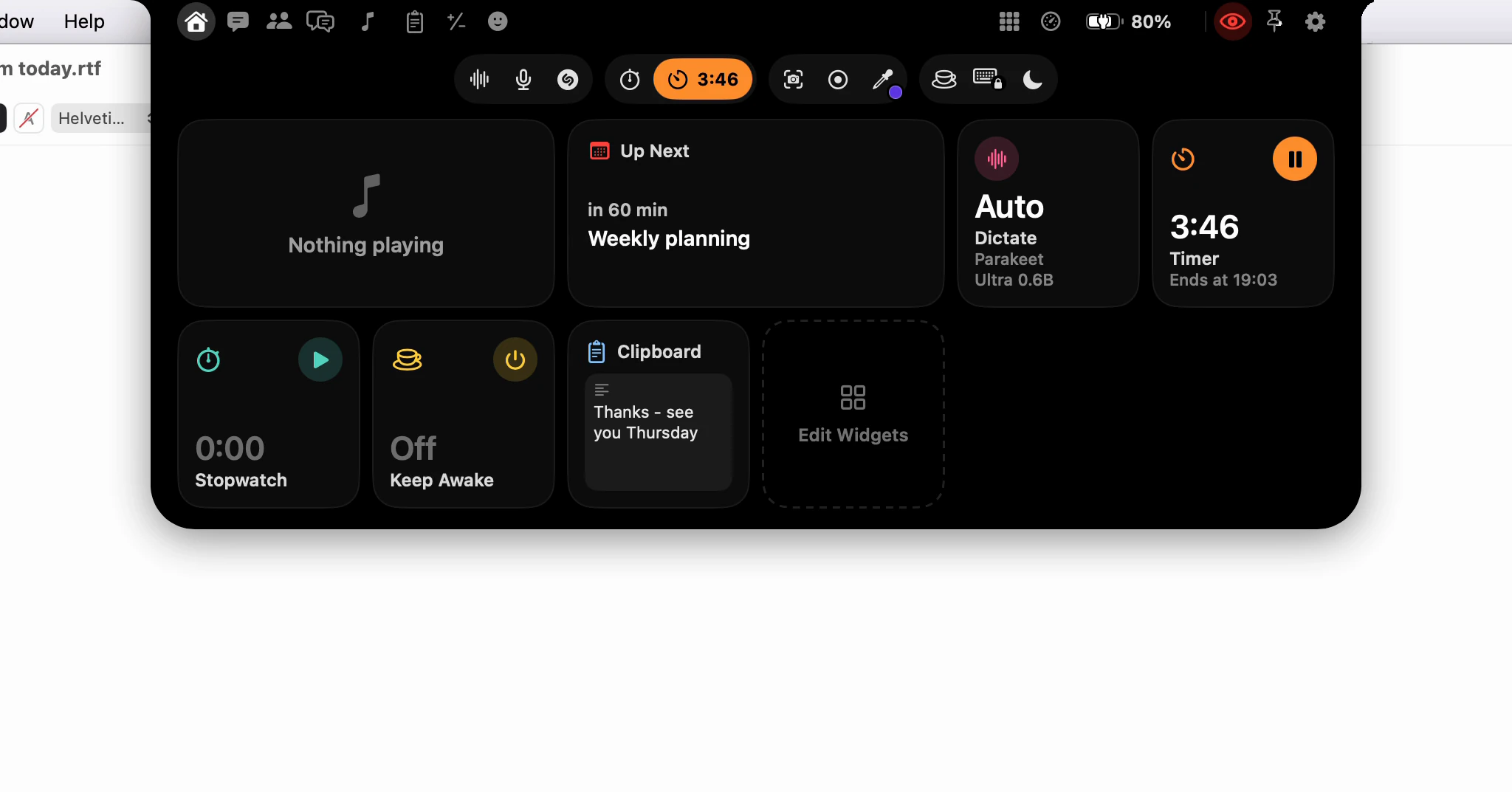
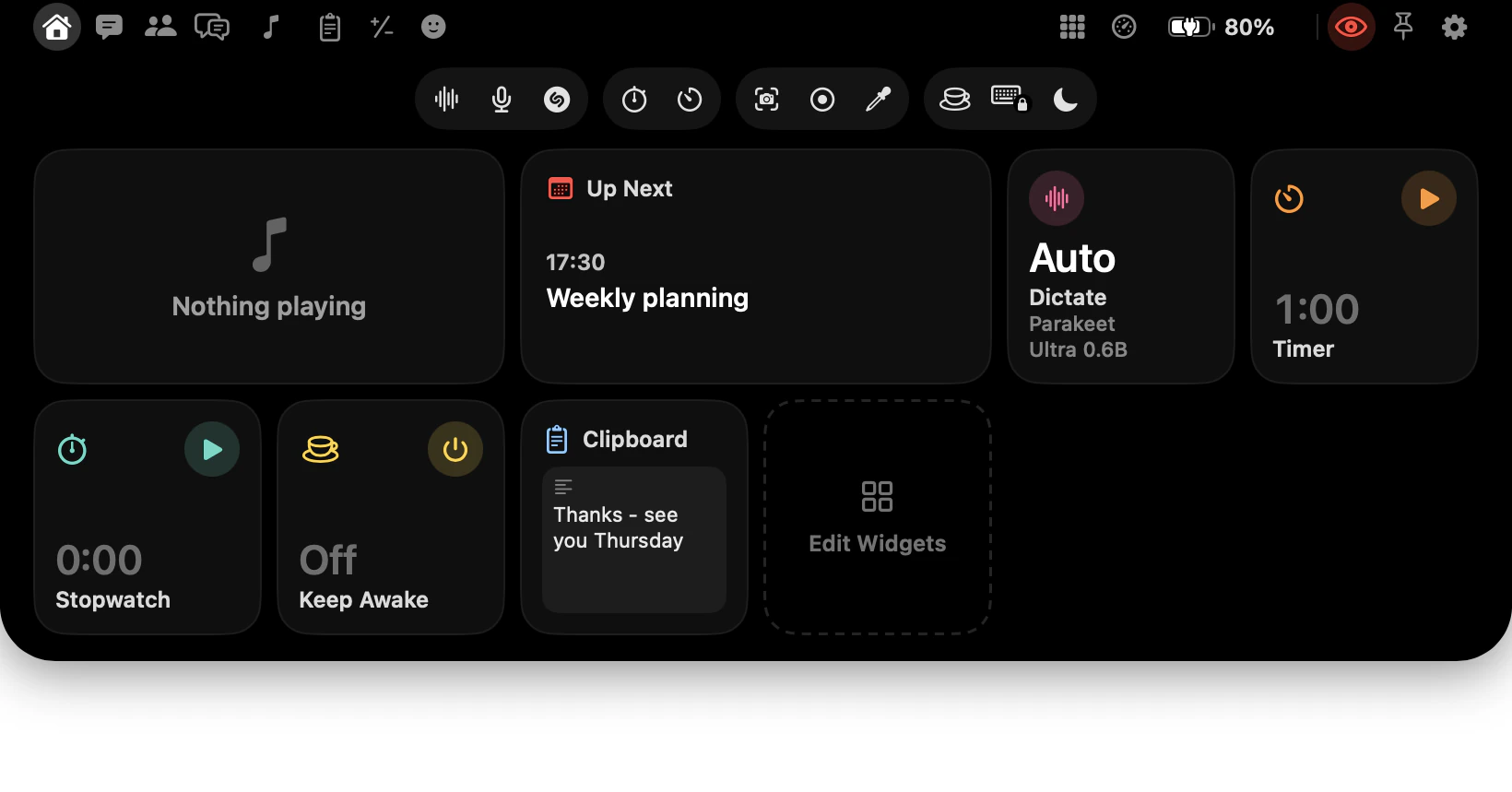
The open notch has three layers. Across the top, either side of the camera, are buttons for pages: yours on the left, the ones about this Mac on the right. Under the camera is a row of tools in four groups. Below that is the page you picked. A tool does its job when you click it, and opens more when you hold it.
How do I open it, and what will I see?
Point at the notch and it opens almost at once. You can also press ⌥⌘I or choose Open Notch in the menu bar, and it opens on the display you're working on, on the page you used last. On a display without a notch, point at the stand-in notch Dictera draws there in the Notch shape, or push the pointer against the middle of the top edge of the screen.
Every page that has a button keeps it in the same place: nothing waits behind a ⋯ menu, and no button changes what it opens. So a page is always where it was last time.
What's on the left of the camera?
Your pages, in three groups: what you work with, what you listen to and look up and the picture on your desktop, and what you put into the app you're in.
| Button | What it opens |
|---|---|
| Home | Widgets for the things you use most. Edit Widgets, at the end of the page, adds, removes, sizes (Small or Medium) and reorders them. |
| Chat | Ask Dictera's conversation with the AI. Type or dictate a question, attach a picture or a capture of the screen, and find earlier ones in Chat History. |
| Meetings | The day's meetings from your calendar and anything you recorded, each with its Notes, Transcript and Setup. Meeting History has every one before. |
| AI Assistant | Not a page. A click shows or hides the Assist panel; holding it starts Assist or Meeting Notes listening. |
| Reminders | Your reminders from the Reminders app: what's due today, what's scheduled, each of your lists and what you finished lately. Type a new one the way you'd say it, tick one off, or move it to later with a click. |
| Music | The song playing in Apple Music, its controls, the sound mixer and, if you turn them on, synced lyrics. |
| Weather | The weather where you are, from Apple Weather: now on the left, the next day hour by hour and ten days on the right. |
| Wallpaper | Apple's still pictures, its colors, and pictures or folders of your own. A click puts one on your desktop - on every display, or on the one you pick - and Shuffle chooses for you. |
| Clipboard | What you copied, once you turn on clipboard history. A click pastes a clip into the app you're in. |
| Calculator | A scientific calculator with a tape. ⌘↩ types the result into the app you're working in. |
| Emoji | Search, then click an emoji to type it into the app in front. |
Chat and Meetings are drawn in windows of their own, laid over the notch, because you type into them and the notch itself never takes the keyboard. They take the keys only when you click into them or press Ask Dictera's key, and both stay out of screen sharing and recordings by apps that respect the window privacy setting in macOS. Weather data comes from Apple Weather, which lists its data sources; nothing is looked up until you connect a location.
What's on the right of the camera?
| Button | What it opens |
|---|---|
| Apps | The apps you keep in the notch. A click opens one, or brings it to the front. |
| Downloads | What arrives in the folders you choose, and the files still on their way, with how long is left. Click to open, or drag into any app. Off until you turn it on. |
| System Monitor | The processor, graphics, memory, disks, network, power and fans, and the apps working hardest. It reads them every two seconds, and only while the page is on screen. |
| Displays | A card for each display, with its brightness - an external monitor's too - and a power button, beside Night Shift, True Tone and Sleep Displays. |
| Battery | The charge and battery health of this Mac, and of devices such as AirPods, keyboards and mice. The button itself draws the charge. |
| Notifications | Every notification from other apps since Dictera started, newest first, the unread ones marked. The bell appears once you choose to show other apps' notifications on the notch. |
After a short divider come three buttons that belong to the notch itself:
- The eye decides whether screen shares and recordings see the notch and the AI Assistant's panel. Hidden is the default; red means visible. Its tooltip says it plainly: "Hidden from screen sharing - only you can see the notch and the AI Assistant. Click to show them." That holds for apps that respect the window privacy setting in macOS.
- Pin keeps the notch open until you unpin it, wherever the pointer goes or clicks.
- The gear opens Settings at the settings of the page you're on - its tooltip names them, like "Weather Settings…" - or at Settings ▸ Notch from a page with nothing to set. The notch's settings are not a page in the notch; they're all in that one pane.
What are the tools under the camera?
| Group | Tools, left to right |
|---|---|
| Sound | Dictate, Microphone, Recognize Song |
| Time | Stopwatch, Timer |
| Capture | Screenshot, Screen Recording, Color Picker, Camera Mirror |
| Mac | Keep Awake, Lock Keyboard, Focus, Lock Screen |
What does a click do, and what does holding a tool do?
One rule covers every tool: a click does the obvious thing, and holding the button opens more. Five pages have no button in the top row - Quick Controls, the Microphone page, the Timer, Screenshots and Colors - and you reach each of them by holding its tool.
| Tool | A click | Holding it |
|---|---|---|
| Dictate | Starts dictating into the app in front; click again to stop | Quick Controls, also on ⌥⌘C |
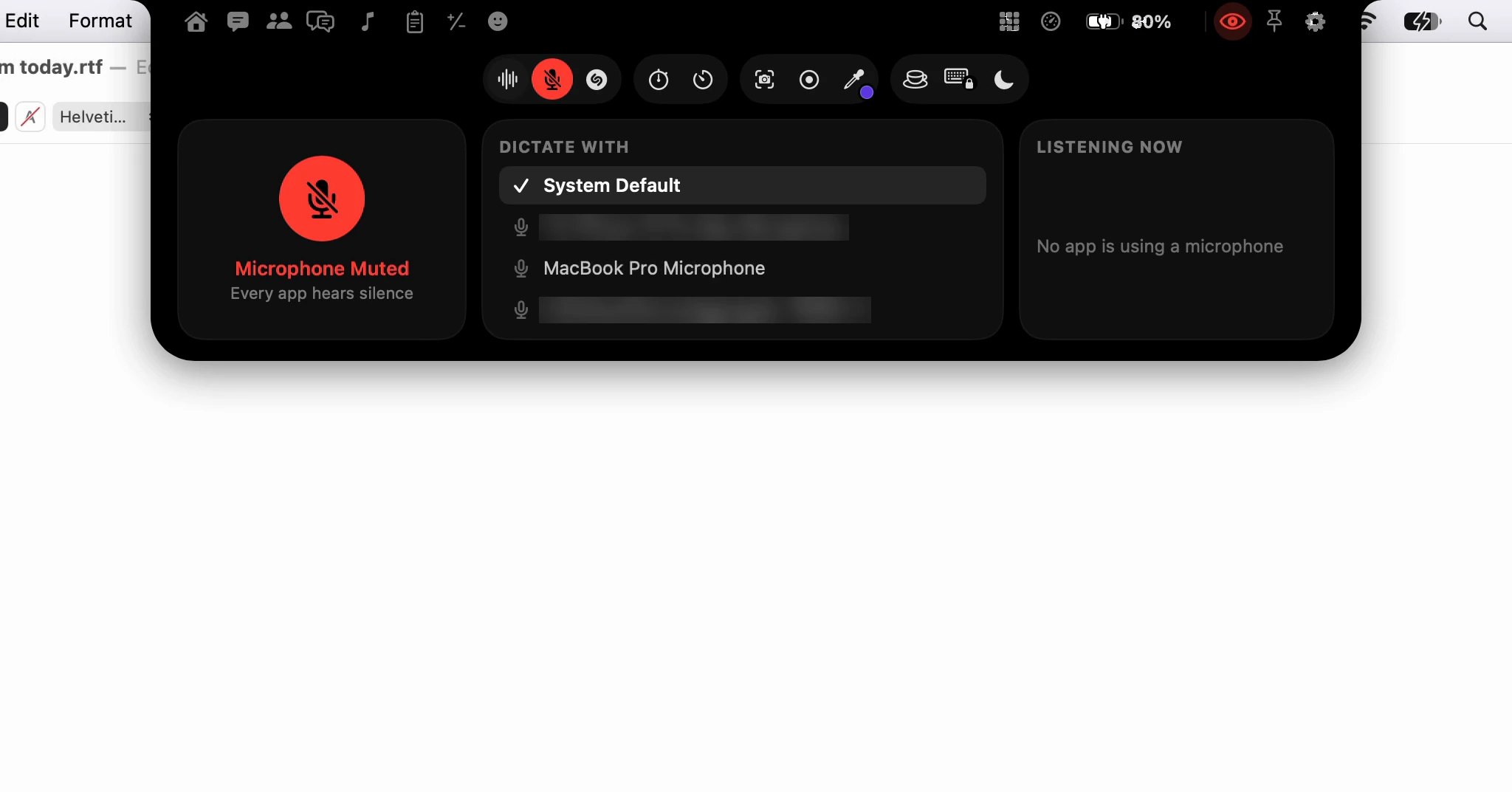
| Microphone | Mutes every microphone, in every app; click again to unmute | The Microphone page: which mic dictation uses, and which apps are listening now |
| Recognize Song | Listens for up to 15 seconds and names the song playing near your Mac | Nothing more; it has no page |
| Stopwatch | Starts or pauses it | Resets it |
| Timer | Starts the last length you used, or pauses | The Timer page: presets from 1 to 60 minutes, a dial, and recent lengths |
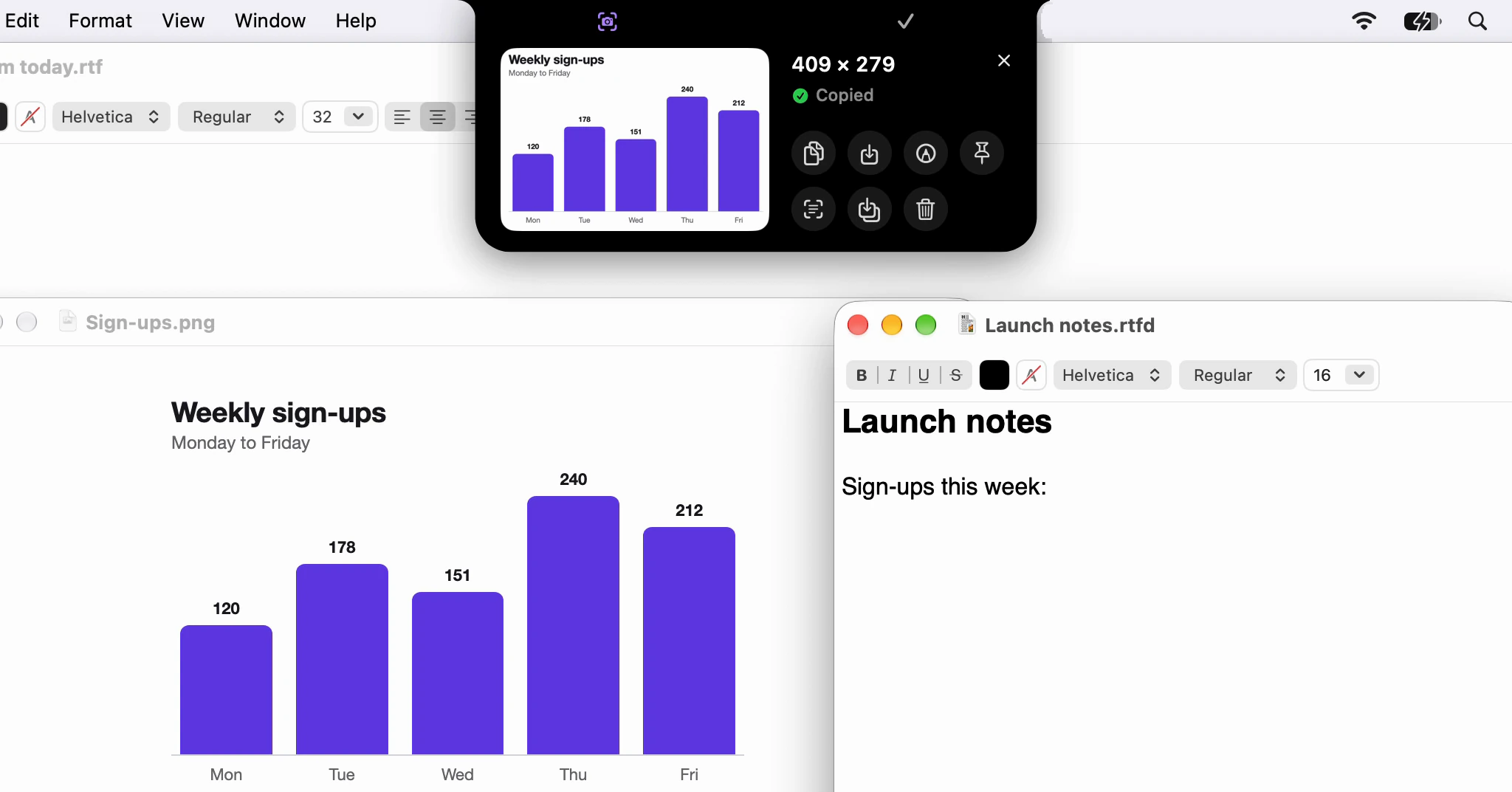
| Screenshot | Drag across an area; Space switches to a window | The Screenshots page: Area, Window, Screen, Text, a timer and recent shots |
| Screen Recording | Pick an area, a window or the screen to record | What to record, and whether to add the microphone, system audio and clicks |
| Color Picker | Picks a color from anywhere on the screen and copies it | The Colors page: every format, contrast, and the colors you picked before |
| Camera Mirror | Opens a mirror of your camera under the notch; click again to close it | Nothing more; its options are on the mirror itself |
| Keep Awake | Keeps your Mac awake until you click again | How long, from 15 minutes to Until Stopped |
| Lock Keyboard | Locks the keyboard for a minute, for cleaning | How long, from 30 seconds to Until Unlocked, or Clean Screen, which also blacks out every display |
| Focus | Turns Do Not Disturb on, or the Focus that's on off | Every Focus this Mac has, to pick one |
| Lock Screen | Locks this Mac at once, as Lock Screen in the Apple menu does | Nothing more; your Home widgets show on the lock screen |
Point at a tool and its tooltip says the same in a few words, like "Screenshot - hold for more options" or "Keep Awake - hold to choose how long". The Timer's names the length a click will start.
Focus needs a one-time step: Dictera switches Focus with a shortcut, which you add to the Shortcuts app once.
What shows while the notch is closed?
Nothing, until something is live. Then one of three things appears.
- A strip wraps around the notch while something runs: a dictation, a screen recording, a locked keyboard, a timer, a screenshot countdown, Recognize Song or the AI Assistant listening, a muted microphone, a running stopwatch, a meeting about to start, the song playing, a download on its way. If several are live, one shows, in a fixed order with dictation first. Point at the strip of a song, a dictation, a recording, the assistant, a muted mic or a meeting, and a card drops out with what you can do; the others open the notch.
- A card drops out by itself when something needs you: the countdown to a meeting with Join and Record, a timer that has rung with Stop, +1 min, +5 min and Restart, the screenshot you just took, the color you just picked, or a translation from Translate Selection; and, once you turn them on, other apps' notifications, instead of the corner of the screen; and a reminder that's due, with Done and Snooze.
- A notice drops out for a few seconds and folds away again: volume and brightness, charging, fully charged, low battery, AirPods and headphones connecting, Caps Lock, drives, and a finished download, which is off until you turn on Say When a Download Finishes. Point at one to keep it there.
Where are the notch's settings?
All in Settings ▸ Notch, which the gear opens at the page you're on. It starts with what the whole notch does, then has a page for each part of it:
- Behavior: Hover to Open, Auto-Collapse and Show Over Full-Screen Apps.
- Appearance: Position, Top, Bottom or Free, and Shape, Notch or Pill.
- Pages: Home & Lock Screen, Reminders, Music, Weather, Wallpaper, Clipboard, Apps, Downloads and Notifications.
- Tools: Screenshots, Screen Recording, Color Picker, Camera Mirror and Keep Awake.
- Then which strips, cards and notices appear while the notch is closed, and the Alerts.
The notch's keys live in Settings ▸ Shortcut. Three are on from the start: Open Notch ⌥⌘I, Quick Controls ⌥⌘C and Ask Dictera, a double-tap of right ⇧. Seven are opt-in and do nothing until you switch them on: Capture Area ⌥⇧⌘4, Capture Text ⌥⇧⌘T, Start or Stop Screen Recording ⌥⇧⌘5, Pick Color ⌥⇧⌘C, Show Camera Mirror ⌥⇧⌘6, Mute Microphone ⌥⇧⌘M and Record a Meeting ⌥⇧⌘R. Add a Reminder, ⌃⌥⌘R, is on from the start as well, and does nothing until you connect Reminders.
Which features go online, and what they send, is on the security page. For the longer version of each tool, see the notch page; if you're wondering whether all this will crowd your screen, read Will the notch get in the way?