What is a notch app, and why put dictation in one?
A notch app uses the black camera housing at the top of a MacBook screen as a place for tools: point at it and a panel grows out of it, move away and it folds back. Dictera keeps everyday Mac tools there, and starts dictation from there too, because from the notch you can start a dictation without taking the cursor out of the app you're typing in.
What is a notch app?
Recent MacBook models have a cut-out at the top of the display for the camera. macOS puts the menu bar on either side of it, and the cut-out itself shows nothing. A notch app draws a black shape around it that looks like the housing growing: point at it and it opens into a panel, move away and it folds back into the camera housing.
Closed, Dictera's notch puts nothing on the screen. You see the camera housing, as before. While something is going on - a song playing in Apple Music, a timer counting down, a dictation - a small strip wraps around the notch to show it, and it goes once the thing it shows has finished.
If that sounds like the Dynamic Island® on iPhone, the idea is related: a cut-out in the screen that turns into a live status area. On a Mac the differences matter more than the resemblance. You aim with a pointer rather than a thumb, the open notch holds whole pages rather than a status line, and it has to make sense on displays that have no notch at all.
What does Dictera keep in the notch?
The app describes itself in three parts, and puts the notch first:
- The notch: everyday Mac tools at the top of your screen.
- Voice: dictate, translate and fix text in any app.
- AI: an assistant for calls, meeting notes and chat.
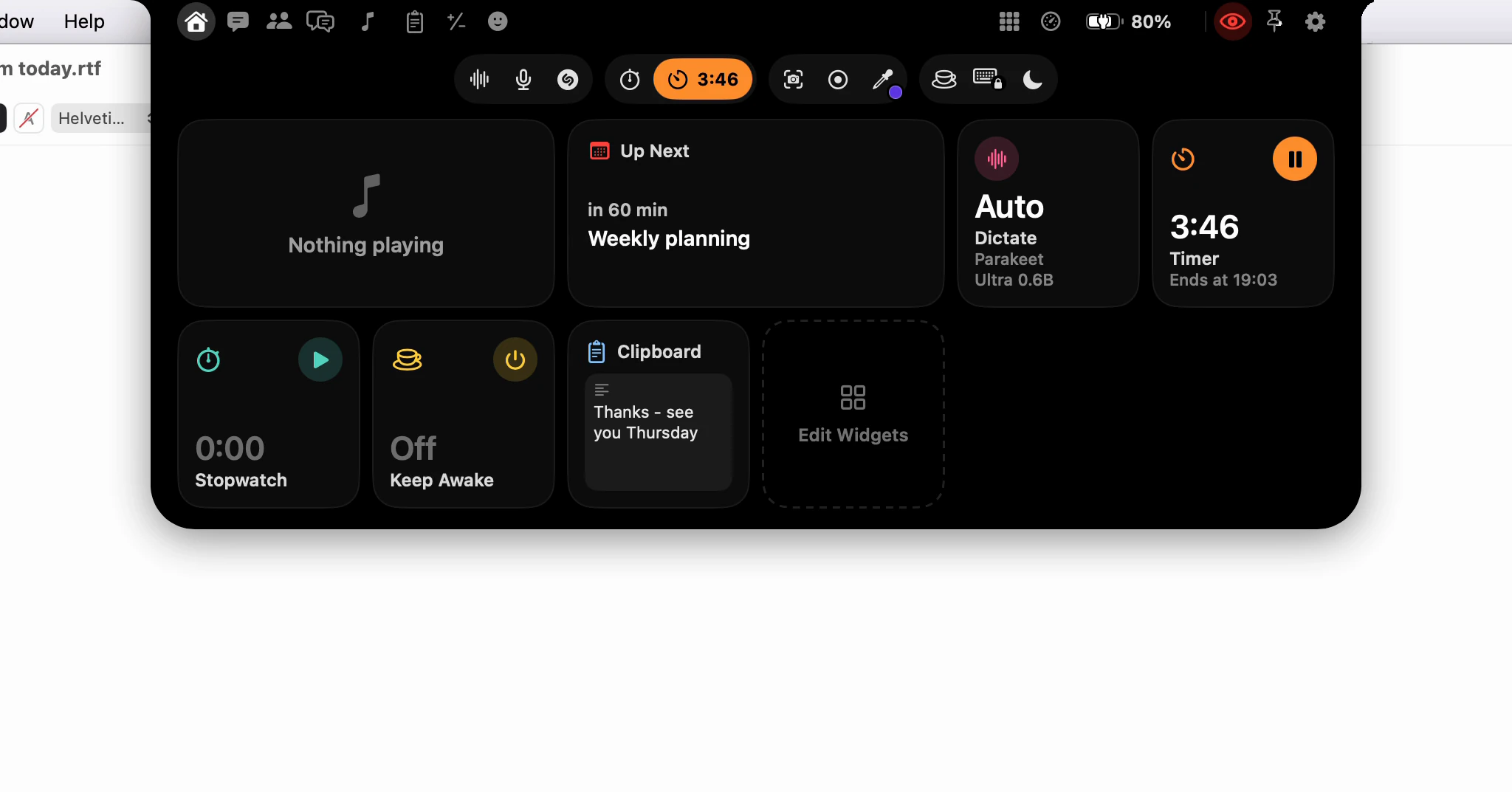
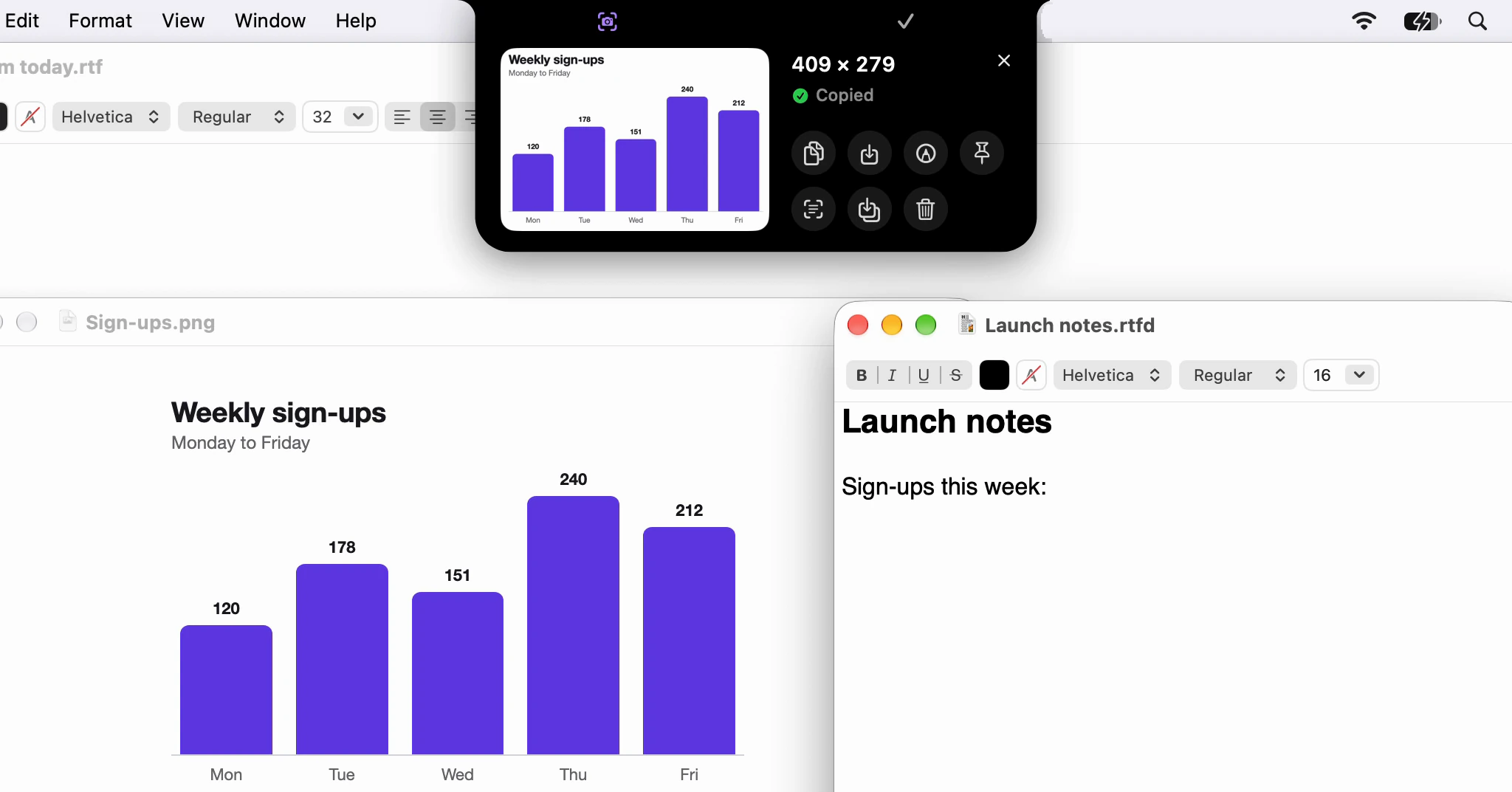
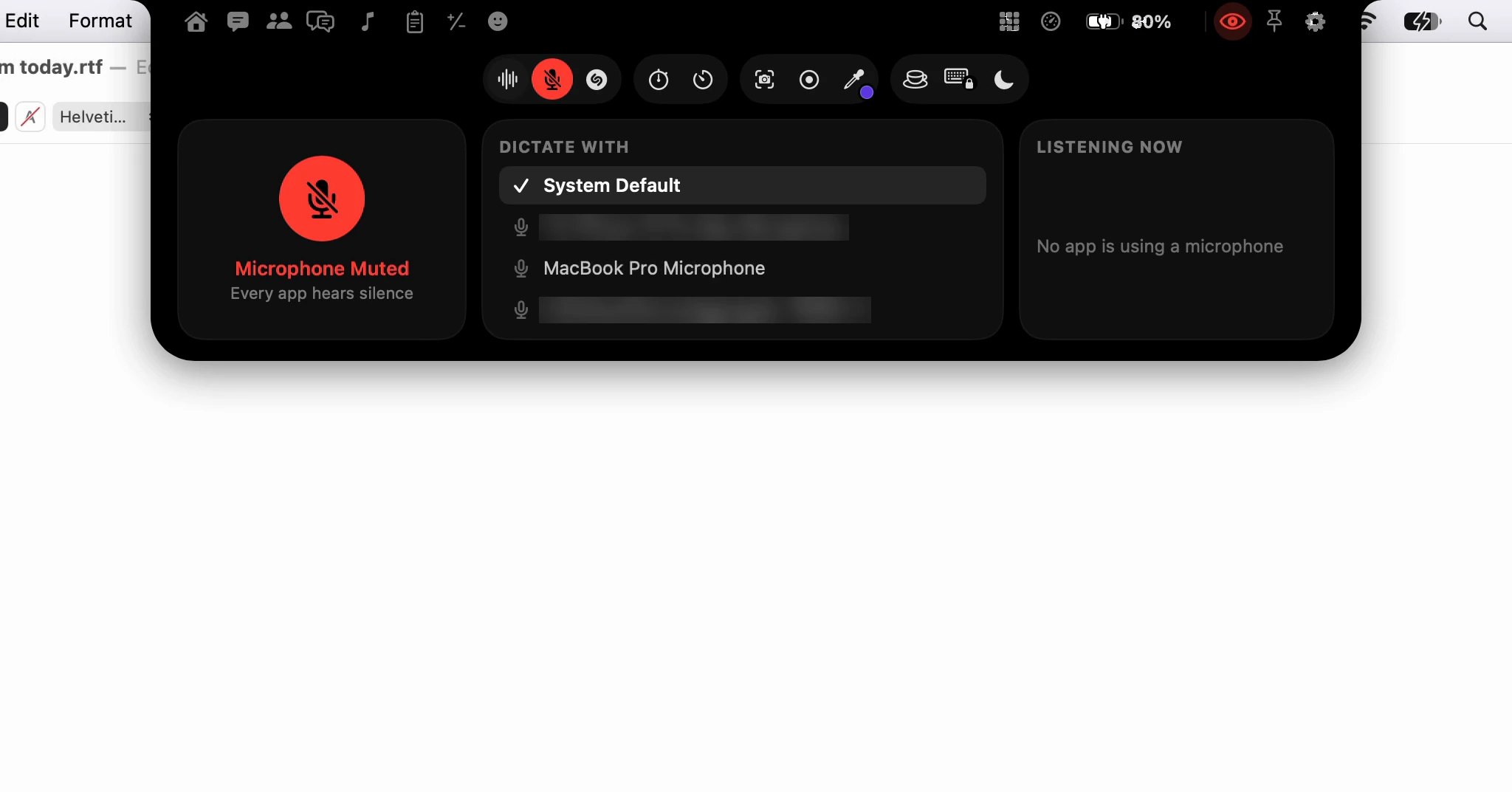
The everyday tools are the small jobs you would otherwise open an app or a settings pane for: what's playing in Apple Music, the weather, a clipboard history, a calculator, emoji, the apps you use most, a timer and a stopwatch, screenshots, screen recordings and a color picker. There is one switch that mutes every microphone, a way to recognize a song playing around you, and switches for keeping your Mac awake, locking the keyboard while you clean it and changing Focus. Two more pages show how busy the processor is and how much charge this Mac and your AirPods have left. And there is more for the Mac around you: the files you just downloaded, the brightness of every display, a new wallpaper, the notifications you missed, a mirror of your camera before a call, and a button that locks the screen.
Voice and AI live there too. The first tool in the row under the notch is Dictate, and the top row holds the AI Assistant's Chat and Meetings pages. Home, the page the notch first opens on, can hold a widget for every feature, so the things you use most are a glance away. The map of every page and button goes through all of it, and the notch page has each tool in detail.
Why put dictation in the notch?
Because dictation needs a place to start that doesn't take your cursor with it. Dictation types into the field you're in. Anything you click to start it - a window, a panel, a button in another app - can move the keyboard focus out of that field, and then your words land somewhere else, or nowhere.
The notch never takes focus. Its window is built so that it can't become the active window, so you can click Dictate, speak, click again to stop, and the text lands at the cursor you left. The same rule is why an emoji from the Emoji page, a clip from the Clipboard page or a result from the Calculator goes into the app you were using rather than into Dictera.
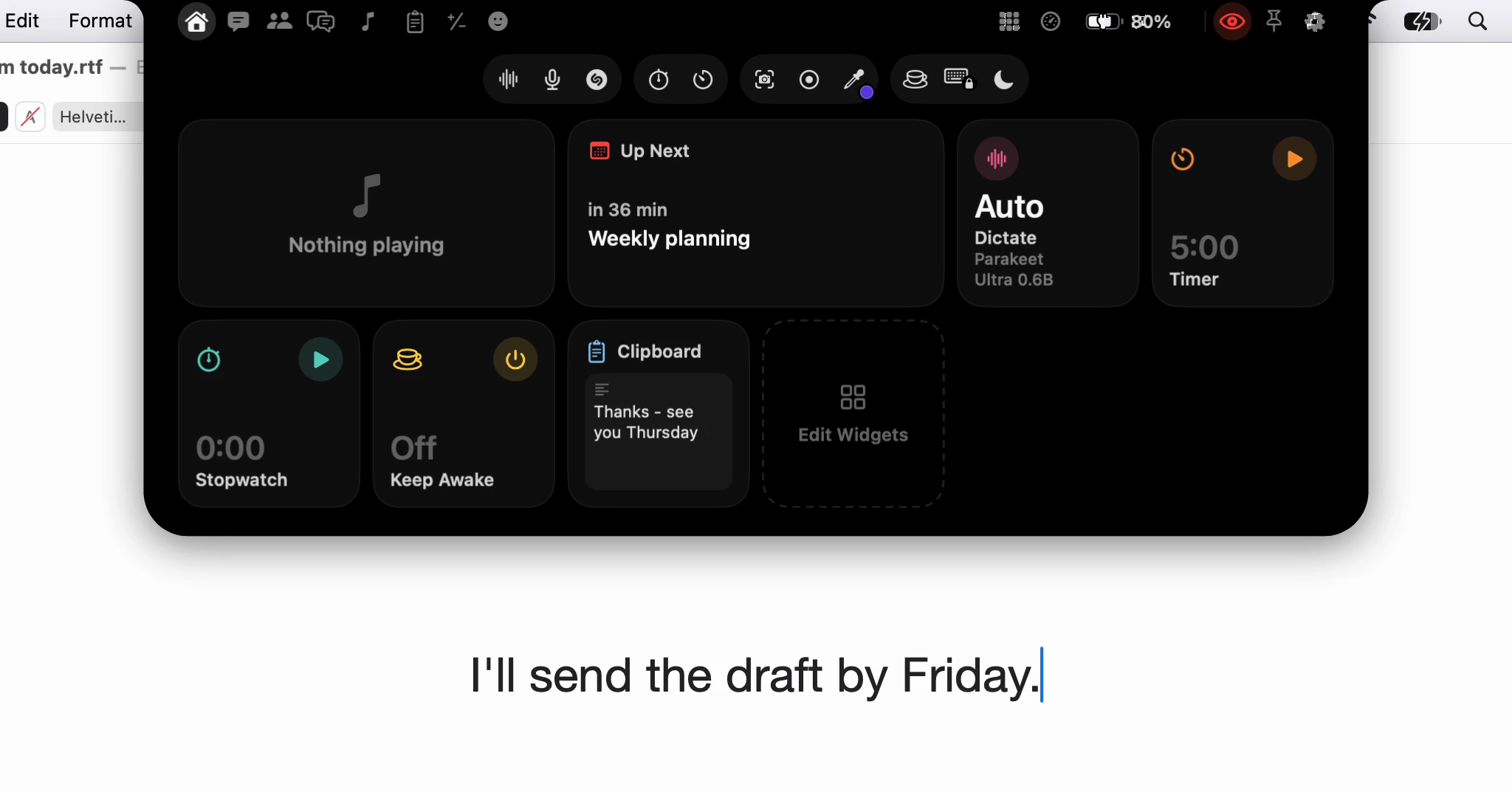
The notch is also where dictation shows what it's doing, at the top of the screen. While you speak, the strip shows the level of your voice and how long you've been talking, in the color of what you're doing: white for plain dictation, green when cleanup will run, purple for a translation, amber for a voice edit. Three dots mean your speech is being turned into text; a tick means the text is in. Point at the strip and you get Stop and Cancel.
You don't have to click anything. Holding right ⌘ starts a dictation from any app, and the strip shows on the notch the same way. Hold Dictate instead of clicking it and you get Quick Controls, the page where you switch dictation features on and off, pick languages and change models without opening Settings. The dictation page has the rest.
Isn't Dictera a menu bar app?
It has a menu bar icon, and the app itself says it lives in your menu bar and your notch. But the menu is now for stopping things and for the app itself. It offers Stop while a dictation runs, Unlock Keyboard while the keyboard is locked and a way to stop a meeting being recorded, plus Open Notch, the AI Assistant's panel, Settings and updates. Everything you start, you start from the notch or a shortcut.
That split is deliberate. A menu can list commands, but it can't show what's running once it closes, and it can't stay open while you work. The notch does both: the strip shows what's live, and Pin keeps the notch open on a page until you unpin it.
Do I need a MacBook with a notch?
No. On a display without a camera housing, such as an external monitor, Dictera draws a stand-in notch where the housing would be, the same size as the real one on your MacBook if you have one. It shows the same strips and opens the same way. The notch opens on whichever display you're working on, and follows you from one to the next.
If you'd rather keep the menu bar clear, Settings ▸ Notch has a Shape option with two choices: Notch, which grows out of the top edge of the screen, and Pill, which floats just below the menu bar and draws no stand-in. Without a notch to point at, you open it by pushing the pointer against the middle of the top edge of the screen, or with ⌥⌘I once you've allowed Accessibility.
What you do need is a Mac with Apple silicon and macOS 26 or later.
Can I turn the notch off?
No. The notch is where Dictera is used, so it has no on-off switch of its own. What you can change is how much it does by itself: whether pointing opens it or it waits for a click, whether it closes as soon as the pointer leaves, whether it opens over full-screen apps, and which strips and alerts appear. Will the notch get in the way? goes through each one.
Is the notch a separate purchase?
No. Dictera is one app with one subscription. The free trial runs for 14 days with everything unlocked, the notch included, and the same plan covers the notch, dictation and the AI Assistant afterwards.
When a trial or a subscription ends, all three stop together. The notch still opens, onto a single page that says what has ended and leads to Settings ▸ License, but its tools, strips and alerts stop, and so do dictation and the assistant. Nothing you saved is deleted, and all of it stays on your Mac.