Will the notch get in the way of what I'm doing?
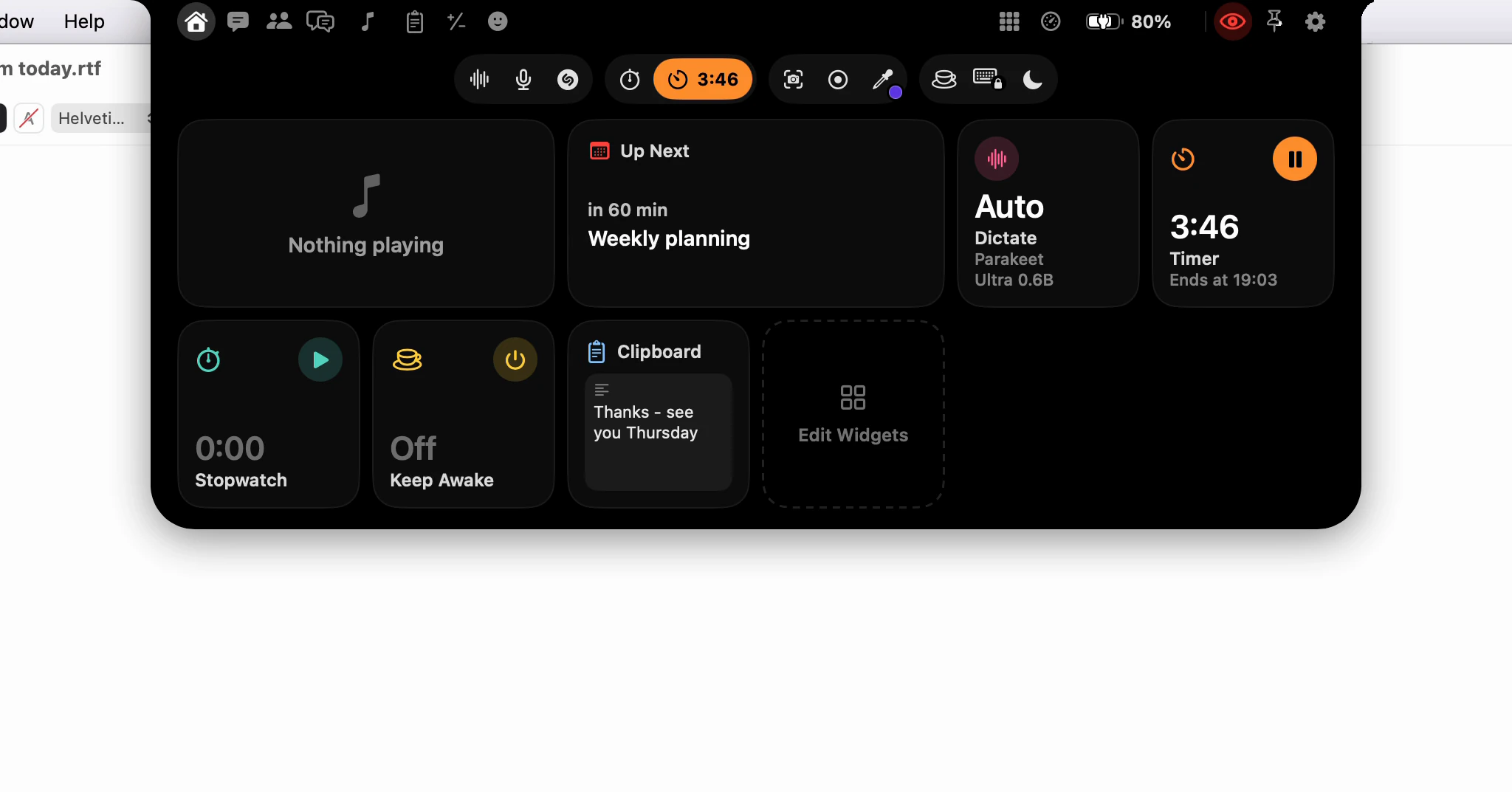
It's built not to. Closed, the notch puts nothing on the screen; open, it never takes your cursor; and everything it does by itself - opening when you point, showing over full-screen apps, the strips and alerts - has a setting in Settings ▸ Notch. There's no off switch, but there is a second shape, the Pill, that keeps the menu bar clear.
What's on the screen when the notch is closed?
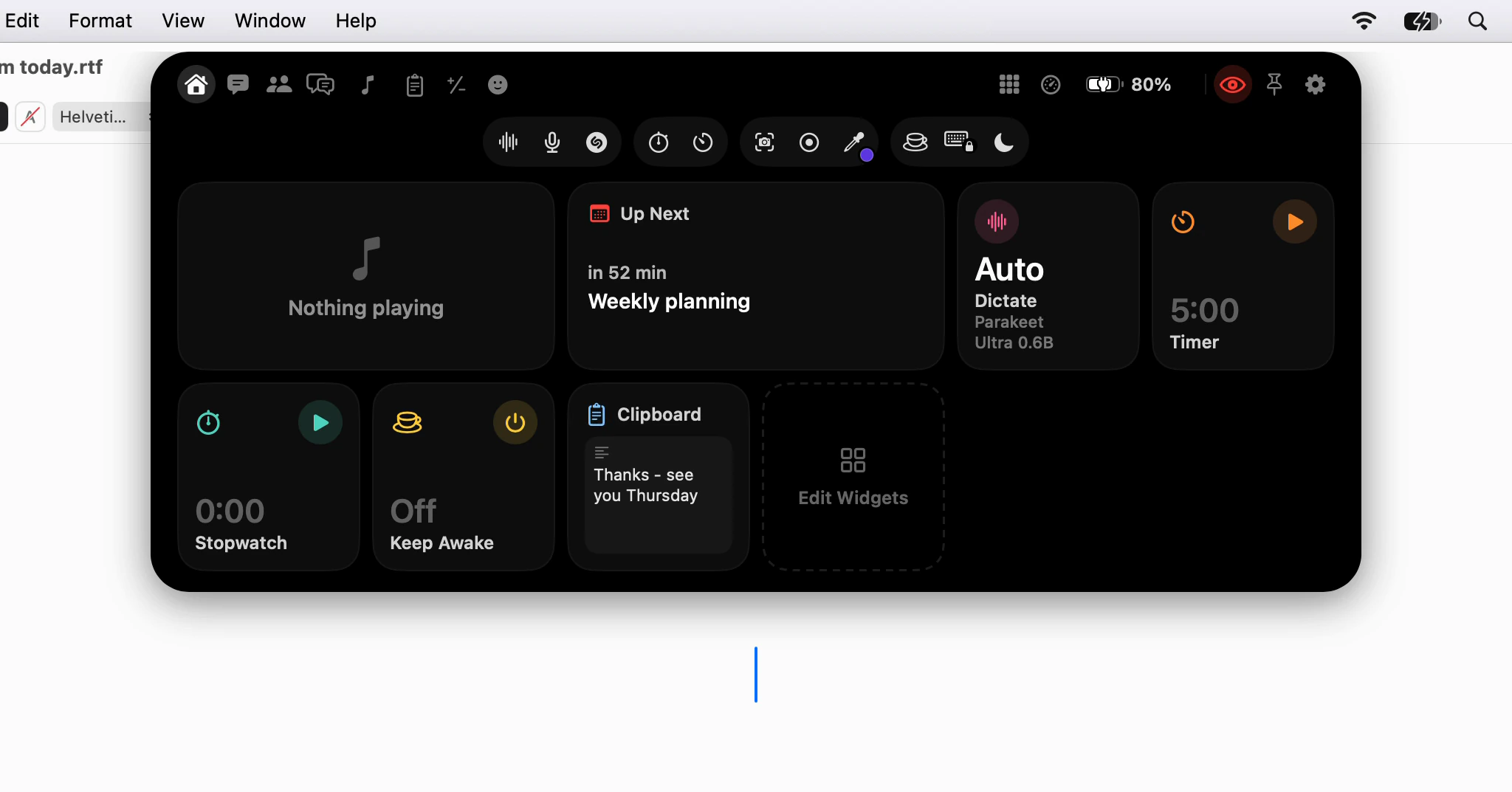
Nothing. When the notch has nothing to show, Dictera takes its window down, and what you see at the top of a MacBook screen is the camera housing, as before.
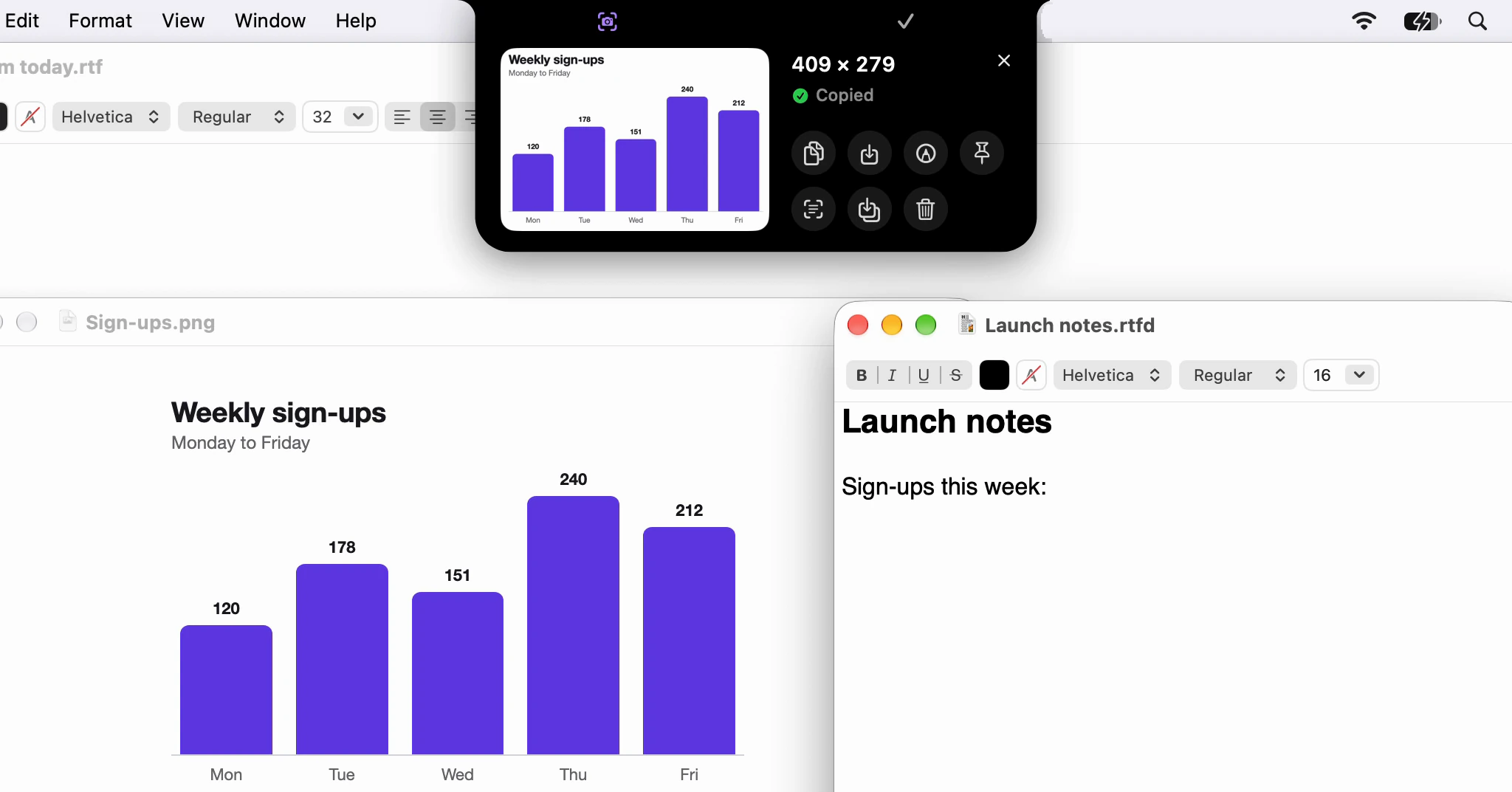
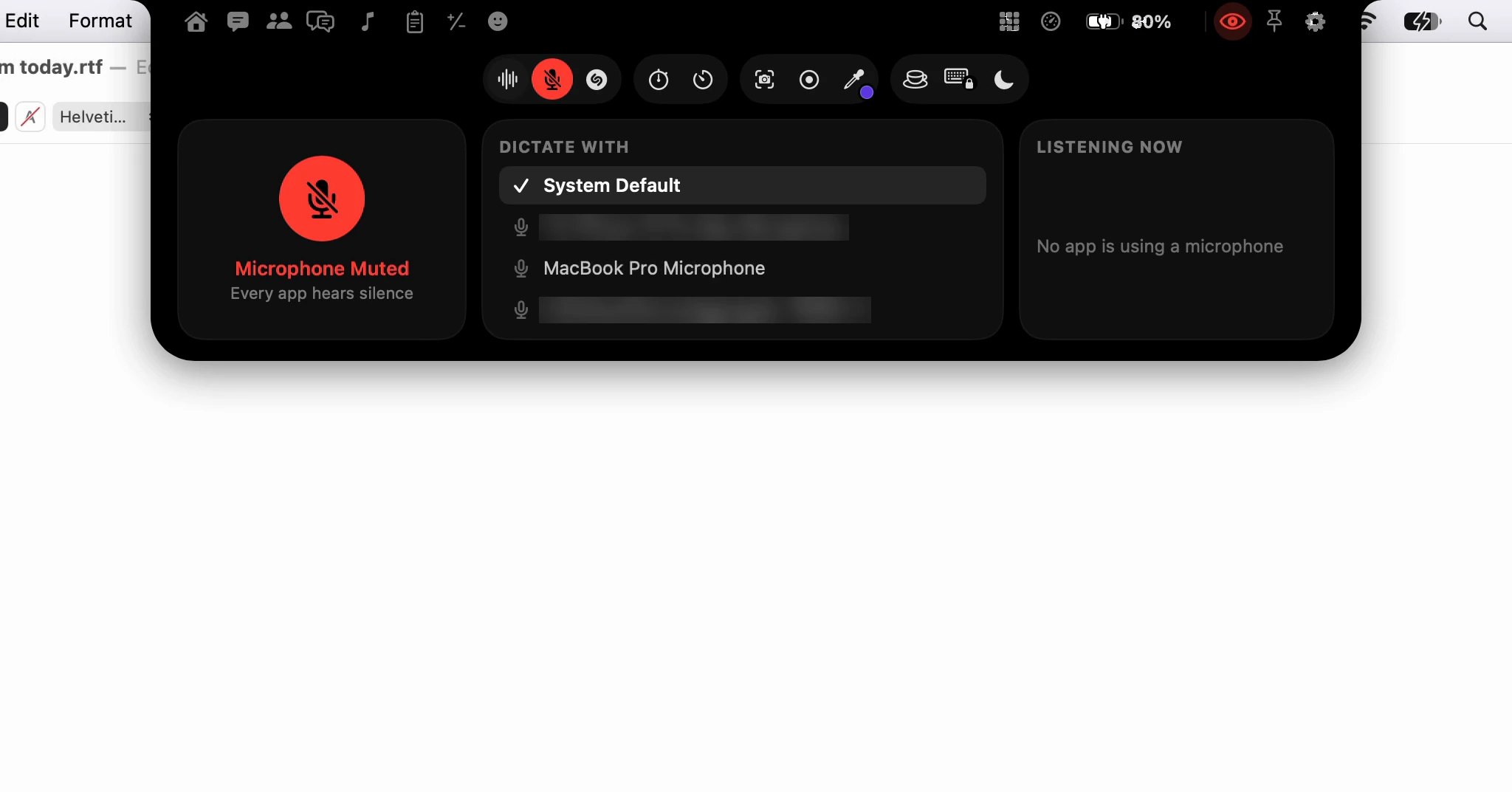
Something appears only while something is live: a small strip around the notch while a song plays, a dictation runs, a timer counts down or the keyboard is locked, and a card or a notice when something happens, such as a timer ringing or AirPods connecting. What turns up without you starting it has a switch: Settings ▸ Notch has Show What's Playing, Show Dictation on the Notch, Show the AI Assistant on the Notch, Count Down to the Next Meeting, Show Volume and Brightness on the Notch, and one switch per alert, from Charging to Downloads. The rest, such as a timer or a locked keyboard, only shows what you started yourself.
On an external display, the Notch shape draws a black stand-in where a camera housing would be, so the strips have somewhere to go. If you'd rather have nothing there, the Pill shape draws no stand-in at all.
Will it open when I don't mean it to?
It opens when the pointer rests on the notch for a tenth of a second. That's short because the notch is dead space: nobody points at a camera housing on the way to something else.
A display without a notch is different, because the top edge is also the way to the menus. There the notch waits a quarter of a second, and only for a pointer pushed against a thin band in the middle of the top edge. The app menus on the far left and the status items on the far right stay clear of it.
If even that is too eager, turn off Hover to Open in Settings ▸ Notch ▸ Behavior, and the notch opens only when you click it. Auto-Collapse decides how it closes: on, it folds away as soon as the pointer leaves; off, it stays until you click somewhere else. Opened with ⌥⌘I, it waits for you to reach it, and closes once the pointer has been over it and left, or when you click somewhere else.
The open notch also has a soft edge. The transparent margin around it, where its shadow falls, doesn't catch clicks: they go through to the window underneath.
Will it take my cursor or my typing?
No. The window the notch is drawn in can never become the active window, because that would move the focus out of the field you were typing in. You can click a button in the notch mid-sentence and carry on typing where you were. That's also why a dictation started from the notch lands at your cursor.
A few pages need the keyboard, and they take it only when you ask. Chat and the Meetings page are windows of their own laid over the notch, and take the keys when you click into a field or press Ask Dictera's key. The Calculator takes keys once you click it, and lets go as soon as you click elsewhere, switch apps, press ⌘Tab or start a dictation.
What happens over full-screen apps?
Show Over Full-Screen Apps is on by default. A full-screen app gets a Space of its own, and if you keep several, the notch would otherwise be missing from all of them but your desktop.
Turn it off and the notch stays out of the way of full-screen videos, games and presentations, and of a full-screen browser that keeps its tabs at the top. Pointing at the top of the screen won't open it there, and things that happen by themselves, like a charging notice, don't appear over it. Two kinds of thing still come through:
- Notices that answer a key you just pressed: volume, brightness, Caps Lock, the microphone mute and a translation. macOS shows its own pop-ups over full-screen apps too.
- Anything you ask for by hand: ⌥⌘I and Open Notch in the menu bar still open the notch.
When you move to another Space, an open notch closes. A pinned one follows you, since pinning is how you ask it to stay.
Does the open notch cover the menu bar?
In the Notch shape, yes, the middle of it, while it's open: it grows out of the top edge of the screen, the way the camera housing would if it opened. When it closes, the menu bar is back.
If you'd rather keep the menu bar in sight, choose Pill under Settings ▸ Notch ▸ Appearance ▸ Shape. The Pill floats just below the menu bar instead, with the same pages and tools, and on displays without a camera housing it draws no stand-in in the menu bar.
Or move it off the top altogether. Under Settings ▸ Notch ▸ Appearance ▸ Position, Bottom puts the notch at the bottom of the screen, rising from the Dock, and Free puts it anywhere you drag it - where it opens only when you press ⌥⌘I, and nothing comes out of it by itself.
Will the people on my call see it?
Not by default. The eye in the notch's top row decides whether screen shares and recordings see the notch and the AI Assistant's panel, and it starts at hidden. Click it to show them; it turns red, so a visible notch is hard to miss. Hidden, it's kept out of screen sharing and recordings by apps that respect the window privacy setting in macOS.
Some things stay out of shares whatever the eye says. Your notes and chats stay out of your screen share: those same apps always leave out Chat and the Meetings page. While the AI Assistant is listening, while the notch asks about a meeting or while a notice about a recording is up, the notch steps out of shares and recordings even if you've made it visible, so a meeting's title and the recording controls stay on your own screen rather than in the share. Telling the people on a call that you're recording is still up to you. Dictera's own screenshots and screen recordings leave the notch out too.
Will it clash with my keyboard shortcuts?
Mostly not, because most of the notch's keys are off until you switch them on. Capture Area, Capture Text, Start or Stop Screen Recording, Pick Color, Show Camera Mirror, Mute Microphone and Record a Meeting all do nothing until you switch them on in Settings ▸ Shortcut.
Three are on from the start: Open Notch ⌥⌘I, Quick Controls ⌥⌘C and Ask Dictera, a double-tap of right ⇧. While Dictera runs, ⌥⌘I takes that combination from browsers' developer tools and from Show Inspector in the Finder. If you use those, change it in Settings ▸ Shortcut.
Is it busy in the background?
Very little runs while you're not looking. System Monitor reads the processor, memory and the rest every two seconds, but only while its page is on screen. The Battery page follows your batteries only while the notch is open. The countdown to your next meeting checks the calendar every twenty seconds, and only while Count Down to the Next Meeting is on.
What if motion bothers me?
The notch follows the Reduce Motion setting in macOS. With it on, the level bars and scrolling song titles hold still, the dictation dots and recording dots stop pulsing, the buttons stop bouncing under the pointer, and the timer's bell doesn't shake when it rings.
Can I just turn it off?
No. The notch is where Dictera is used, so there's no off switch for it. If you want it as quiet as it gets, this is the combination:
- Turn off Hover to Open, so it opens only on a click or ⌥⌘I.
- Turn off Show Over Full-Screen Apps.
- Turn off the strips and alerts you don't want, starting with Show What's Playing.
- Choose the Pill shape, so the menu bar stays in view.
- Or set Position to Free, and put it somewhere out of the way: it opens only when you ask.
For what each button does once it's open, see What's in the notch?, and for every tool in detail, the notch page. What the notch sends over the network, and when, is on the security page and in what Dictera sends over the network.