Where did Quick Controls and the assistant's tabs go?
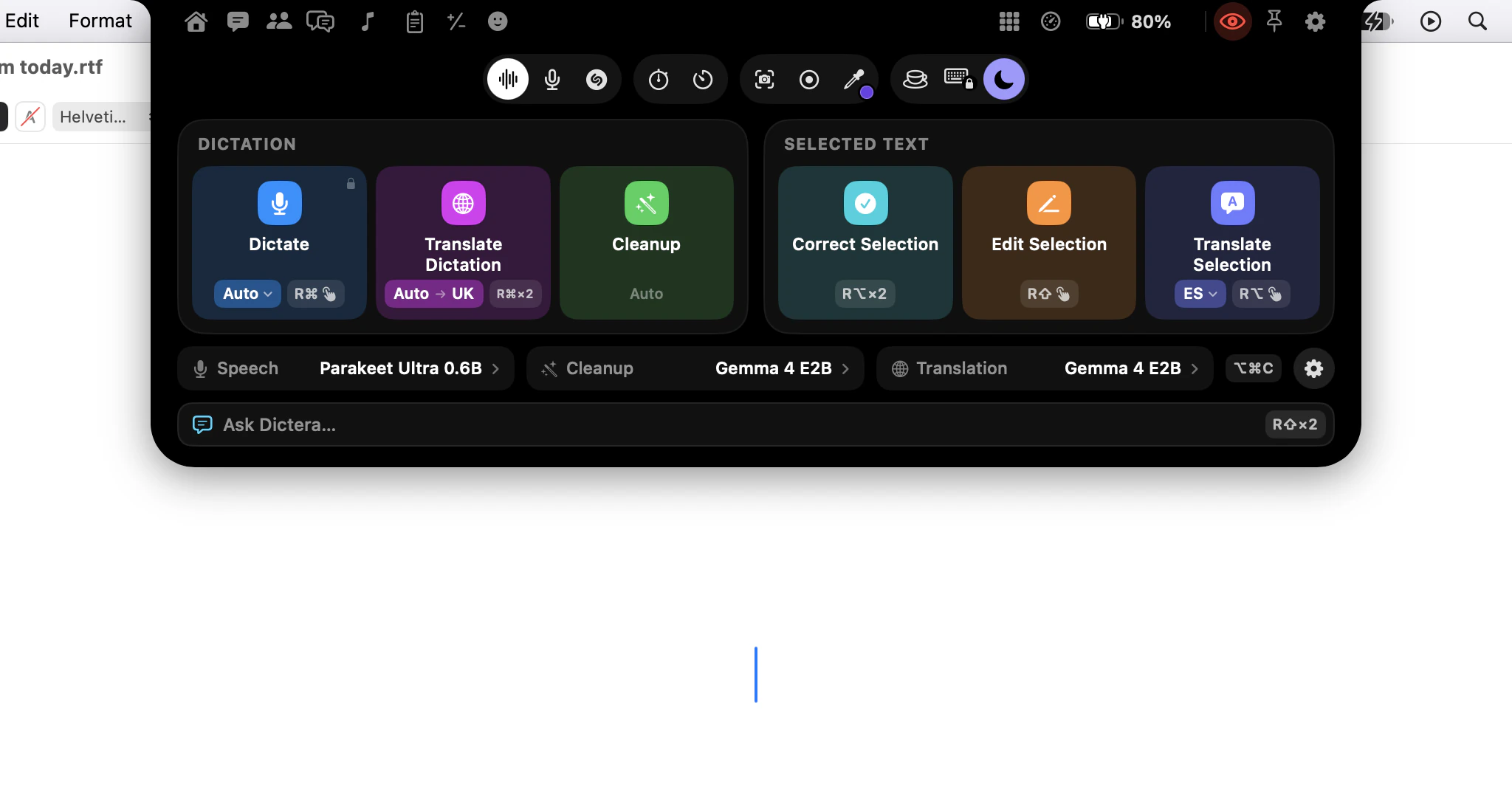
Nothing you relied on is gone; it moved into the notch. Quick Controls is a page of the notch, the assistant's chat and meeting notes are pages of the notch, the day's meetings are listed on the Meetings page, and the menu bar now only stops things. If you used Dictera before the notch arrived, the table below takes you from the old place to the new one.
Where is each thing now?
| You used to | Now |
|---|---|
| Open Quick Controls in the middle of the screen with ⌥⌘C | It's a page of the notch. Hold Dictate in the notch, or press ⌥⌘C; press it again to close it. |
| Type into Ask Dictera's bar in the middle of the screen | Ask Dictera opens the notch's Chat page with the cursor in the field. Use its key (a double-tap of right ⇧ unless you changed it), the Chat button in the notch's top row, or the Ask Dictera… row on Quick Controls. |
| Chat in the AI Assistant's panel | Chat is a page of the notch. Chat History, at the top of the page, lists your chats by day. |
| Take meeting notes in the panel, and pick a day from its agenda | Meetings is a page of the notch: the day's meetings on the left, with Today and arrows for the previous and next day, and the selected meeting's Notes, Transcript and Setup on the right. Meeting History has every meeting before. |
| Start Meeting Notes from the panel | Click Record on a meeting on the Meetings page, or hold the AI Assistant button in the notch and choose Meeting Notes. There's also an opt-in Record a Meeting key, ⌥⇧⌘R, in Settings ▸ Shortcut. |
| Switch the panel between its tabs | The panel has no tabs now: it's Assist only. ⌥⌘H, a click on the AI Assistant button in the notch, or Show AI Assistant in the menu bar opens it. |
| Use Start or Stop Listening (⌥⌘L) for meetings | It starts and stops Assist only. Meetings have Record a Meeting. |
| Keep the panel out of screen shares with its own control | The eye in the notch's top row covers the notch and the panel, and starts at hidden. Chat and the Meetings page always stay out of screen sharing and recordings by apps that respect the window privacy setting in macOS. |
| Watch the floating recording indicator | Dictation shows on the notch, in the color of what you're doing. The floating indicator appears only when there's no notch or Pill to show it on. |
| Read Translate Selection in a window | The translation drops out of the notch as a card, already on the clipboard, and stays until you dismiss it. |
| Get meeting banners from Notification Center | Meeting questions and notices drop out of the notch while Ask About Meetings on the Notch is on, which it is by default. |
What's left in the menu bar?
The menu stops things and manages the app. The items that started a transcription or a translation are gone, and so are Ask Dictera…, Quick Controls, Translate to and Microphone. Here's where to go instead:
- To dictate or translate, click Dictate in the notch or use your keys: hold right ⌘ to dictate, and double-tap it for Translate Dictation, unless you changed them.
- To pick a translation language, open Quick Controls and click the language on the Translate Dictation tile. The Translate to list opens in its place.
- To choose the microphone for dictation, hold the Microphone tool in the notch and pick one under Dictate With, or use Microphone in Settings ▸ Dictation.
What the menu still has: Stop Recording, Stop Translation or Stop Editing while a dictation runs; Unlock Keyboard while the keyboard is locked; Stop Meeting Notes while a meeting is being recorded; and always Open Notch, Show AI Assistant, Settings…, About Dictera, Welcome to Dictera…, Check for Updates… and Quit Dictera.
How do I open the notch?
Point at the notch and it opens. On a display without one, point at the stand-in notch Dictera draws there in the Notch shape, or push the pointer against the middle of the top edge. You can also press ⌥⌘I, which uses the Accessibility permission dictation already has, or choose Open Notch in the menu bar. If you'd rather click than point, turn off Hover to Open in Settings ▸ Notch ▸ Behavior.
What changed for meetings?
Besides the new page, two things. For the last five minutes before a meeting, the notch counts down to it, with Join and Record. And the question before a meeting starts now comes out of the notch, with the call's Join button on it.
That question also behaves differently. In Settings ▸ Calendar, the choice that asks before a meeting is now called "Ask whether to record", and it means what it says: if nobody answers, nothing is recorded. Before, a countdown nobody answered started the recording. Only "Record automatically" records without an answer now.
Can I see the tour again?
Yes. Choose Welcome to Dictera… in the menu bar. The tour has a page on the notch that asks you to open it, and tells you when you have.
If the notch opens onto a padlock, your trial or subscription has ended. The notch, dictation and the AI Assistant are paused together, and everything you saved stays on your Mac. The buttons on that page, Unlock Dictera… (or Resubscribe…) and Enter License Key…, take you to Settings ▸ License.
For every page and button in one place, read What's in the notch? The changelog lists everything else in this release, the notch page covers each tool, and the AI Assistant page covers Assist, Meetings and Chat.