Why Dictera moved into the notch
Dictera began as a dictation app with a few floating panels. As it grew a meeting assistant, a chat and a set of everyday tools, every new panel was one more place to look and one more window with rules of its own. So we moved everything you start into one surface at the top of the screen, and gave that surface the same rules everywhere.
What was wrong with floating panels?
Each one made sense on its own. The recording indicator floated near the bottom of the screen, Quick Controls and Ask Dictera opened in the middle, a translation came in a window of its own, and the AI Assistant's panel switched between three tabs. Together, that was five places to look, each opening and closing its own way, and two of them with a screen-sharing control of their own.
The more Dictera did, the worse that got. A timer, a clipboard history or a color picker built the same way would each have needed another window somewhere. A dictation app can't afford to make you hunt, because the moment you hunt is the moment you're no longer typing.
Why the notch, of all places?
Because it's always there, always in the same spot, and nobody points at it by accident. On a MacBook it's space the screen already gives up to the camera; on any other display, Dictera draws a stand-in in the same place.
We set a few rules for it. Every page with a button keeps that button in the same place. Nothing waits behind a ⋯ menu, and no button changes what it opens, so a page is where it was last time. Each tool does its job on a click and opens more on a hold, so there is one way in to each thing rather than a tab and a tool for the same job.
Why does it never take the keyboard?
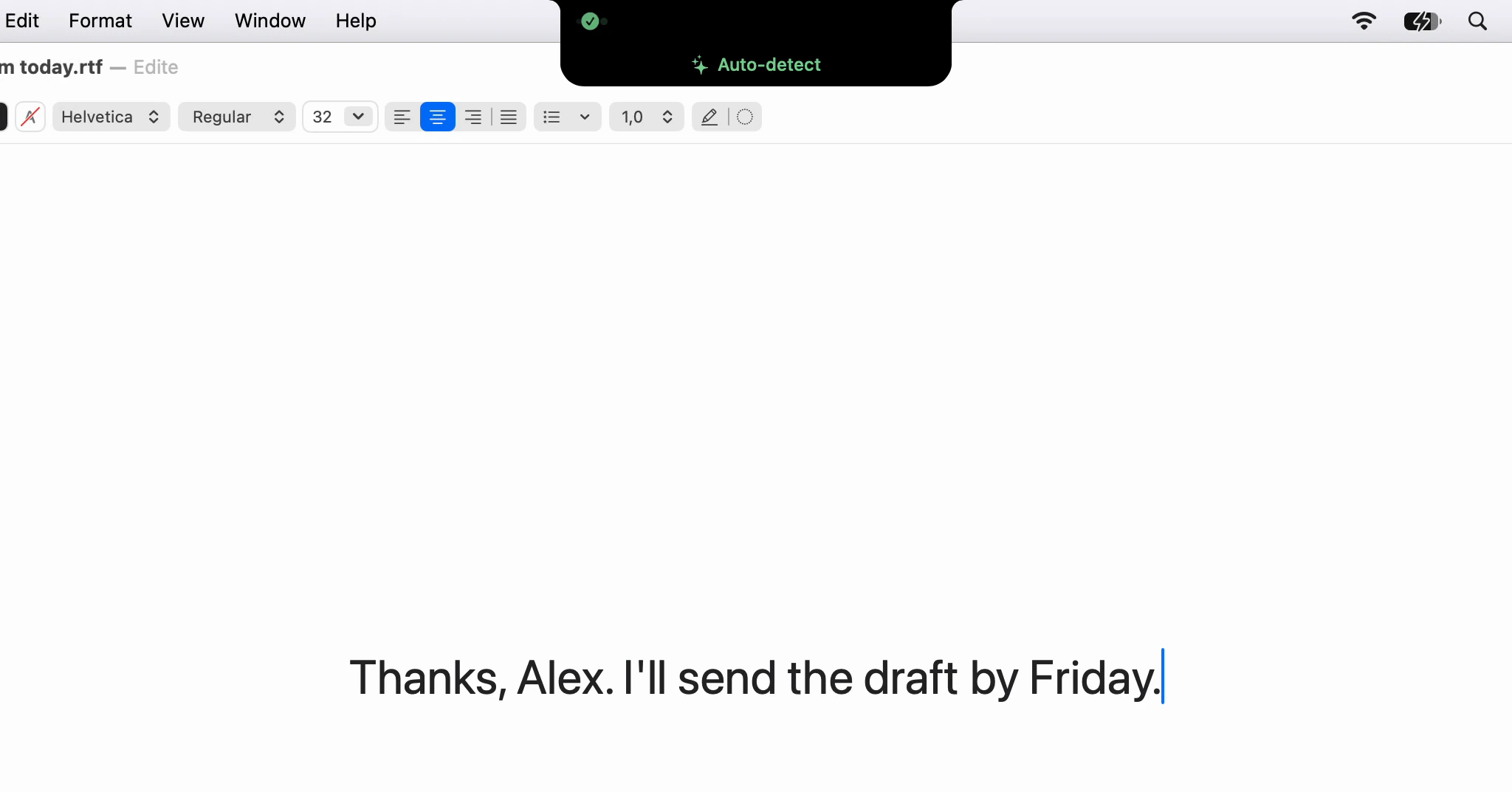
Because the app you're in has to keep it. If the notch became the active window, the focus would move out of the field your next dictation should land in. So its window can never become active, and a click on it leaves your cursor where it was.
Two pages do need typing: Chat and Meetings. They're windows of their own, laid exactly over the notch, and they take the keys only when you click into a field or, for Chat, press Ask Dictera's key. They also stay out of screen sharing and recordings by apps that respect the window privacy setting in macOS, with no setting to change that. One switch, the eye in the notch, now covers what's left: whether shares see the notch and the AI Assistant's panel.
Why does the menu bar only stop things?
A second copy of every command in the menu would be a second place to look and a second place to keep up to date. So the menu keeps what the notch can't do. It has the way out that works from anywhere, full-screen apps included: Stop while a dictation runs, Unlock Keyboard while the keyboard is locked, a stop for a meeting being recorded. And it has the app itself: Open Notch for anyone who hasn't found the notch yet, the AI Assistant's panel, Settings, updates, and Welcome to Dictera…, which shows the tour again.
Why does every feature have a Home widget?
Home is the notch's front page, and we wanted anything the notch can do to be a glance away there if you want it. So every page and every tool has a widget, and a test fails if a new one arrives without one. A list of widgets kept by hand would go stale the first time a tool shipped without anyone remembering it.
Why is there no off switch?
The notch is where Dictera is used. Turning it off would leave an app with nothing to start from. What we did instead was give a setting to everything the notch does by itself: opening when you point, closing when you leave, showing over full-screen apps, and each strip and alert. For people who want the menu bar in sight, there's a second shape, the Pill, which floats just below the menu bar instead of growing out of the top edge.
The same thinking decided what happens when a trial or a subscription ends. The notch doesn't disappear, because it's where people look for Dictera, and a notch that silently stopped opening would read as a crash. It opens onto one page that says what has ended and how to put it right, and nothing you saved is touched.
What did the move cost?
Everyone who knew where things were has to learn it again, so there's a guide to where each thing went. And while it's open in the Notch shape, the notch covers the middle of the menu bar, which is what the Pill is for. The changelog lists everything that changed in this release, the map of the notch shows where it all is now, and the notch page covers each tool.