Ask a question during a live call, without leaving it
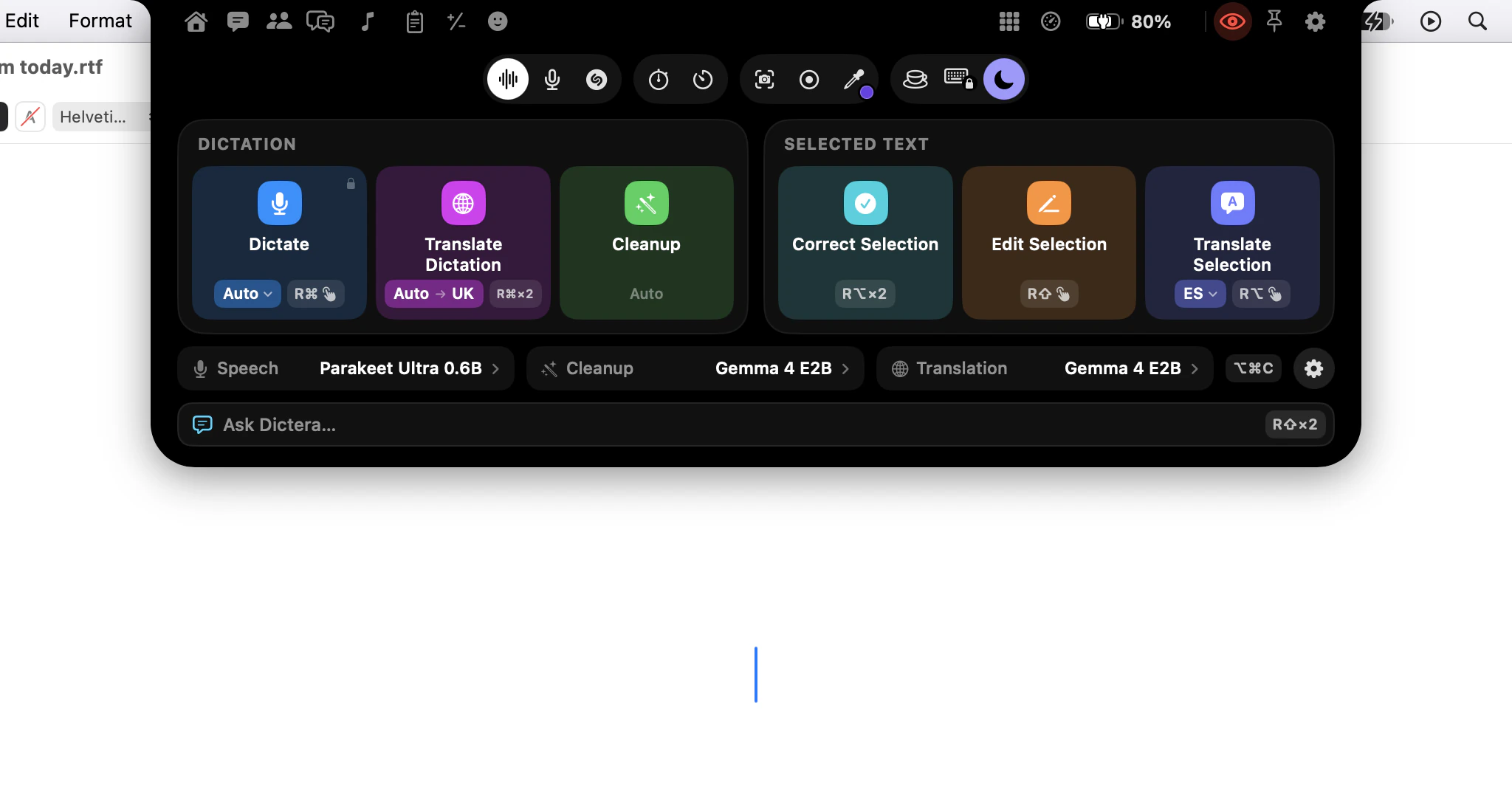
Write a template once, then before each call click the AI Assistant button in the notch, check the language and press Start listening. Press Answer when the other side asks something, or switch on Auto and answers arrive on their own. Assign ⌥⌘A and you can ask for one without touching the panel.
What should I set up before the first call?
A template, a few minutes before you need it. Without one the answers are generic; with one they are written from your side of the conversation. Click the template chip in the panel's top row; its card has Manage Templates…, which takes you to Settings ▸ AI Assistant.
- Name it for the situation it covers, like "Java interviews" or "Pricing calls".
- Pick a scenario: General help, Job interview, Work meeting, Sales call, Customer support, Exam or certification, or Presentation Q&A.
- Fill in Who you are: your role and experience. The answer is written from this background.
- Name the Other participants if you know them. Everyone on the far side shares one label in the transcript, so the names are what let the assistant tell people apart in what it writes.
- Add Extra context: the product, the prices you can quote, the topics to steer clear of. It becomes part of the assistant's instructions.
For a call that needs something only this once, use the same card: its Scenario, Who you are and Extra context shape this session and are not saved to the template. Session details…, under the ⋯ button, opens it too.
How do I start listening, step by step?
- Open the panel. Click the AI Assistant button in the notch, after Chat and Meetings, or press ⌥⌘H. The panel is Assist's own, so there is no tab to choose.
- Pick the template from the chip in the panel's top row.
- Check the language. The language chip is the language the call is transcribed and answered in. Assist does not detect a switch mid-call, so choose the one most of the call will be in. One language per meeting covers calls that move between two.
- Glance at the eye in the notch. Hidden from screen sharing is the default, and it covers the panel as well as the notch.
- Press Start listening as the call begins. The transcript builds with two labels, you and them, and your microphone starts on. Holding the AI Assistant button and choosing Assist starts listening in one move.
The first time you listen, macOS asks for System Audio permission, unless you allowed it in the welcome tour. Answer it before a real call, not during one.
How do I get an answer?
Press Answer, or ⌘↩ while the panel has focus, and a suggested answer to the latest question appears in the answer column. Click Auto in the top row and you don't do anything: when a line from the other side comes back with a question mark, an answer appears on its own. Auto starts off, because with a cloud model every automatic answer sends what was just said to that provider.
Reaching for the panel takes you out of the call window, so give the two most-used actions global shortcuts. In Settings ▸ Shortcut, under AI Assistant, switch on Answer (⌥⌘A) and Start or Stop Listening (⌥⌘L). Both are off until you do, and both then work from any app, so focus stays in the call window.
What if the question was a few minutes ago?
Hover over that line in the transcript and click the wand that appears beside it, labelled Answer this question. It works on any line, on either side, however far back. It is also the way to answer a request that ended in a full stop, like "walk me through your last project", which Auto mode does not treat as a question.
How do I make an answer usable?
Four buttons sit under every answer: Shorter, Simpler, More detail and Example. Mid-call, Shorter is usually the one you want. For anything more specific, type into Ask a follow-up… under the answer, such as "just the second option", and the answer is reworked with the transcript still in view.
If the panel is too much on a crowded screen, press ⇧⌘F while it has focus. Compact mode shrinks it to the answer alone, and it keeps its own size.
Can it answer what's on the screen?
Yes, with a model that accepts images. Press Capture front window or Capture screen in the panel, and the picture goes with your next request; ⇧⌘K takes whichever you pressed last. Dictera's own windows are left out. The front window is usually the better choice, because the model gets the same image budget for a much smaller area and can read the text in it. The first capture asks for Screen Recording permission; listening never does.
A suggested answer is a draft, written from a transcript that can mishear a name or a number. Read it before you say it. Some interviews and exams forbid outside help of any kind, and some places require everyone's consent before a call is transcribed.
What happens when the call ends?
Press Stop. The session is saved on your Mac with its transcript and answers, unless Save Assistant Sessions is off, and it is in the session list to reopen later. If you also want the call written up, hold the AI Assistant button in the notch and choose Meeting Notes while Assist is listening: the same call is transcribed into both, and the notes land on the Meetings page.
Why the panel works this way, and where it still needs you, is in getting an answer during a live call. Everything Assist can do is on the AI Assistant page, and the security page lists what leaves your Mac if you point Assist at a cloud model.