Meeting notes without a bot: your first recorded call
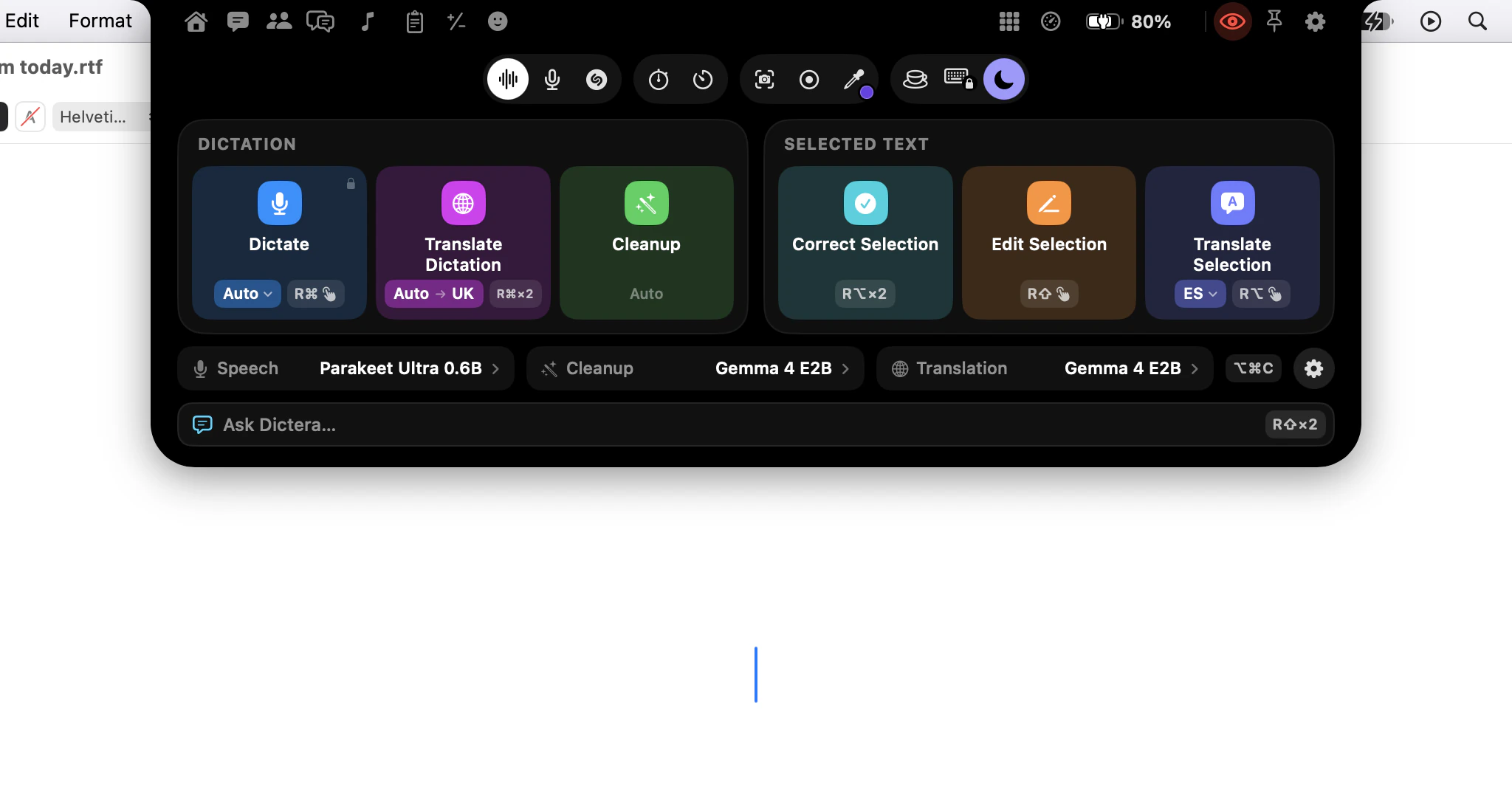
Open the Meetings page in the notch, check the language on the meeting's Setup tab, and press Record as the call begins. When it ends, press Stop, and the notes are written on your Mac. Five minutes of setup the first time, none after that.
What do I need before the call?
Nothing on the meeting's side. No invite for a bot, no integration with Zoom, Meet or Teams, and nothing for the host to approve. Dictera hears the other participants through the audio your Mac is already playing, which is explained in meeting notes without a bot in the room.
On your side, two permissions. The microphone you granted when you set up dictation. The other one, System Audio, is offered in the welcome tour and asked for again the first time you record, so do your first recording a few minutes before a real call and answer the macOS prompt when it appears. Screen Recording is not needed for meetings.
How do I record a meeting, step by step?
- Open the Meetings page. Point at the notch and click Meetings, beside Chat in its top row. The Up Next widget on Home opens it too.
- Pick the meeting. The day's meetings are listed on the left, with arrows for the previous and next day. For a call that isn't on your calendar, press the record button at the top of the list, Record a Meeting. It also has a shortcut, ⌥⇧⌘R, which is off until you switch it on in Settings ▸ Shortcut.
- Check the Setup tab. Conversation language is the language this meeting is transcribed in. Dictera doesn't detect it during the call, so pick the one most of the meeting will be held in; if people will switch, read one language per meeting first. Below it, type the other participants under Who else is in the meeting, your own role under Who you are, and a line of Background: the project, the product, the names the transcriber tends to mangle. This part is optional, but it's what lets an action item name an owner.
- Press Record as the call begins. The Transcript tab builds live, with two labels: you, and them.
- Press Stop when the call ends. The meeting's row reads "Writing the notes…", then the notes appear on the Notes tab: a summary, decisions, action items and open questions.
Is my own voice recorded?
Yes, from the first word. The microphone starts on in Meeting Notes, so what you commit to reaches the action items. The meeting shows Mic on; click it to mute yourself, and it reads Mic off. The other participants keep being transcribed either way.
If you're on loudspeakers, Dictera pauses your microphone while the other side is audible, so their words aren't transcribed twice through room echo. Headphones avoid the question entirely.
Will people on a screen share see the notes?
Not in apps that respect the window privacy setting in macOS, and that can't be changed by accident. The Meetings page is drawn in a window those apps leave out of screen sharing and recordings, whatever the eye in the notch is set to. To show the notes to the call at the end, copy them or save them as Markdown, and share that instead.
What if I wanted minutes, not notes?
Stop produces whatever the write-up button is set to, and it starts on Notes. The arrow beside it, Other write-ups, offers the other three: Full minutes, Transcript and Chapters. Choosing one writes it straight away and makes it the output for this meeting, so the next stop produces it too. To choose before the call, set Meeting output on the Setup tab. Which write-up to ask for explains what each one keeps and what it throws away.
You don't have to wait for the end, either. Press the write-up button mid-call and you get the write-up of everything so far, while the transcript keeps building.
How do I keep the notes?
They're already kept. Unless you've switched off Save Assistant Sessions, each meeting is saved on your Mac, under its day on the Meetings page and in Meeting History, and you can reopen it tomorrow and ask it a question about the meeting. To take the notes elsewhere, use Copy these notes or Save as Markdown… on the Notes tab. The file carries the date, the participants and the model that wrote it.
If something is wrong, a misheard name or a line nobody agreed to, edit the write-up by hand rather than regenerating it. The model's own version is kept, so Revert puts it back.
Recording laws vary, and some places require everyone's consent. Dictera captures the audio your Mac is already playing, but that doesn't change your obligations. Say you're taking notes at the start of the call.
What should I set up after the first one?
Two things save the most time. On the Setup tab, Save as my defaults turns this meeting's setup into the starting point for every new meeting, so a weekly call is typed once. And connecting your calendar fills the day's list, and makes the notch ask before each meeting whether to record it, with the invite filling in who was there.
Everything the assistant can write, and how long meetings are read in passes, is on the Meeting Notes page. What stays on your Mac, and what goes where if you point the notes at a cloud model, is on the security page.