Taking notes in the meetings other tools are not allowed in
The meetings that ban note-taking tools are usually objecting to three things: an extra participant on the call, the audio going to a company nobody approved, and a recording that outlives the meeting. With the built-in model and a few settings checked, Dictera avoids all three. This is that setup, what to tell whoever approves your tools, and the objections it does not answer.
What is actually being banned?
Rules against meeting tools rarely spell out their reasons, but they come back to a small set of worries. Each has a different answer, and some have none.
- A participant nobody invited. A bot in the attendee list is visible to everyone, including the client, the candidate or the opposing counsel who never agreed to it.
- A new data processor. A service that receives the audio or the transcript is a third party holding the conversation. Someone has to review it, sign for it and answer for it if it is breached.
- A recording that lasts. Audio files get forwarded, subpoenaed, and kept long after anyone remembers why.
- Something on screen. A note-taking window that shows up in a screen share puts the conversation's notes in front of everyone watching, including people who were never meant to read them.
- Any written record at all. Some conversations are meant to leave nothing behind. That is a different rule, and it is the one no tool can satisfy.
Which of those does Dictera avoid out of the box?
Nothing joins the call. Dictera hears your side through the microphone and the other participants through a Core Audio process tap: the audio your Mac is already playing to your headphones, captured as it plays. No invite, no attendee, no integration with Zoom, Meet or Teams. How that works has its own post.
The audio is never stored. It is transcribed as it arrives, on your Mac, by Apple's speech engine, and never written to disk as a recording. There is no file to forward, only the transcript and what you write from it.
There is no vendor account to approve. Dictera has no sign-up and no login, and on default settings the app talks to its licensing service, the update feed and, while a model downloads, Hugging Face. None of them receives audio or text. The notch's online features, such as the weather, lyrics or Recognize Song, ask Apple, LRCLIB or Shazam only once you give them a place, connect Music, switch them on or press them, and none of them gets anything from a meeting. What each one gets is set out in full.
And sharing your screen does not share your notes. Meeting Notes lives on the notch's Meetings page, drawn in a window that stays out of screen sharing and recordings by apps that respect the window privacy setting in macOS, whatever you choose. The notch and the Assist panel are hidden from sharing by default too.
What should I check before a sensitive call?
These are the settings that decide whether a meeting leaves your Mac, in the order worth checking them.
- Both listening modes on a local model. Each mode picks its own model, in Settings ▸ AI Assistant under Models, or where you use it: Model on a meeting's Setup tab, and the model chip in the Assist panel. Meeting Notes writes the notes, and Assist answers during the call; both read the transcript. On the built-in model, or on a server running on this Mac at
localhost, it stays here. On a cloud provider, or a server elsewhere on your network, the transcript goes to it on every pass. - No screenshots, unless the model is local. The capture button needs a model that reads images, which the built-in one does not. A vision model on a local server keeps the picture on the Mac; a cloud one receives it with the next question. For this kind of meeting, the simplest rule is not to press it.
- Decide whether anything should be written. Save Assistant Sessions, in the same settings pane, keeps transcripts and notes in your Application Support folder. Switch it off and a new session is never written to disk, so save the notes to a Markdown file before you close it. Leave it on, and you can save them the same way and delete the session when you are done, or let Keep Sessions For clear sessions you have not used for 30 days, 90 days or a year.
- Glance at the eye. The Meetings page stays out of shares either way. The eye covers the notch and the Assist panel; both are hidden by default, and one click undoes that, so check it before you share. It also decides one thing about meetings: in the last five minutes before one, the notch counts down to it, and pointing at the countdown shows the meeting's title. With the eye set to visible, that title can reach a share; Count Down to the Next Meeting, in Settings ▸ Notch, switches it off.
- Mind the calendar. If you connected it, attendee names from the invite become part of the meeting setup. Send attendee names to remote engines, in Settings ▸ Calendar, decides whether they may go to a remote model with the transcript. It starts off, so they only ever reach the built-in model; leave it that way. A question about recording that nobody answers records nothing. For a series that should never be recorded, press Skip twice and Dictera stops asking; Individual meetings, in the same pane, can set it to Do nothing.
- Try it once with the Wi-Fi off. Once your models are downloaded, transcription and on-device notes keep working offline. A rehearsal call with the network off is the quickest proof that nothing in your setup depends on a server.
What do I tell the person who approves my tools?
Send them the security page. It is written to be forwarded, and it answers the questions a reviewer asks in the order they ask them: every host the app can contact and what each one receives, every file it writes and where, which permissions it needs and why.
The points that usually settle it for a meeting are these. Meetings need microphone and audio-recording access, and not Screen Recording. The app contains no analytics or crash-reporting code, so there is nothing to disable. There is no Dictera account, so there is no server-side copy of anyone's meetings for us to hand over or lose. And none of it has to be taken on trust: a firewall such as Little Snitch or LuLu, or lsof -i -P | grep -i dictera in Terminal during a call, shows what the app connects to.
Be as specific about what it does not do. Saved sessions are plain files, not encrypted at rest beyond what FileVault provides. The app is signed and notarized by Apple, but not sandboxed, because dictation needs to type into other apps. If a reviewer's concern is data sitting on laptops, the answer is Save Assistant Sessions switched off, and the security page says as much.
What does this not solve?
Consent. Capturing audio your Mac is already playing does not change what you owe the people on the call. Recording laws differ between places, and some require everyone to agree. Tell people you are taking notes, the way you would have to announce a bot, and check what applies where each of you is. A tool that nobody can see makes that your job rather than the participant list's.
A rule against any record. If a conversation is meant to leave nothing written down, a local transcript is still a transcript, and notes you export are a document like any other. Switching session history off keeps nothing on disk, but the point of taking notes is usually to keep them. Where the rule is about the record rather than the vendor, the honest answer is no notes, whatever the tool.
Your organisation's own policy. Some policies ban every tool that has not been through review, however it works. Dictera does not get around that; the security page is there to make the review short.
Meetings you are not in. Dictera records on your Mac, so you have to be on the call. If the appeal of a bot was that it went in your place, this does something else.
And the limits every meeting has apply here too. The transcript has two labels, you and them, because everyone else arrives on one audio channel; names come from the participants you list or the calendar invite. Each session runs in one language you choose. The notes are written when you press Stop, not live.
What does it look like on the day?
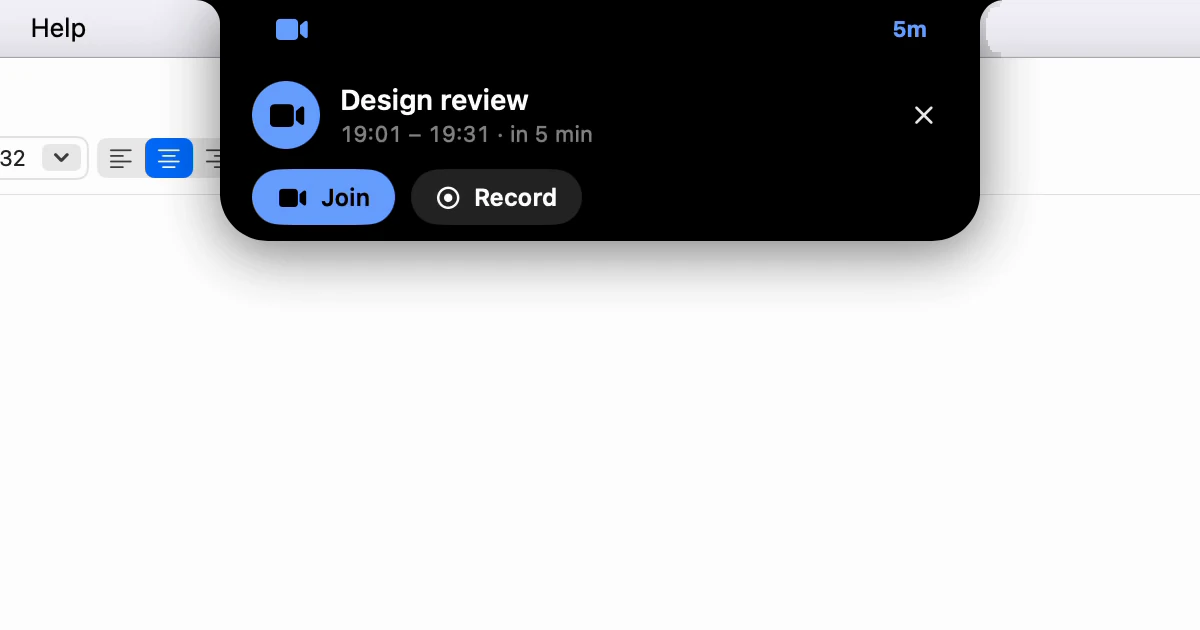
Before the call, open the Meetings page in the notch and glance at two things on the meeting's Setup tab: Model is the built-in one, and the people and background are right. That page stays out of the share. Say at the start that you are taking notes. Press Record as the conversation begins, check that Mic is on if your side belongs in the notes, and press Stop when it ends; the notes are written on the Mac a moment later, with decisions, action items and open questions. Save them as Markdown if you need them elsewhere, and delete the session if you do not need it kept.
Everything the write-up can contain, and the four kinds you can ask for, is on the Meeting Notes page. The rest of the assistant, including what each mode sends where, is on the AI Assistant page.