Meeting notes without a bot in the room
Most note-taking tools join your call as a guest, sit in the participant list, and send the audio to a server to be transcribed. That is the part many meetings cannot allow. Dictera hears the call from your Mac instead, writes the notes on your Mac, and nothing joins anything.

What a bot costs
A meeting bot is a participant. It needs an invite or a link, it appears in the list with a name like "Notetaker", and everyone on the call can see it. Some tools announce it out loud. On an internal standup nobody minds. On a client call, somebody asks what it is, and the answer, that the audio of this conversation is being sent to a company none of them have heard of, tends to end the recording.
Then there are the meetings where the question never gets asked because the answer is already no: anything under an NDA, an HR conversation, a legal call, a customer's confidential roadmap, a hospital, a bank. These are the meetings people most need notes from and the ones a bot is least welcome in. A vendor that processes the audio is a data processor, someone has to approve it, and usually nobody does.
How Dictera hears the call instead
Two audio streams, both already on your Mac. Your microphone carries your side, and it is on from the first word, with one click to mute yourself when you would rather not be in the transcript. The other participants arrive through a Core Audio process tap: the same audio your Mac is already playing to your speakers or headphones, captured as it is played. Nothing is injected into the call, no invite is sent, no extra participant appears, and the call keeps playing normally.
Because it is the audio your Mac plays, it works with whatever is playing it: Zoom, Meet, Teams, FaceTime, a call in a browser tab. There is no integration to set up and no permission to ask of the meeting host. Meetings do not need the Screen Recording permission either. Microphone and audio-recording access are all it takes.
One detail that matters on loudspeakers: the other side would otherwise be transcribed twice, once from the call and once as room echo through your microphone. Dictera pauses the mic while the other participants are audible, and stands down when you are on headphones.
What comes out
While the call runs, the transcript builds live, each line stamped with the time it was said, in two labels: you, and them. Everyone else shares one audio channel, so the transcript cannot tell their voices apart, and Dictera does not pretend to. Names come from the people you list on the meeting's Setup tab, or from the calendar invite, and are used only where the meeting itself makes clear who is speaking.
When you press Stop, or whenever you press the write-up button on the Meetings page, which is labelled with what it writes, the write-up is produced. Four kinds, from the same recording:
- Notes. Summary, decisions, action items with owners, open questions. Written automatically on Stop.
- Full minutes. The whole meeting in order, at roughly a third of the length. Not a summary.
- Transcript. The actual words, cleaned of mis-hearings and disfluencies, in the language they were spoken.
- Chapters. What was discussed when, with times taken from the transcript.
Pick which one this meeting is for, and Stop produces it; the other three stay one click away, under Other write-ups beside the button. The notes take the shape of the session, so a lecture is not forced into "decisions" it never made, and where a section is empty it says "None." rather than disappearing. An action item whose owner the meeting never established is written as Unassigned, not guessed. Everything exports to Markdown with the date, the participants and the model that wrote it, and you can ask questions about the meeting afterwards and get the passage that answers them.
What stays on the Mac
With the built-in model, all of it. Transcription is Apple's on-device speech engine and the notes are written by a local model, so a meeting can be recorded, transcribed and written up with the Wi-Fi off. The audio itself is never written to disk. There is no recording to play back, only the transcript and what you generate from it. Sessions live in your Application Support folder and, by default, stay there until you delete them. Keep Sessions For, in Settings ▸ AI Assistant, can instead clear a session once it has gone unused for 30 days, 90 days or a year, and you can delete any of them yourself, or switch off Save Assistant Sessions so that nothing is written at all.
If you point Meeting Notes at a cloud provider instead, because you want a bigger model, the transcript goes to that provider on each pass, and the app tells you so before you switch. The security page lists every host the app can contact, and how to verify the list yourself with a firewall or one Terminal command.
What it does not do
- It does not tell voices apart. Two labels, and names only where the meeting makes them clear.
- It does not write the notes live. The transcript is live; the notes are written on Stop, or when you ask. There is a reason for that.
- It does not detect the language mid-call. Each session runs in one language you choose, so a multilingual call needs a minute of preparation.
- It does not keep the audio. Timestamps point at a moment, not a recording.
- It does not attend meetings for you. It records on your Mac, so you have to be on the call. If you wanted a bot because you were not going to be there, this is not a replacement.
The consent question does not go away
Recording laws vary, and some places require everyone's consent. Dictera captures audio your Mac is already playing, but that changes nothing about your obligations. Tell people you are taking notes, the way you would announce a bot, and check what applies where you and the other participants are. It matters more if you set the calendar to Record automatically, because then the meeting opens with a recording running that you did not press Record on. On the default, which asks first, a question nobody answers records nothing. The difference is not that consent stops mattering. It is that the decision is yours to make and to announce, rather than a participant list's to reveal.
Starting one
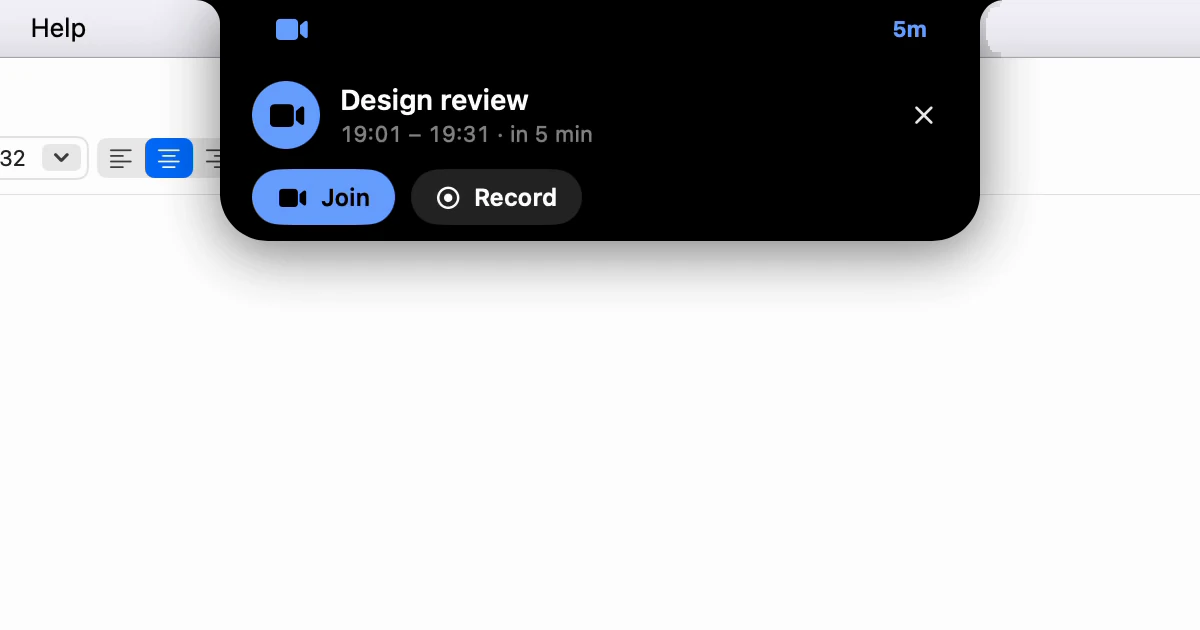
Open the Meetings page in the notch, beside Chat. Press Record as the call begins, and Stop when it ends. Or connect your calendar, read-only and from the accounts already set up in Calendar: about a minute before each meeting, a card drops out of the notch and asks whether to record it, with the call's Join button beside it. Nothing is recorded unless you press Record now, and the notes are filed under the meeting they belong to. The full walkthrough, and everything the assistant can write, is on the Meeting Notes page.