Does the notch work on an external display?
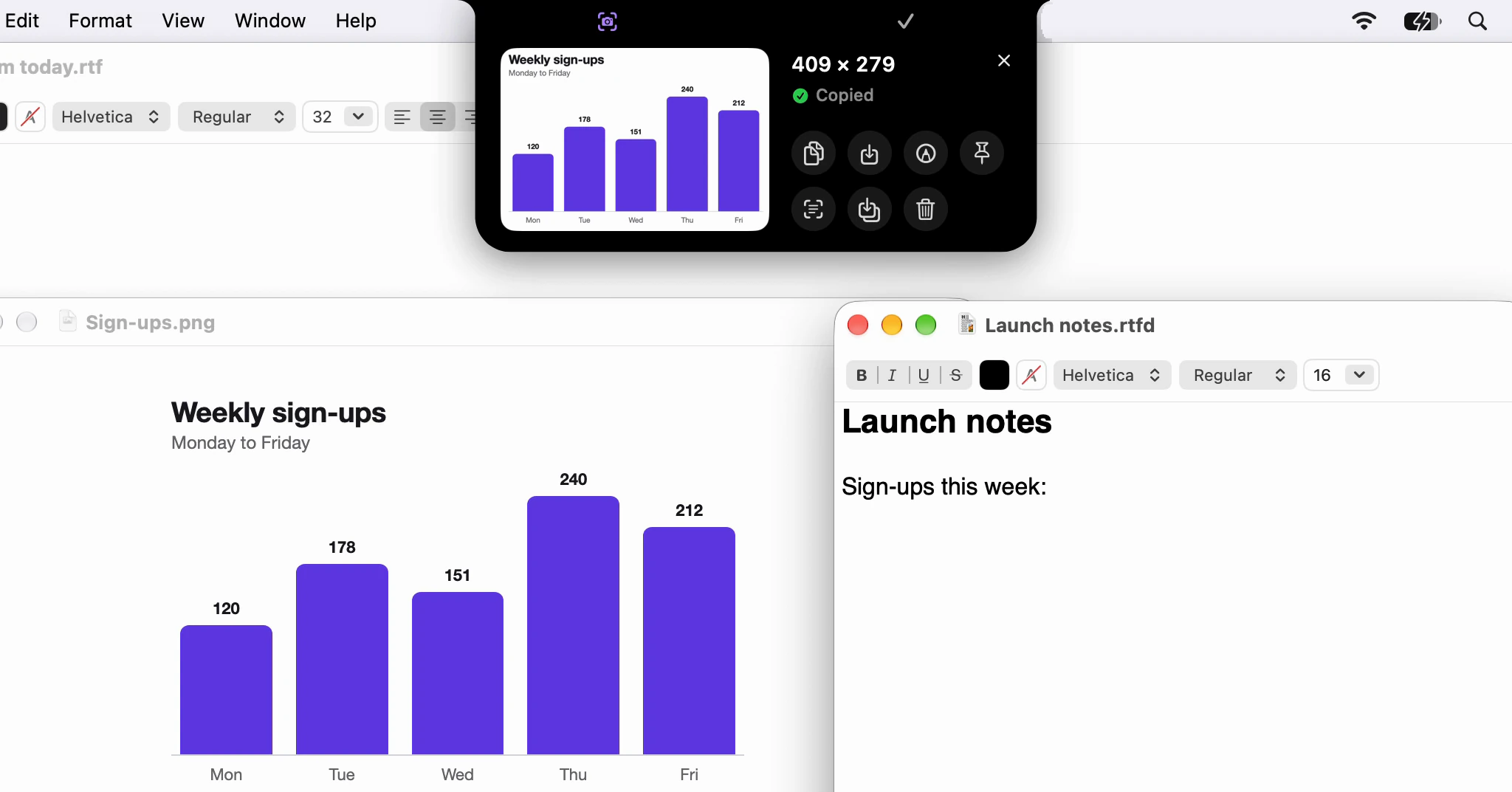
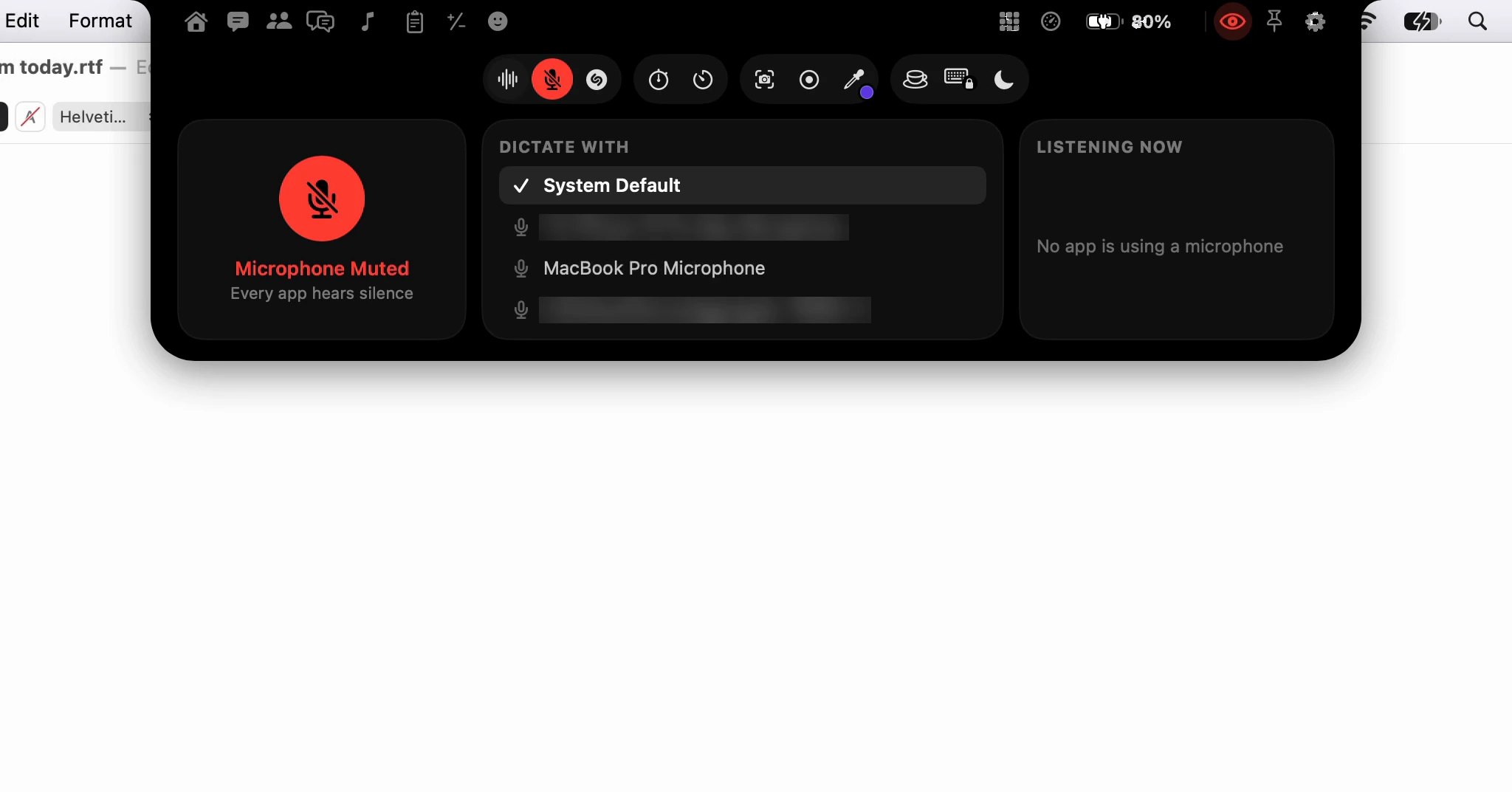
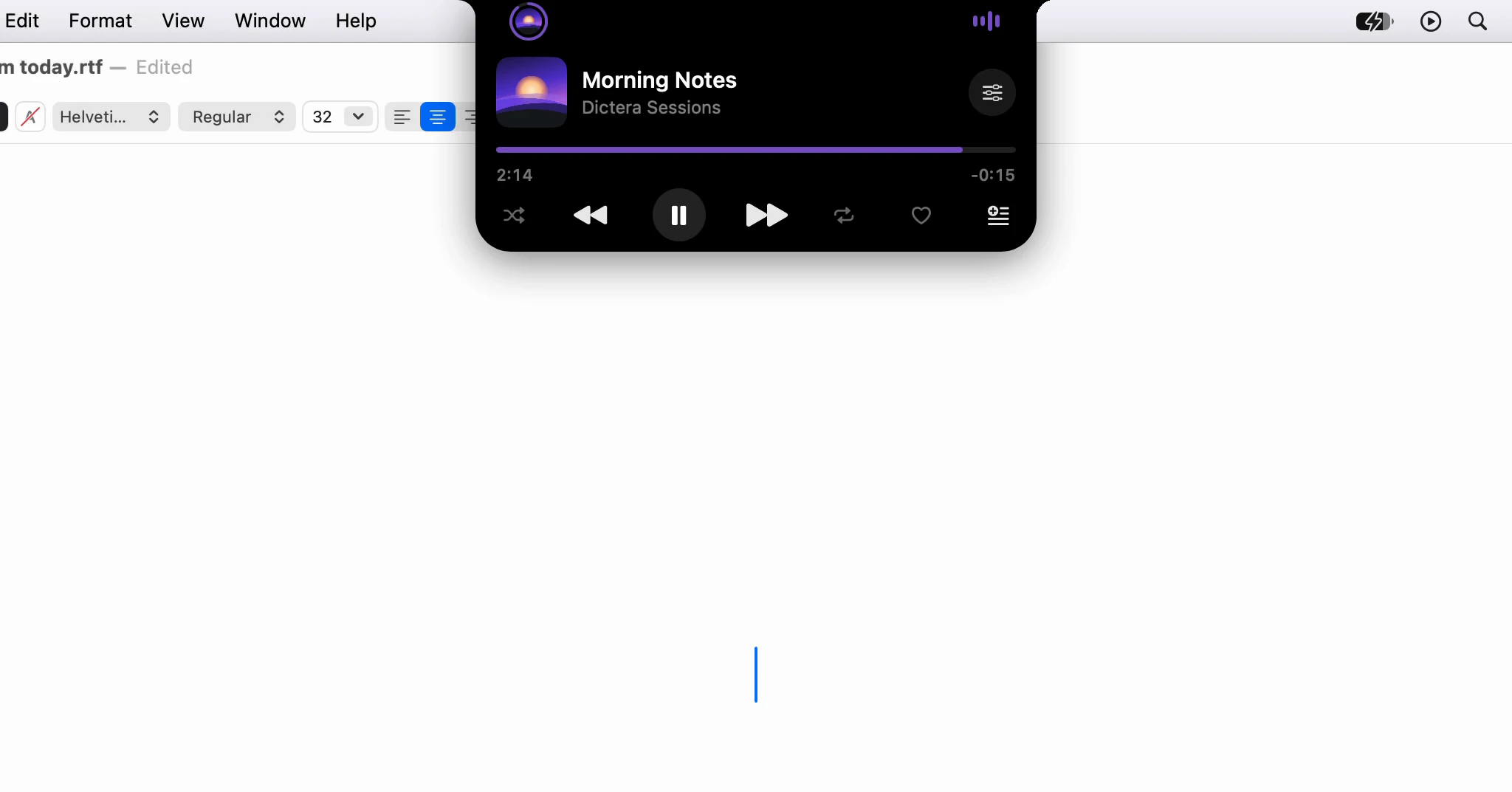
Yes. On an external display, or a Mac without a notch, Dictera draws a stand-in notch at the top of the screen. It shows the same strip and opens the same pages as the real one. If you'd rather have nothing drawn there, choose the Pill shape.
What does the stand-in look like?
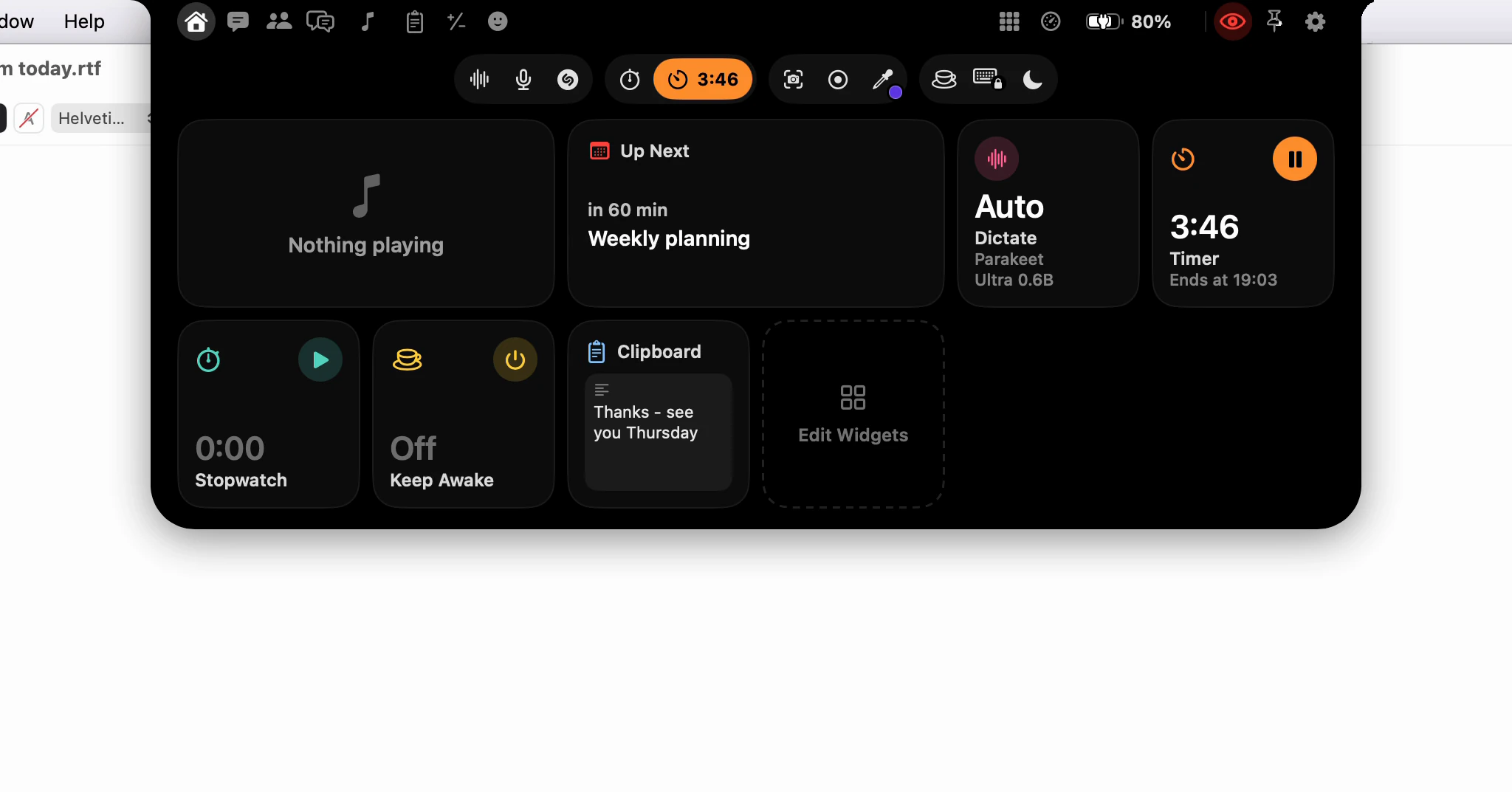
It's a black notch in the middle of the top edge, where a camera housing would be. If your Mac has a notch, the stand-in borrows its size, so the two displays match. On a Mac without one, it's drawn at a size that looks the part.
It isn't just a mark. The strip wraps around it the same way: the song playing, a running timer, the next meeting, a dictation in progress. Point at it and the notch opens right there, grown out of the stand-in.
How do I open it there?
Point at the stand-in, or push the pointer against the top edge of the screen near the middle. The band that counts is a third of the display wide, so the app menus on the left and the status items on the right stay clear. It waits a quarter of a second, a little longer than the real notch, because that edge is also the way to the menus.
⌥⌘I and Open Notch in the menu bar work on every display. The notch opens on the display you're working on and follows you from one display to the next.
Can I have no notch drawn at all?
Yes: choose Pill in Settings ▸ Notch ▸ Appearance ▸ Shape. Notch grows out of the top edge of the screen; Pill floats just below the menu bar, so the whole menu bar stays in view. In the Pill shape no stand-in is drawn, and nothing is on screen until something runs or you open it. Will the notch get in the way of what I'm doing? shows the Pill open.
There's no switch to turn the notch off itself. It's where Dictera lives, but how it opens and what it shows can all be changed.
The stand-in follows the eye, Hide from Screen Sharing, like the notch does. While the eye says hidden, or while the AI Assistant is listening, it stays out of screen sharing by apps that respect the window privacy setting in macOS.
Where can I read more?
The notch page has both shapes side by side, and What's in the notch? maps every page and button. The features page lists what else works on any display.