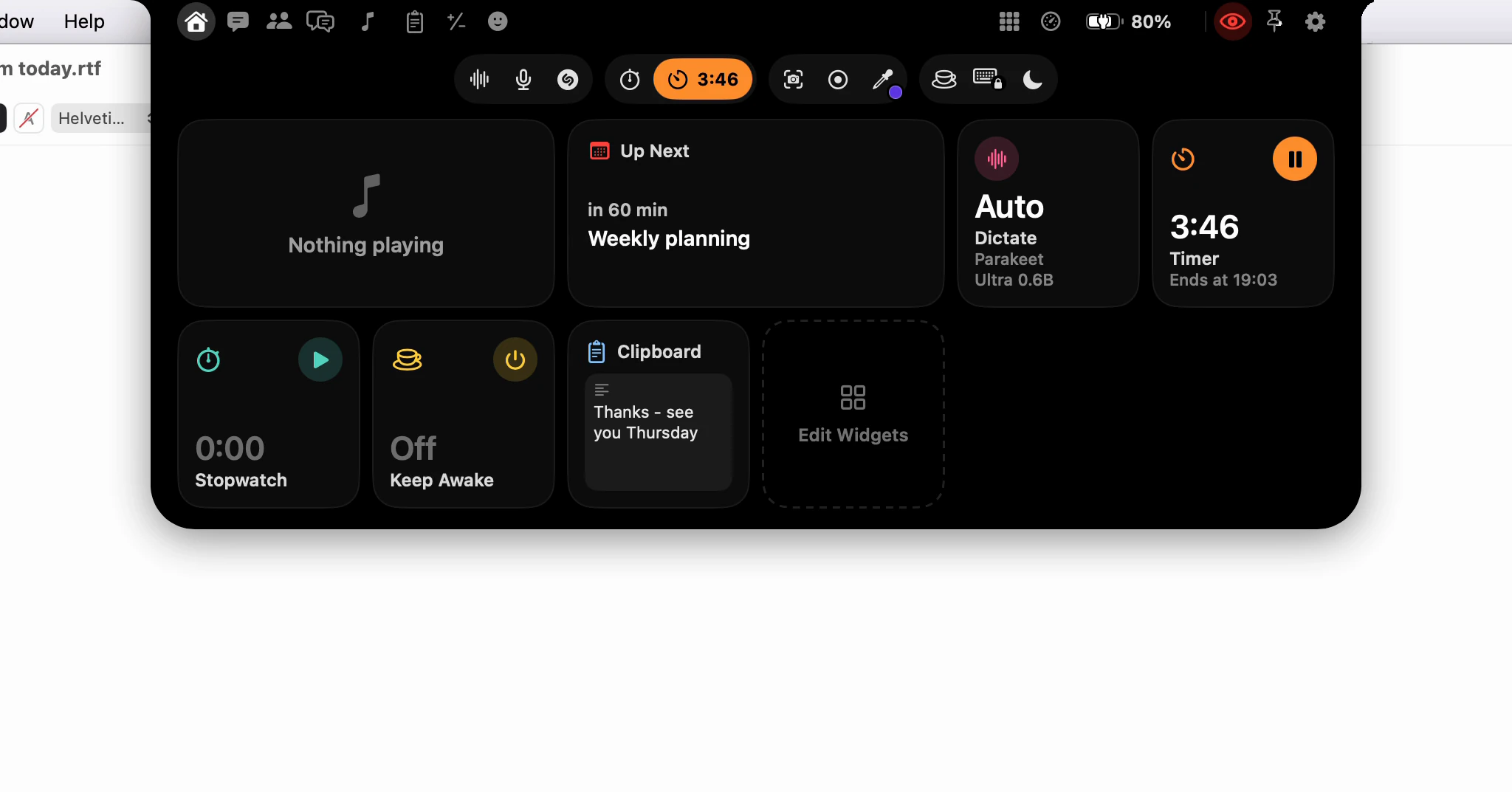
How do I make the notch's Home page show what I use?
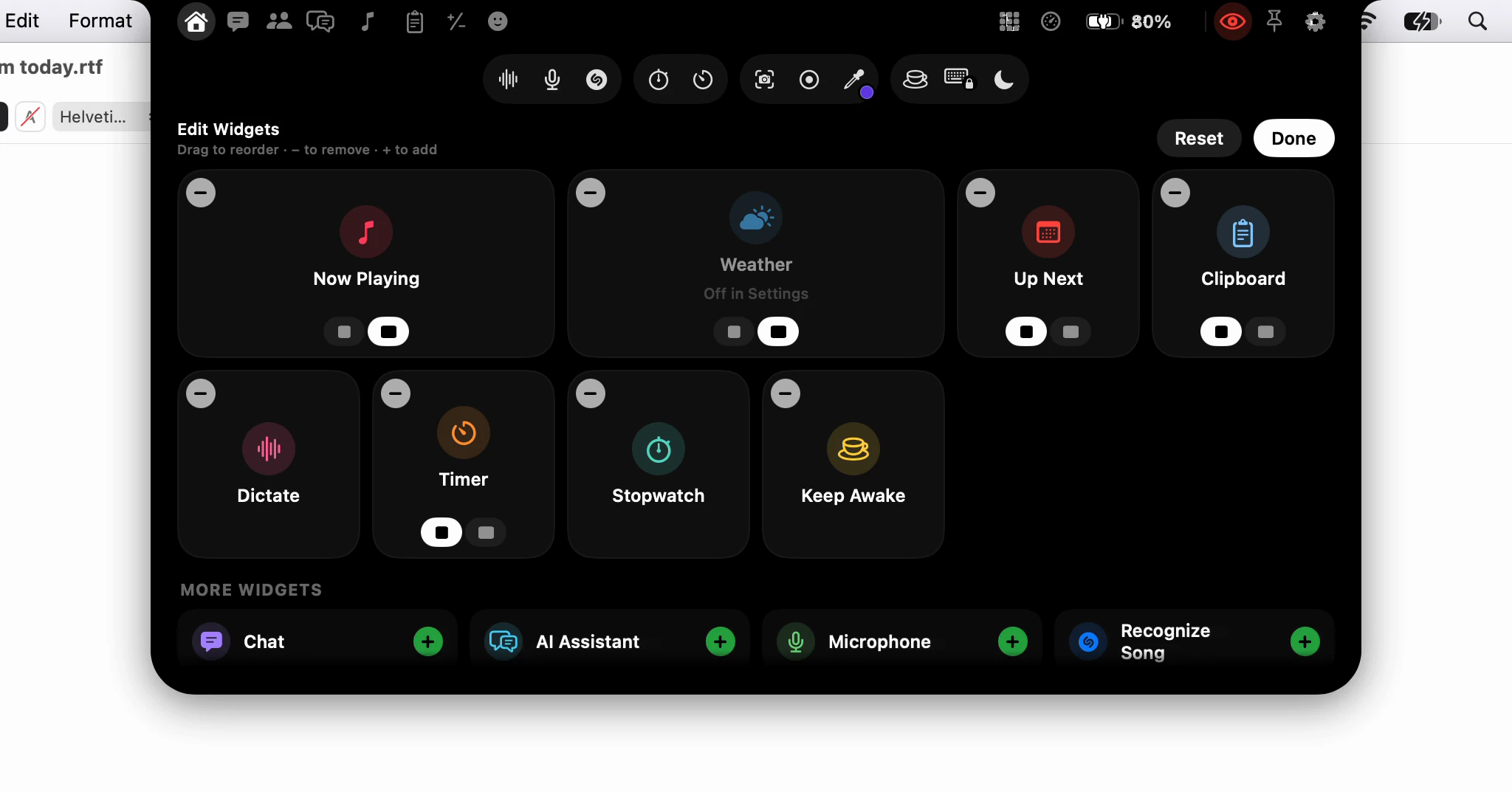
Click Edit Widgets, the last tile on Home, and the page becomes its own editor: drag a widget to move it, click − to take it off, click + to add one from the shelf, and choose Small or Medium. Click Done when it looks right.
How do I change the widgets on Home?
- Open the notch and go to Home. Click Edit Widgets, the dashed tile at the end of the page.
- Drag a widget to a new place; the others make way. Let go of it over the shelf below and it comes off the page.
- Click the − in a widget's corner to remove it, or + on a widget under More Widgets to add it. A new one goes to the end of the page.
- Click Done.
Which widgets can be bigger?
The ones with more to show come in two sizes, with a small switch under them in the editor: Now Playing, Up Next, Timer, Clipboard, Apps, Downloads, System Monitor, Displays and Battery, among others. Small takes one cell; Medium takes two side by side. The rest are Small only.
What should go first?
Home shows two rows and scrolls past that, so put what you reach for every day at the top. There are 29 widgets, one for every feature in the notch. A click on one opens its page, or does what its tool does, like starting a timer or a dictation.
A widget marked Off in Settings belongs to something switched off; turn that on in Settings first and the widget works.
Can I do it in Settings instead?
Yes. Settings ▸ Notch ▸ Home & Lock Screen lists every widget in Home's order, with a switch to show or hide it, its size, and rows you drag to reorder. A widget you hide there keeps its place for when you show it again.
How do I start over?
Click Reset in the editor, then Reset Home? to confirm, or Reset to Default in Settings. Home goes back to Now Playing, Weather, Up Next, Dictate, Timer, Stopwatch, Keep Awake and Clipboard.
With Show Widgets on the Lock Screen on, the same widgets appear under the clock when this Mac locks, in Home's order - except the ones with private content, like Clipboard, Notifications, Downloads and Chat, and the tools that need the desktop. Those never do.
For everything else on the notch, see the notch page, the features and What's in the notch? For the Dictate widget, see Can I start dictating with a click?