How do I keep the notch out of a screen share?
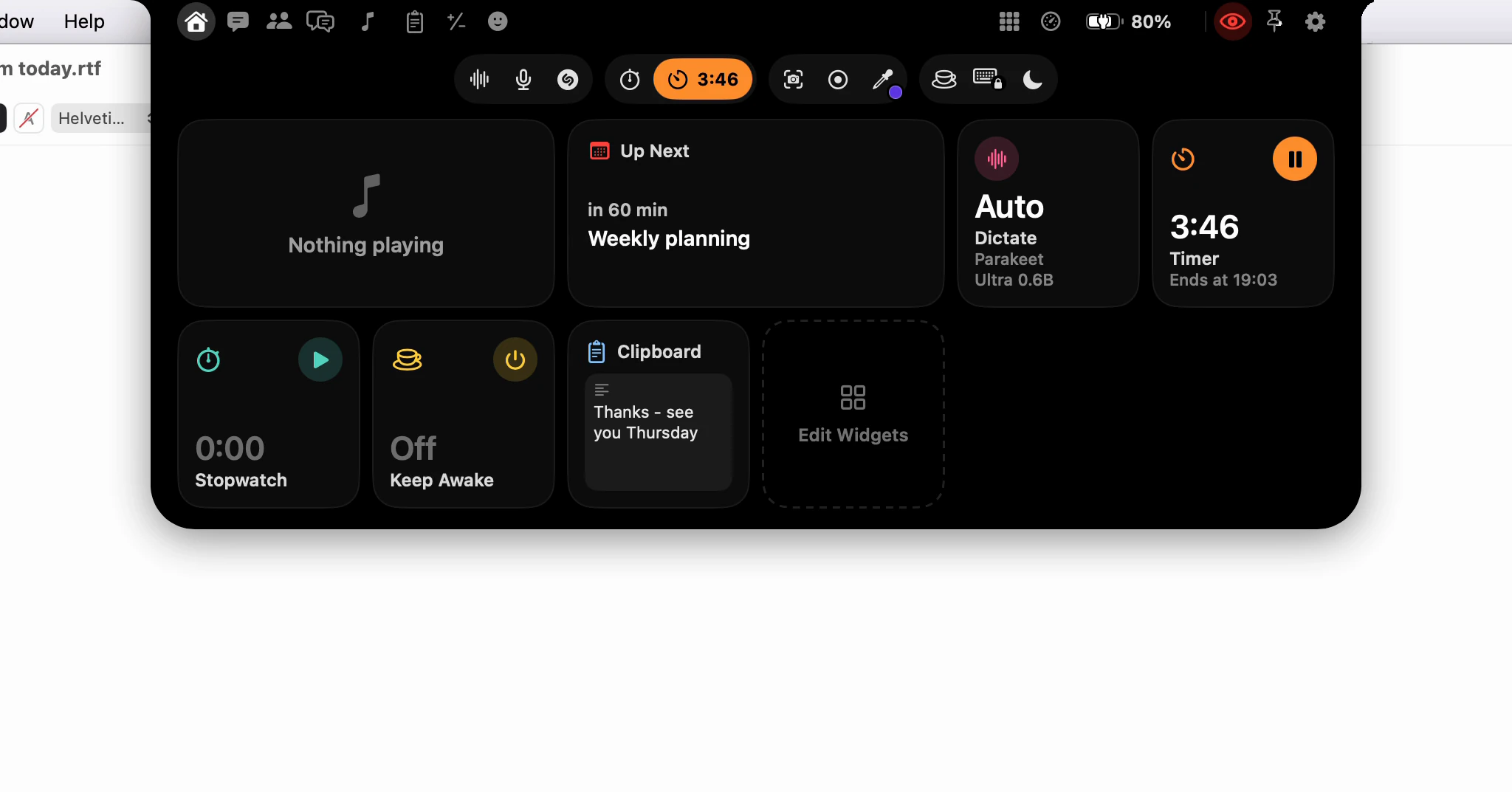
You don't have to do anything: the notch and the AI Assistant panel start hidden from screen sharing and recordings. The eye at the right end of the open notch is the one switch. Click it to let a share see them, and it turns red.
Where is the switch?
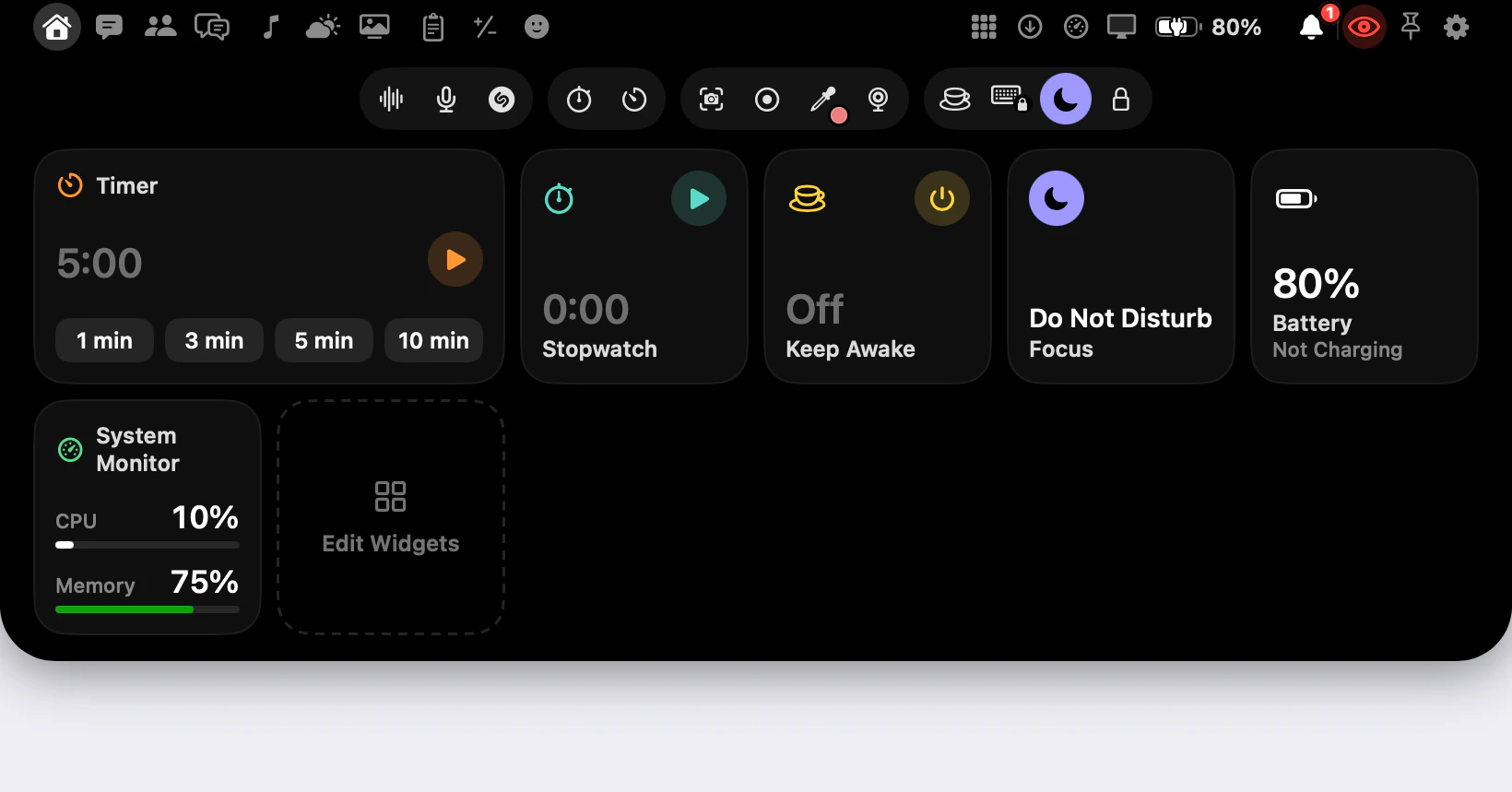
Open the notch and look along its top row, past the camera. After the pages about this Mac come three buttons: the eye, Pin and the gear. The eye is Hide from Screen Sharing.
It has no copy in Settings, so you can flip it mid-call without opening a window. Point at it and its tooltip says which way it's set. An eye with a line through it, drawn quietly like the gear, is hidden. A red eye is visible: "others can see the notch and the AI Assistant."
What does it cover?
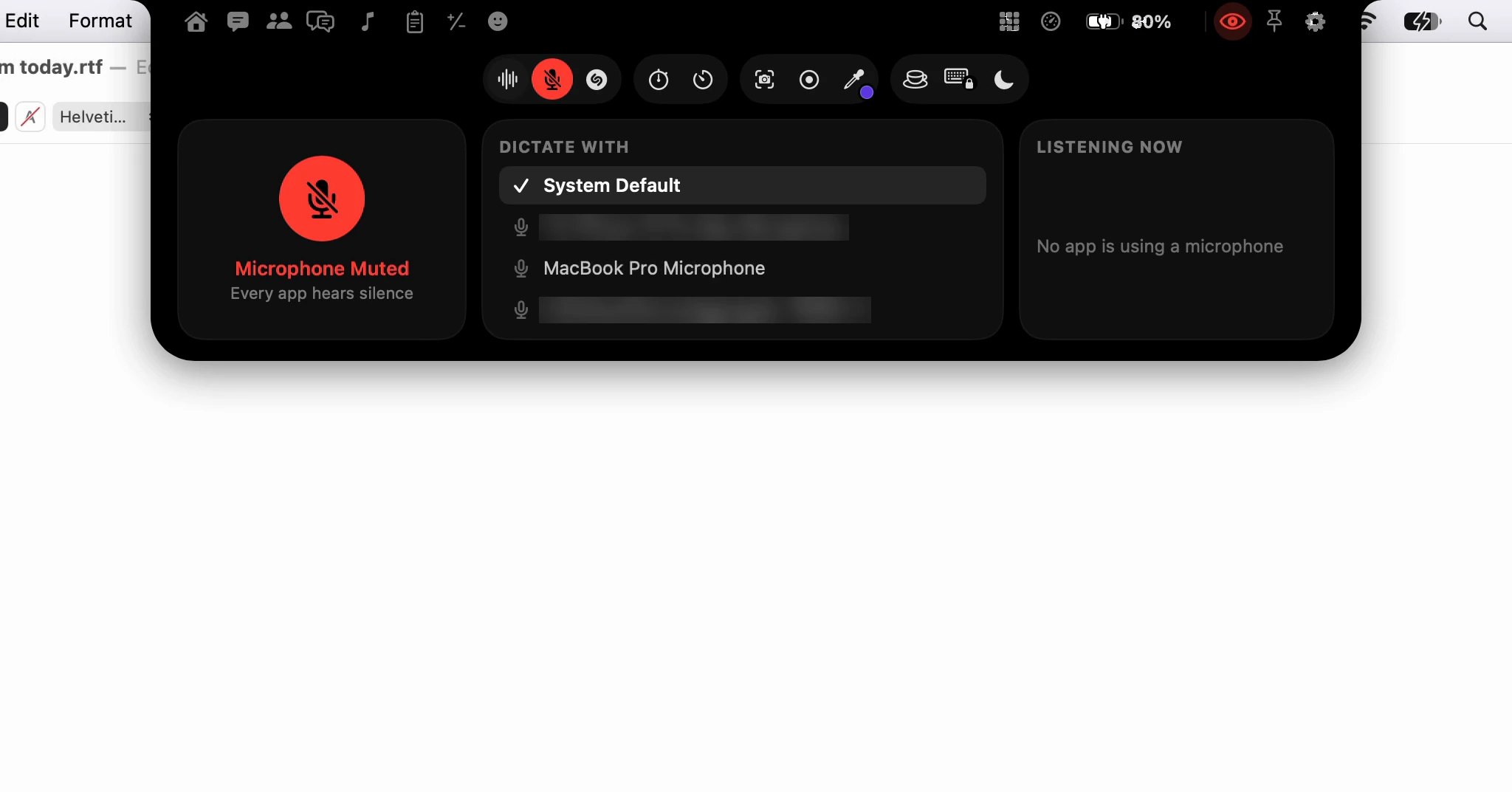
The notch, including the stand-in Dictera draws on a display without one, the AI Assistant panel and the captures opened from it, and the camera mirror, whose options say which way the eye is set. Hidden, they're kept out of screen sharing and recordings by apps that respect the window privacy setting in macOS. The security page sets out the same rules.
When would I make it visible?
When the notch is what you're showing: walking a colleague through a tool, or recording a demo. Click the eye, check your share's preview, and click it again when you're done. Dictera remembers the setting, so a notch you made visible stays visible until you click the eye again.
What stays out whatever the eye says?
Your notes and chats stay out of your screen share. Chat and the Meetings page are always left out by apps that respect the window privacy setting in macOS, and a share sees at most an empty frame where they are.
The notch also steps out on its own while it carries anything private: the AI Assistant listening, a question about a meeting, a notice about a recording, another app's notification, or the Notifications page. A meeting's title and the recording controls stay on your screen. Telling the people on the call that you're recording is still up to you.
When that's over, a notch you made visible rejoins the share the next time it closes, never while it's open in front of you.
Where can I read more?
The notch page covers the eye with the rest of the privacy rules. What's in the notch? maps every button around it, and Will the notch get in the way? covers full-screen apps and motion too.