Point cleanup at Ollama or LM Studio
Add your server in Settings ▸ Engine Models, check it with Test Connection, then choose it as the engine in Settings ▸ Dictation ▸ Cleanup. From then on your dictations are polished by the model you run, with the same instructions the built-in model follows. If the server is down, you get the raw transcription and a message telling you why.
Why use my own server when cleanup already works?
Most people shouldn't bother. The built-in Gemma model needs no setup, runs on your Mac and stays the default. Your own server is worth adding when you already run one for other work and would rather keep one model in memory than two, when you want to try a model other than Gemma, or when a bigger machine on your network can run something larger than your laptop comfortably can.
It doesn't change what cleanup is allowed to do. Your server gets the same short brief as the built-in model, described in how speech becomes writing: remove the fillers, fix punctuation and clear mistakes, and leave your wording alone. Requests are sent with the temperature at zero, so the same dictation gets the same edit.
How do I add Ollama or LM Studio?
- Start the server and load a model. Dictera talks to the server; it doesn't start it or download models into it.
- Open Settings ▸ Engine Models and click Add Model under Remote Models.
- Pick your server from the Provider menu. Ollama and LM Studio are two of the six presets under Local Servers. Picking one fills in the address:
http://localhoston port 11434 for Ollama, 1234 for LM Studio. - Type the model name exactly as the server lists it. Ollama starts you off with
llama3.1; replace it with the model you actually pulled. LM Studio leaves the field blank for you to fill in. Leave the API key empty; local servers don't ask for one. - Click Test Connection. "Connected" with a model count means you're done. If it says the server is reachable but your model isn't listed, the name doesn't match: copy it from the server and try again.
- Click Save. The model now shows in the Remote Models list with its address.
Any other server that speaks the OpenAI-compatible API works the same way: choose Custom and type its address and port. The features page lists every preset.
How do I make cleanup use it?
Open Settings ▸ Dictation ▸ Cleanup and choose your model from the Engine menu under Cleanup Engine. That's the only switch. Make sure Polish transcriptions is still on, and your next dictation goes through your server.
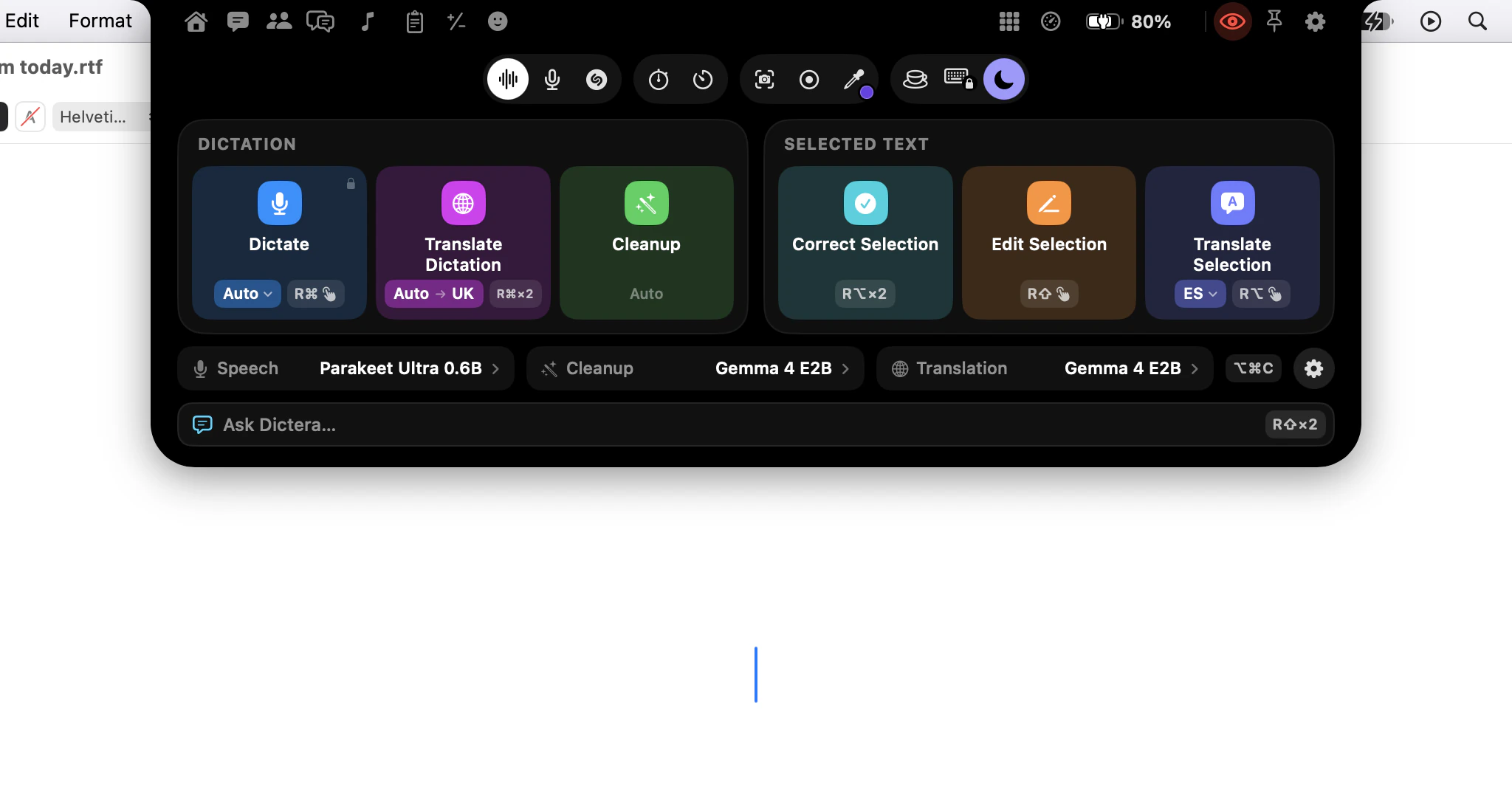
Two other features follow the same choice: Correct Selection and Edit Selection both use whatever engine Cleanup uses. Translation has its own menu in Settings ▸ Dictation ▸ Translation, so it can stay on Gemma or use a different server. To switch mid-task without opening Settings, Quick Controls, a page of the notch, shows the model behind Cleanup under its tiles and opens the list from there.
Which model should I load?
A small, fast instruction-following model. Cleanup runs after every dictation, before the text is pasted, so the time your server takes shows up as a pause each time you stop talking. Copy-editing a paragraph doesn't need a large model, and a few billion parameters usually do the job.
Avoid reasoning models for this. Dictera removes their thinking from the reply, but you still wait while the model thinks, and a model that thinks until it runs out of room returns nothing. When that happens, Dictera tells you so rather than blaming the connection.
Whichever you pick, check that it covers the languages you dictate in. The built-in model covers 140+; a model you choose yourself may cover far fewer, and cleanup is only as good in a language as the model is.
What happens if the server isn't running?
You still get your text. If Dictera can't reach the server, or the server doesn't answer within about 30 seconds, the raw transcription is pasted as it came from the speech model, and a status message says what went wrong: the server can't be reached, it took too long, or the model isn't loaded. Nothing you said is lost, and nothing fails silently.
The same safety net applies when the server answers badly. If the reply is far longer or far shorter than what you said, or comes back in a different writing system, it reads as an answer or a translation rather than an edit, so it's dropped and your original transcription is kept. Each request carries up to 4,000 characters of dictation, the same limit as the built-in model.
Remote Models is marked Beta in Settings. It works, but the range of servers and models it meets is wide, so if one misbehaves, write to info@dictera.app and say which server and model you were using.
Does my text stay on my Mac?
If the server runs on your Mac, yes. With the address left at localhost, your dictation goes from one app on your Mac to another and never touches the network. A server on another machine means your text crosses your network to get there, and the Add Model sheet warns you about that before you save. If the address is plain http to another machine, the warning also says the text travels unencrypted. The security page lists everything the app can send, and where.